You are currently viewing documentation for CompuTec ProcessForce 3.0, which is a plugin installed and managed through CompuTec AppEngine 3.0, built on .NET 8. If you are working with older environments, you may need the documentation for CompuTec ProcessForce 2.0: https://learn.computec.one/docs/processforce/2.0/.
Please note that CompuTec ProcessForce 2.0 will be supported only until December 31, 2026. After this date, the product will no longer receive regular support or maintenance updates. Read more
CompuTec AppEngine 3.0 introduces a new architecture, and all CompuTec components, including the CompuTec ProcessForce 3.0 plugin, must be updated together to ensure full compatibility.
Before starting your installation or upgrade process, we strongly recommend reviewing the CompuTec AppEngine 3.0 and CompuTec ProcessForce 3.0 documentation.
MRP Related Configuration
SAP Business One provides robust Material Requirements Planning (MRP) functionality to streamline manufacturing and supply chain processes. Proper configuration ensures seamless synchronization between CompuTec ProcessForce and SAP Business One, allowing businesses to optimize inventory management, production planning, and order fulfillment.
This guide displays options relevant to SAP Business One's MRP functionality.
Configuration
Configuration Fields
To ensure accurate MRP execution in SAP Business One, consider the following configuration steps:
-
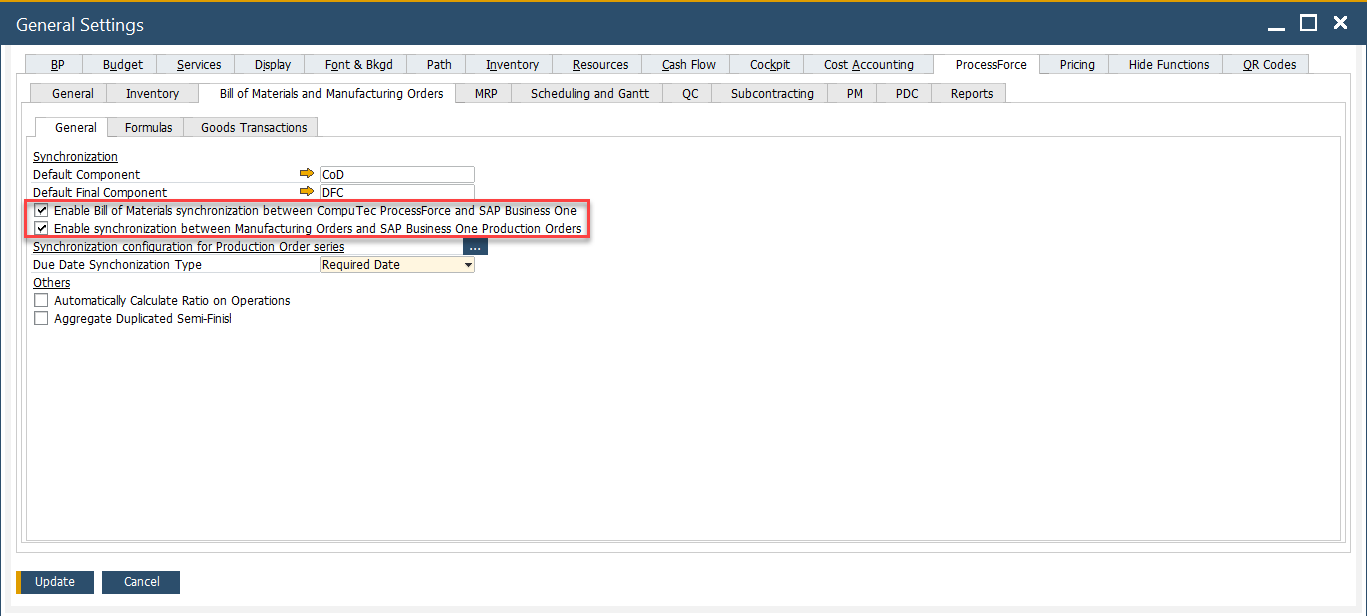
Verify that synchronization between the CompuTec ProcessForce Bill of Material (BOM) and Manufacturing Orders with SAP Business One is enabled.
-
If the synchronization checkbox is left unchecked, BOMs created in CompuTec ProcessForce will not sync with SAP Business One.
-
To trigger synchronization, make any change to the CompuTec ProcessForce BOM and click Update. This action will automatically push the data to SAP Business One.
-
Even if your manufacturing process does not involve coproducts, it's still advisable to review the Coproducts configuration section.
-
Enabling synchronization ensures that supply and demand data from ProcessForce Manufacturing Orders is reflected in SAP Business One, including: Item Master Data → Inventory Tab: Committed and Ordered fields
- Forecasts
- MRP Wizard
- Order Recommendations
- Available to Promise (ATP)
- BOM Relationship Maps
Documents Series
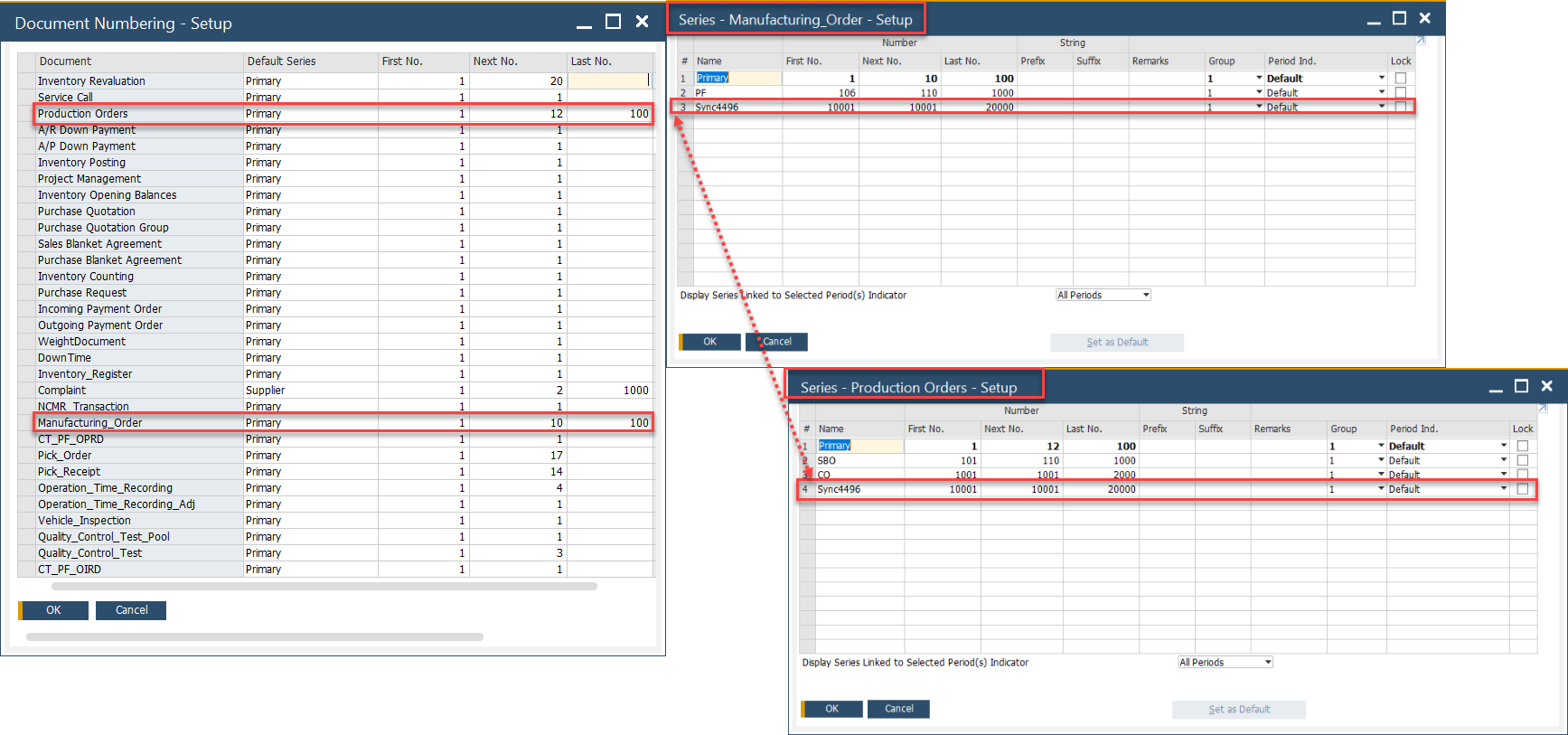
Make sure the SAP Production Order and the CompuTec ProcessForce Manufacturing Order use the same starting and ending document number range to enable proper synchronization.
Example
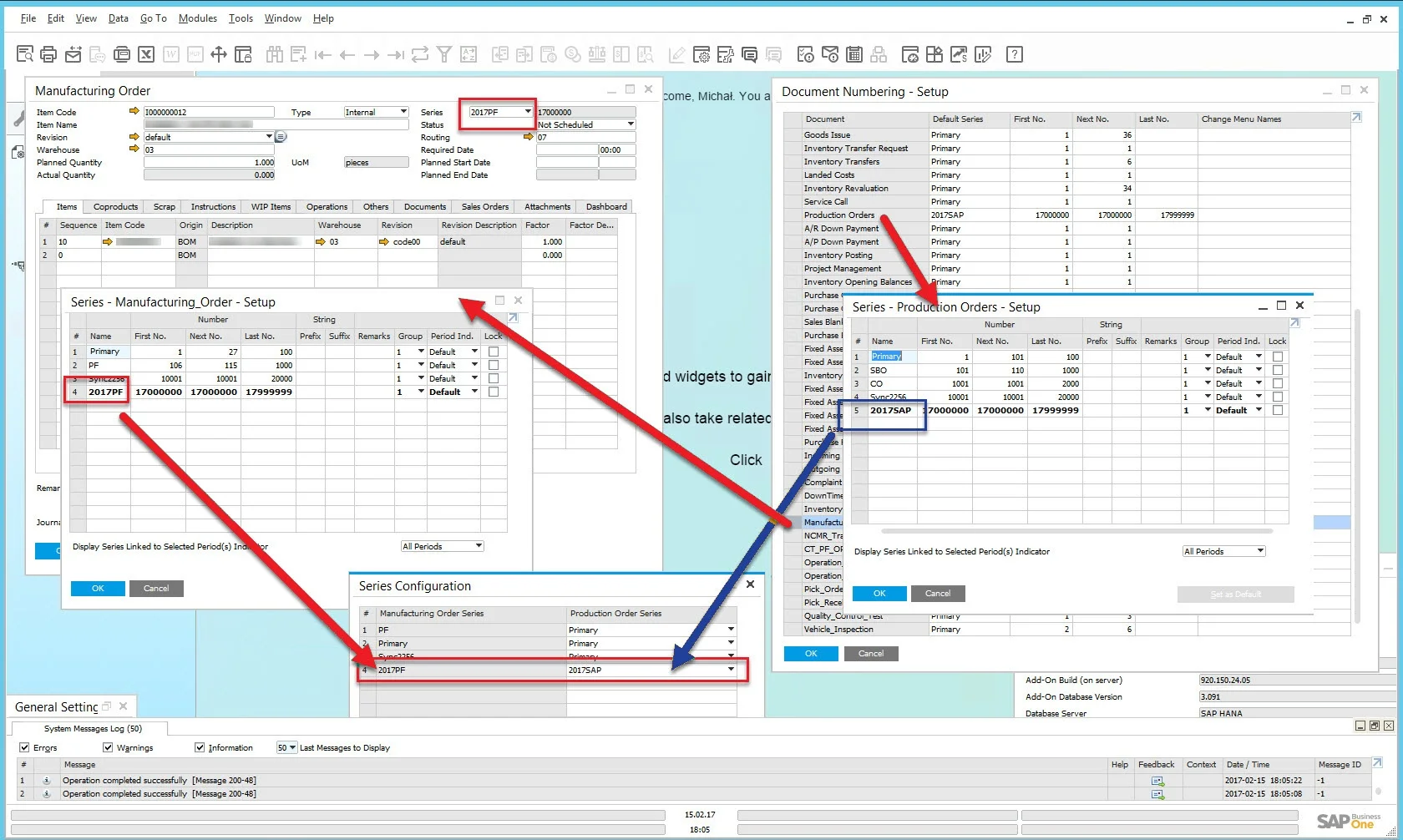
The screenshot below illustrates an example of Manufacturing Order - Production Order series synchronization:
- 2017PF series (Manufacturing Order series) is synchronized with 2017SAP series (Production Order series).
Transactions
- When entering a Manufacturing Order, please ensure that you use the correct document series.
- To reduce the error of entering the wrong value, assign the document series to the user.

Coproducts
For businesses that manufacture Coproducts, completing this configuration is essential for CompuTec ProcessForce to integrate with SAP Business One MRP functions.
SAP Business One does not inherently support Coproducts within its Bill of Material (BOM) functionality. To address this, during the synchronization of the Bill of Manufacturing and Manufacturing Order, a dummy BOM is created. In this setup:
- The Coproduct serves as the parent item.
- The Default Component, as defined in this configuration, is set as the component item.
Refer to the next section for detailed instructions on configuring the Default Component.
Default Component
A Default Component should be configured with the following settings:
-
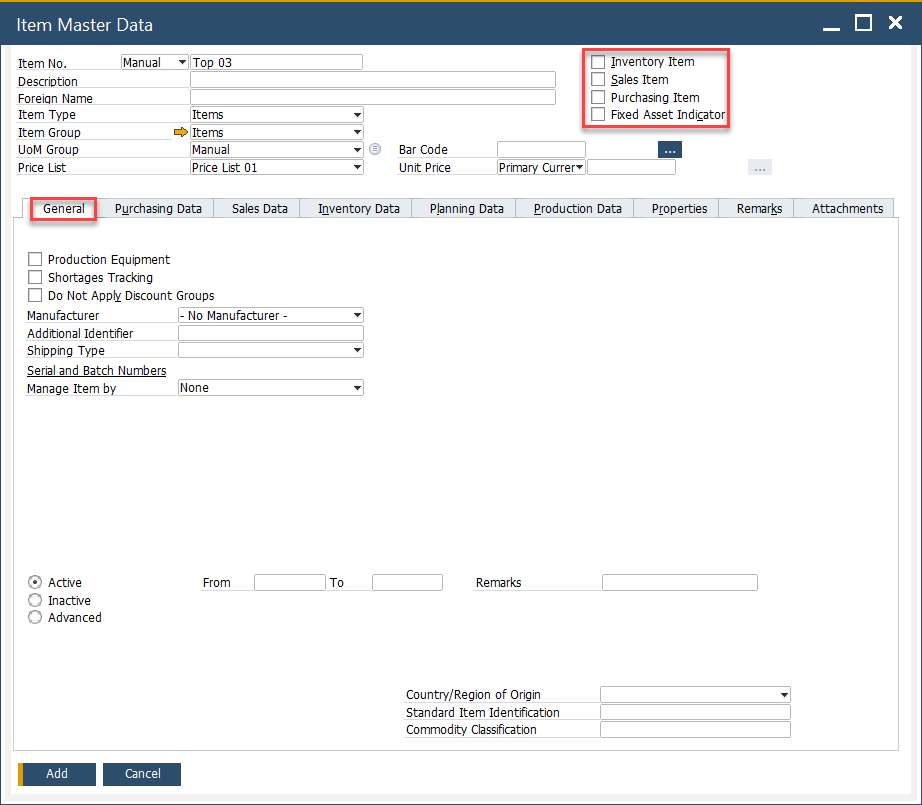
Item Master Data Header: ensure that Sales Item, Inventory Item, Purchase Item, and Fixed Asset Item are all "unchecked".
-
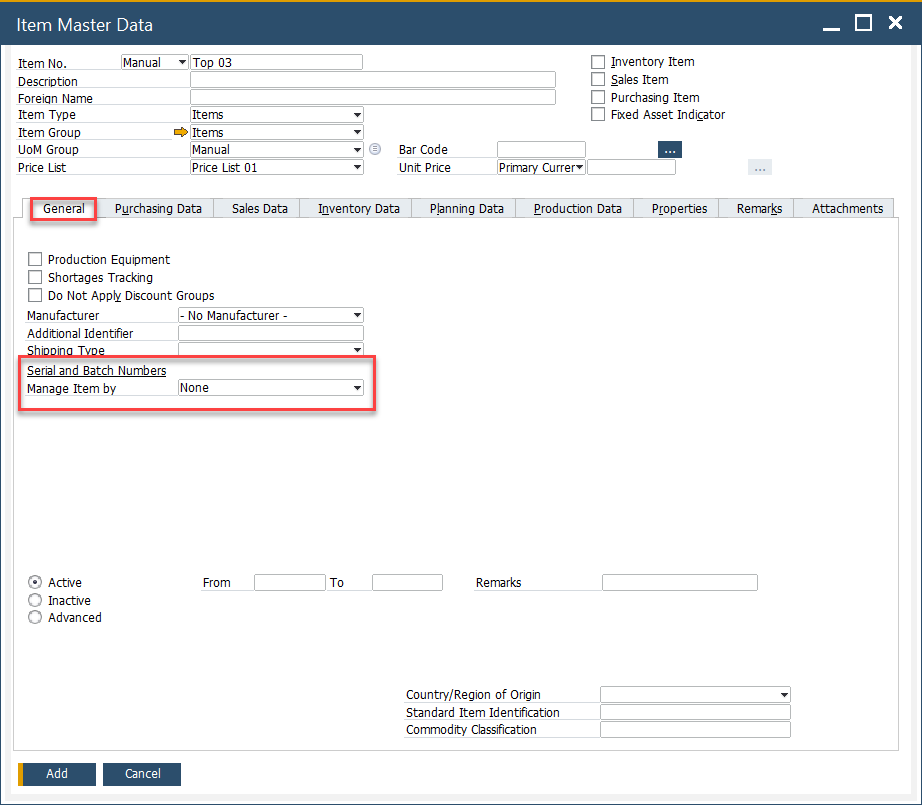
Item Master Data → General Tab – Serial and Batch numbers, manage by item set to "None".
-
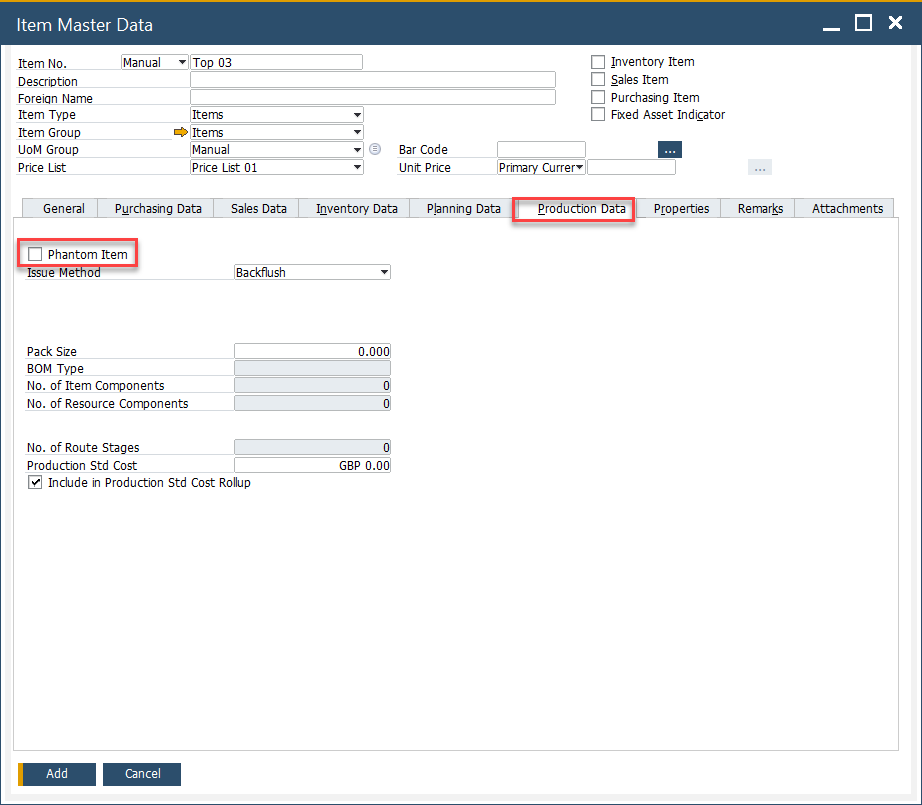
Item Master Data → Production Data tab – Phantom item is "unchecked".
-
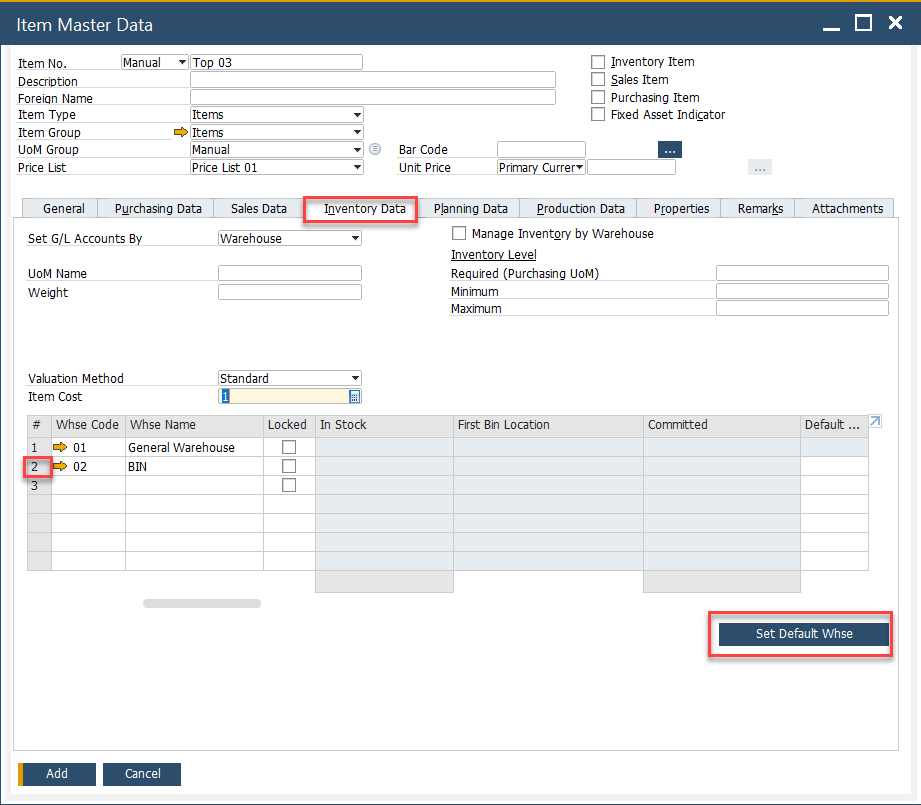
Item Master Data → Inventory Data tab: configure the Valuation Method as Standard, set Item Cost to 1, and designate a default warehouse.
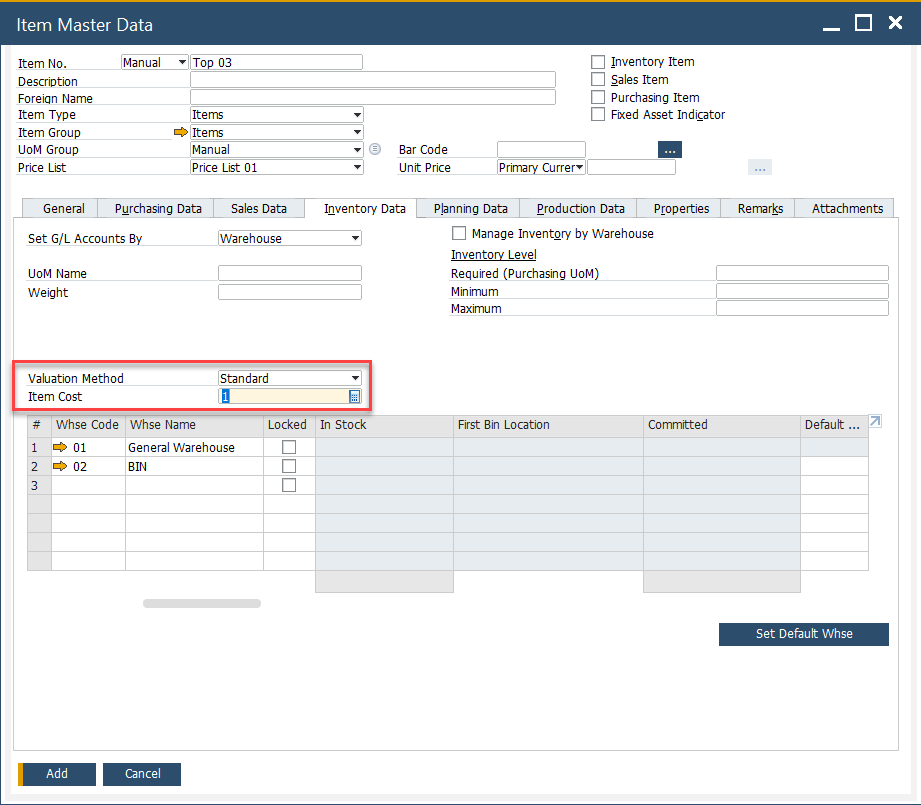
To mark a warehouse as the default, select the first column of its row and click the Set Default Whse button:
Settings
An Item to be chosen as a Default Final Component, ensure the following configurations:
- Inventory Item option checked.
- Sales, Purchase, and Fixed Asset options are disabled.
- The item must not be managed by Serial or Batch numbers.
- A default Warehouse is assigned.
- The Valuation Method is set to Standard.
Please go to the Coproducts section to check where to set up the aforementioned settings
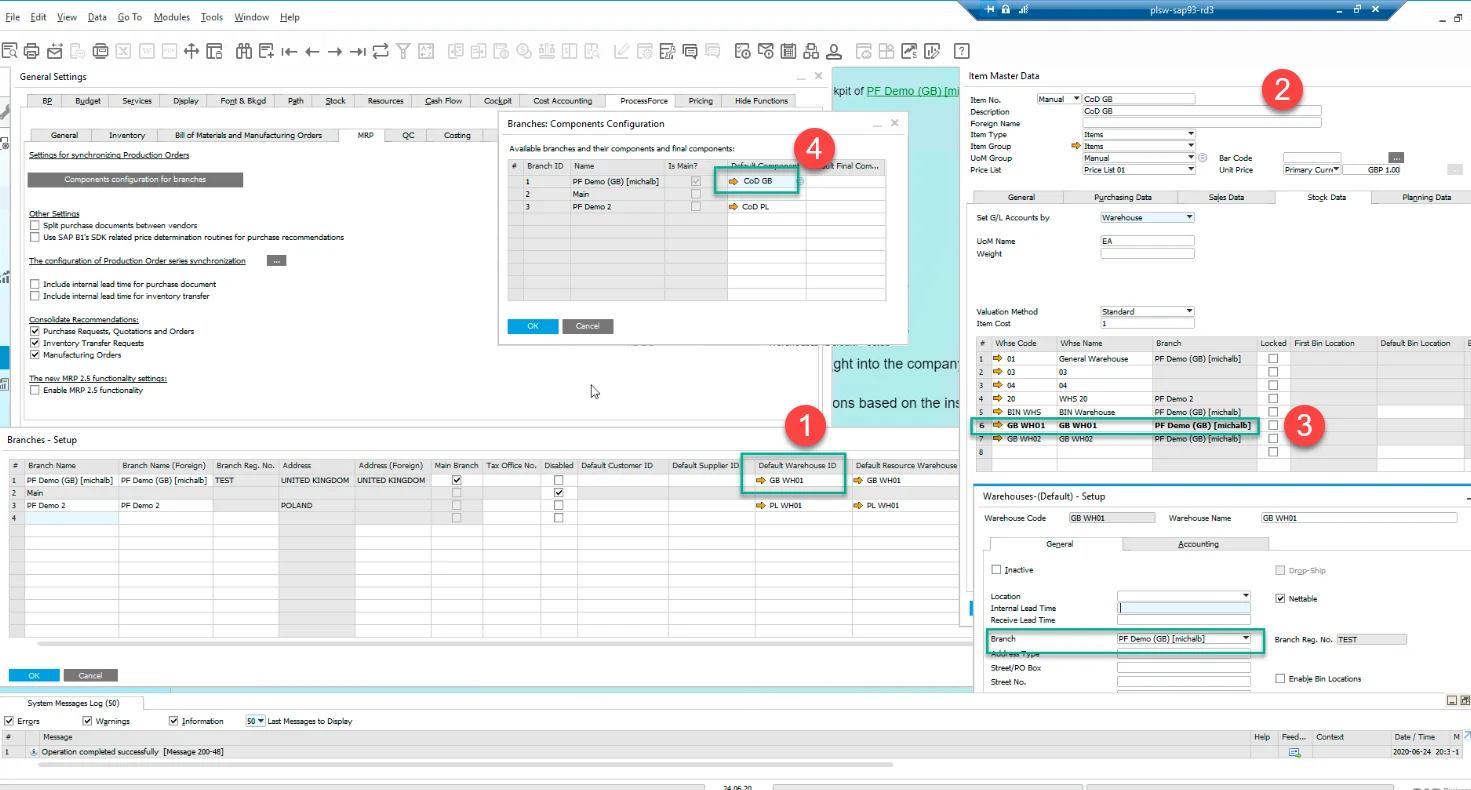
10.0 R3: Multiple Branches Management of Default Component and Default Final Component
Starting from this version, SAP Business One allows configuring the Default Component and Default Final Component separately for different company branches.
To enable this option, follow these steps:
- In the SAP Business One Branches - Setup, ensure each branch has a designated default warehouse.
- Create a separate Default Component for each branch.
- Within each branch's Default Component, assign the relevant branch warehouses, ensuring at least one is set as default in the Item Master Data.
- In ProcessForce Branches: Components Configuration (accessible via General Settings > ProcessForce tab > MRP tab > Components Configuration for Branches), set a default warehouse. Carefully assign the appropriate warehouse to each branch.
The same process applies to the Default Final Component. It is crucial to first define a Default Component for a specific branch before configuring the Default Final Component.
Key MRP Settings
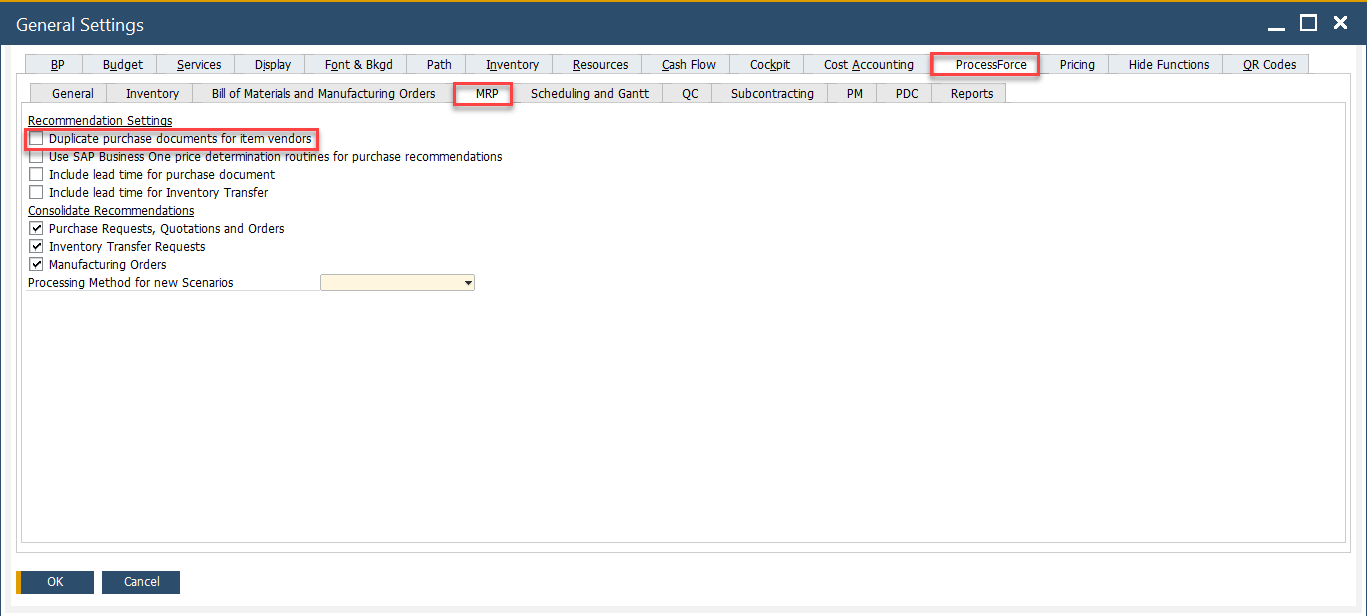
Split Purchase Documents between Vendors
-
Choosing this option enables automatic distribution of purchases among preferred vendors.
-
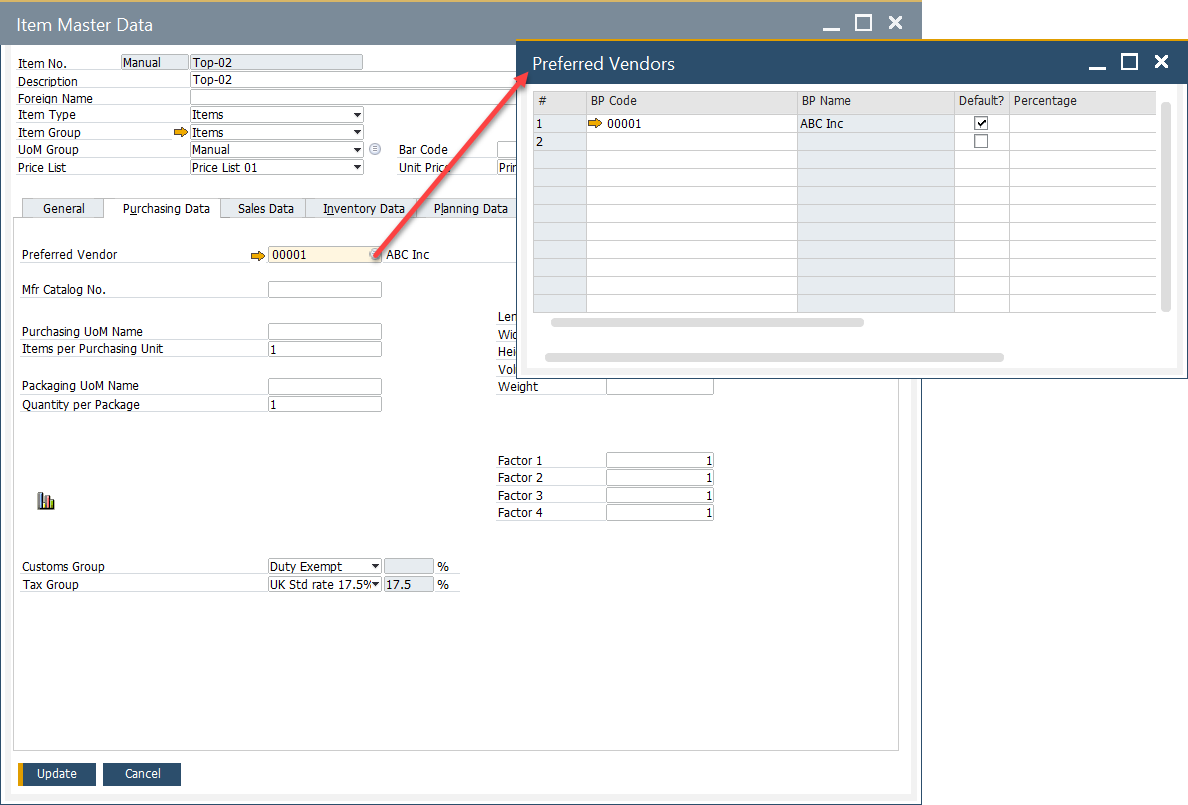
Checking the checkbox results in accessing the following form from Item Master Data form, Planning Data tab:
-
On this form, you can assign a preferred vendor and specify a percentage. If percentages are set for vendors, the quantity in a purchase document for the specific item will be distributed proportionally.
-
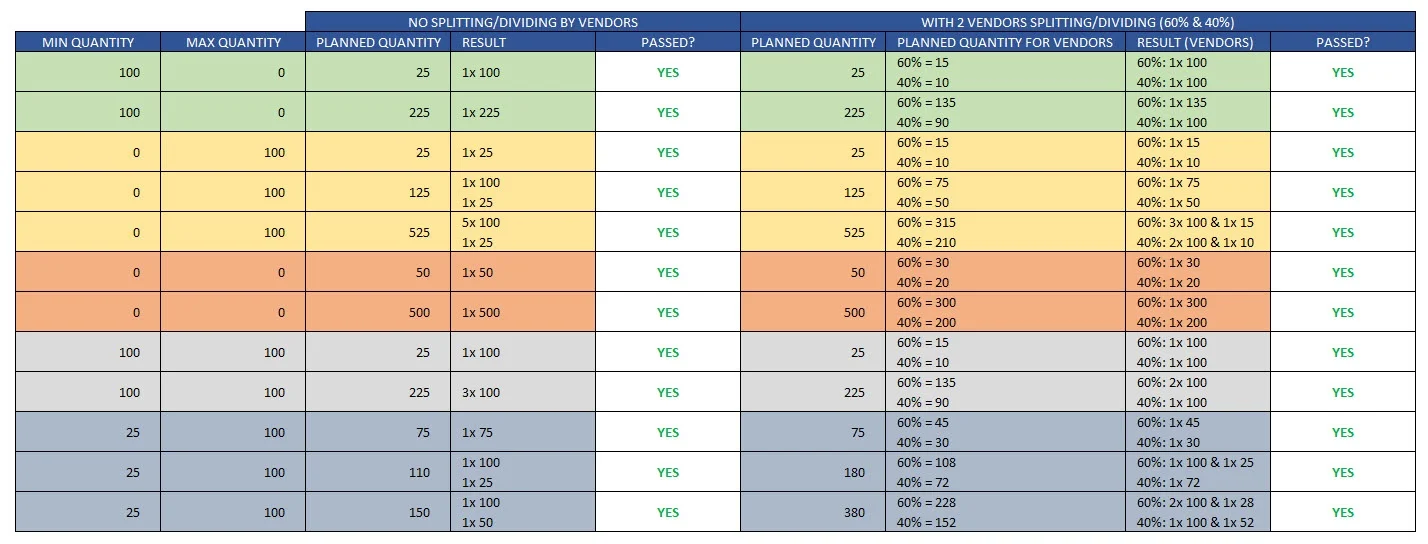
Additionally, please refer to the table at the bottom of this page.
Minimum and Maximum Manufacturing Order Planned Quantity
-
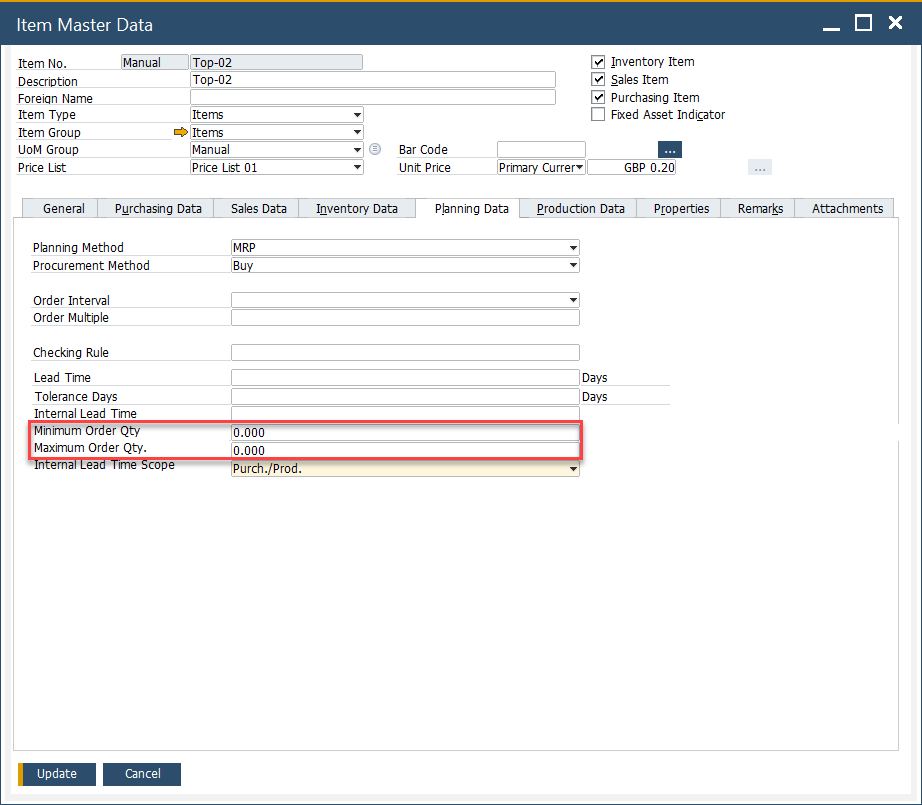
You can configure minimum and maximum order quantity in Item Master Data, Planning Data tab:
The table below displays the preferred vendors along with the minimum and maximum quantities (click to enlarge).