You are currently viewing documentation for CompuTec ProcessForce 3.0, which is a plugin installed and managed through CompuTec AppEngine 3.0, built on .NET 8. If you are working with older environments, you may need the documentation for CompuTec ProcessForce 2.0: https://learn.computec.one/docs/processforce/2.0/.
Please note that CompuTec ProcessForce 2.0 will be supported only until December 31, 2026. After this date, the product will no longer receive regular support or maintenance updates. Read more
CompuTec AppEngine 3.0 introduces a new architecture, and all CompuTec components, including the CompuTec ProcessForce 3.0 plugin, must be updated together to ensure full compatibility.
Before starting your installation or upgrade process, we strongly recommend reviewing the CompuTec AppEngine 3.0 and CompuTec ProcessForce 3.0 documentation.
Non-Batch Controlled Items
Non-batch controlled items are inventory items that do not require batch or serial number tracking.
This guide explains how to handle Bin Locations and Allocations for such items during the Pick Order and Production Goods Issue processes.
Pick Order
Issue for Production
The Issue for Production process is used to move raw materials, components, or sub-assemblies from the warehouse into Work in Progress (WIP) so they can be consumed during manufacturing.
- Reduces inventory levels of issued items.
- Creates a Production Goods Issue document.
- Automatically posts the financial journal entry, recording the material consumption.
- Ensures accurate inventory tracking and cost allocation from inventory to WIP.
From the context menu, navigate to:
Issues and Receipts → Issue to Production.
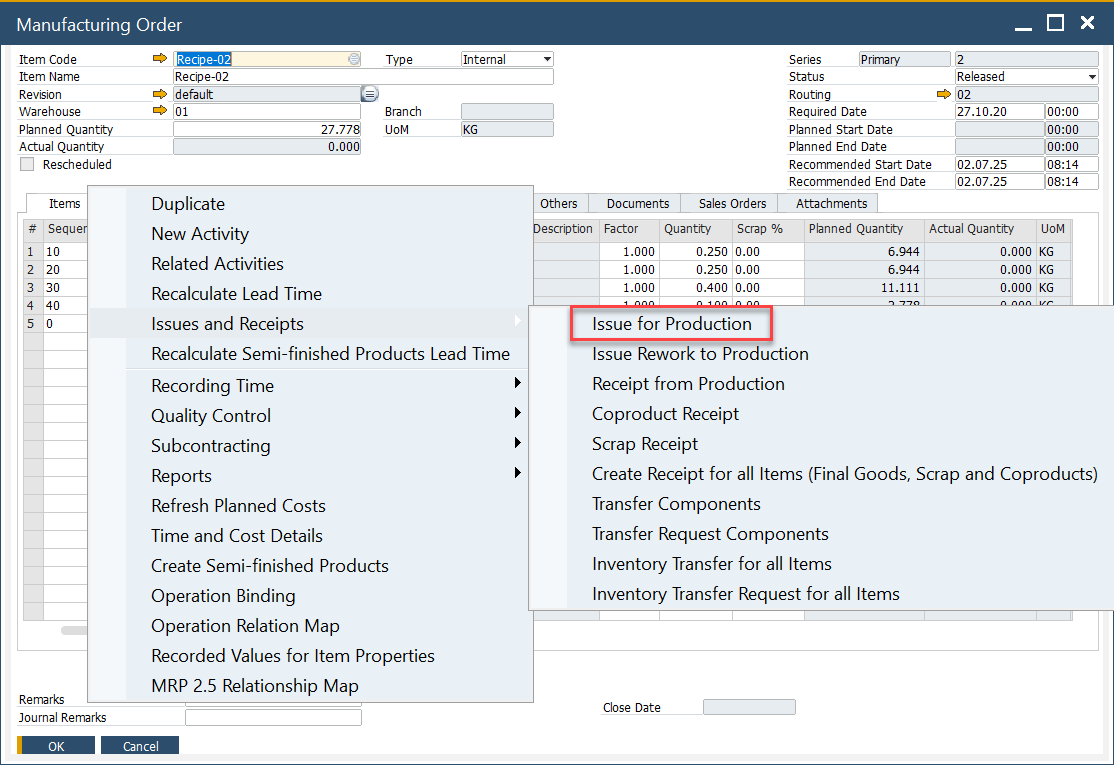
Allocating Non-Batch Controlled Items
Steps to pick and allocate inventory:
- Enter the amount of inventory to be picked within the Picked Quantity field
- Click the "yellow arrow" next to Bin Location Allocation to select Bin Location.
- The Bin Location Allocation - Pick Order form opens.
- Either:
- Manually enter a value in Allocated, or
- Use one of the Automatic Allocation functions.
Production Goods Issue
After picking, complete the transaction:
- Open the context menu and select "Production Goods Issue".
- Click "Add" to confirm.
Result:
- Items are removed from the warehouse.
- They are issued to Work in Progress (WIP).
- The system generates the corresponding financial journal entry automatically.