You are currently viewing documentation for CompuTec ProcessForce 3.0, which is a plugin installed and managed through CompuTec AppEngine 3.0, built on .NET 8. If you are working with older environments, you may need the documentation for CompuTec ProcessForce 2.0: https://learn.computec.one/docs/processforce/2.0/.
Please note that CompuTec ProcessForce 2.0 will be supported only until December 31, 2026. After this date, the product will no longer receive regular support or maintenance updates. Read more
CompuTec AppEngine 3.0 introduces a new architecture, and all CompuTec components, including the CompuTec ProcessForce 3.0 plugin, must be updated together to ensure full compatibility.
Before starting your installation or upgrade process, we strongly recommend reviewing the CompuTec AppEngine 3.0 and CompuTec ProcessForce 3.0 documentation.
Selecting Manufacturing Orders
This guide explains how to select and deselect Manufacturing Orders (MOs) for scheduling visualization within the Gantt chart. You will learn how to use filters, apply criteria, and control which MOs appear in the chart.
Prerequisites
Before you begin:
- Ensure you have access to the Manufacturing Orders list within the scheduling interface.
- Confirm that your user role allows viewing and modifying order selections.
Follow these steps to filter, select and display Manufacturing Orders on the Gantt chart:
-
Open the Extended Filter
Open the Extended Filter section in the scheduling interface.
This feature allows you to define criteria for selecting Manufacturing Orders that will be displayed on the Gantt chart. -
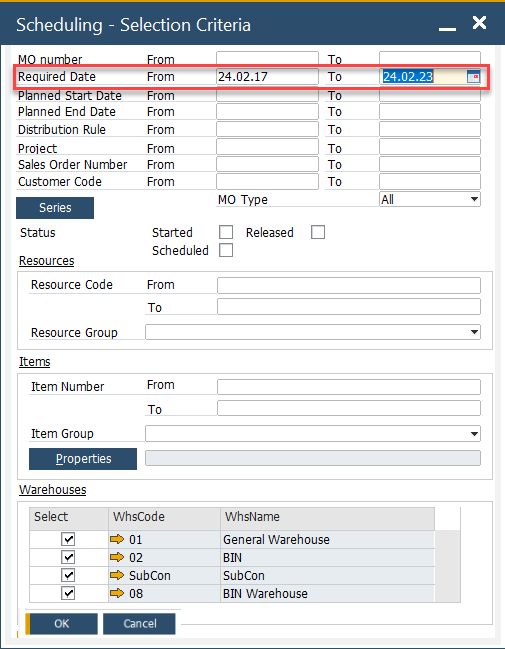
Apply Selection Criteria
You can filter and select Manufacturing Orders using one or multiple criteria.
Common options include:-
Required Date (From/To): Filter orders based on their required completion date range.
-
Status: Choose orders based on their production stage or status (e.g., Released, Planned).
-
Used Resources: Filter by specific machines or work centers.
-
Manufacturing Order Item: Focus on particular items being produced.
-
Warehouse: Select orders linked to a specific storage or production location.
You can mix multiple criteria to refine the results.
-
-
Deselect Manufacturing Orders
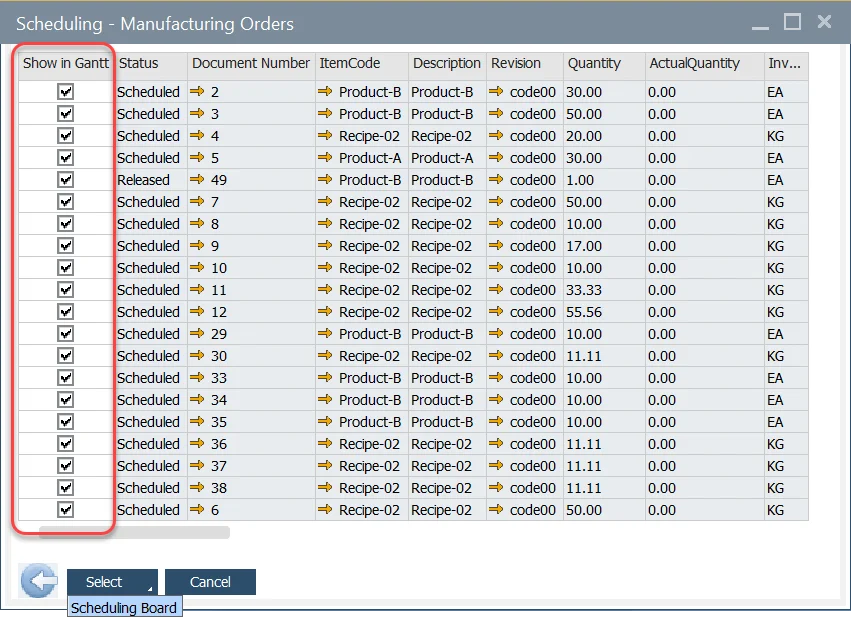
By default, all Manufacturing Orders that meet your criteria are automatically selected.
To refine which ones are displayed:- To deselect a specific order: Uncheck the corresponding line in the list.
- To deselect all orders: Click the column header “Show in Gantt.”
- To confirm your selection: Click the Select button to display the chosen orders in the Gantt chart.
-
Access the Scheduling Board
If you wish to proceed directly to the Scheduling Board view:
- Click the arrow down on the Select button.
- Choose Scheduling Board from the dropdown menu to navigate there immediately.
For more details, see Scheduling Board.