You are currently viewing documentation for CompuTec ProcessForce 3.0, which is a plugin installed and managed through CompuTec AppEngine 3.0, built on .NET 8. If you are working with older environments, you may need the documentation for CompuTec ProcessForce 2.0: https://learn.computec.one/docs/processforce/2.0/.
Please note that CompuTec ProcessForce 2.0 will be supported only until December 31, 2026. After this date, the product will no longer receive regular support or maintenance updates. Read more
CompuTec AppEngine 3.0 introduces a new architecture, and all CompuTec components, including the CompuTec ProcessForce 3.0 plugin, must be updated together to ensure full compatibility.
Before starting your installation or upgrade process, we strongly recommend reviewing the CompuTec AppEngine 3.0 and CompuTec ProcessForce 3.0 documentation.
Release Maintenance Orders, Inspection Results Verification
Efficient plant maintenance requires seamless management of maintenance orders and inspection results. This document provides guidance on releasing maintenance orders and verifying inspection results, ensuring that all processes are streamlined and accurately recorded. Below are the detailed steps and functionalities available in these features:
Release Maintenance Orders
Main Menu → Plant Maintenance → Work Management → Release Maintenance Orders
This feature enables users to modify the status of multiple Maintenance Orders simultaneously, such as changing their status from Work Request to Released. Header fields function as filters, helping users narrow down the orders they wish to manage. The Number of entries field displays how many orders match the selected filter criteria.
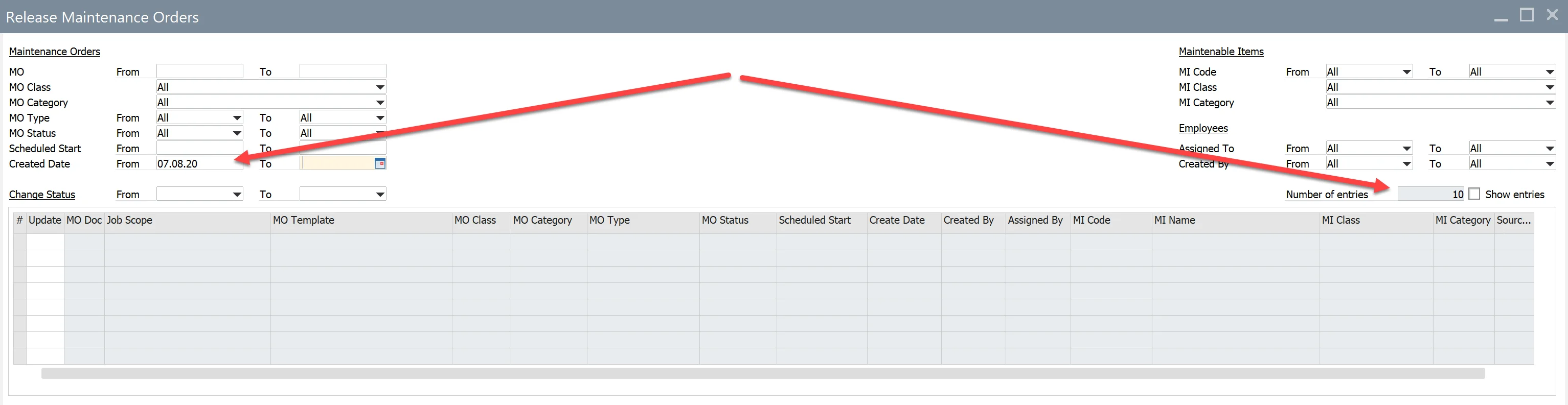
To view Maintenance Orders in the grid, check the Show entries checkbox.
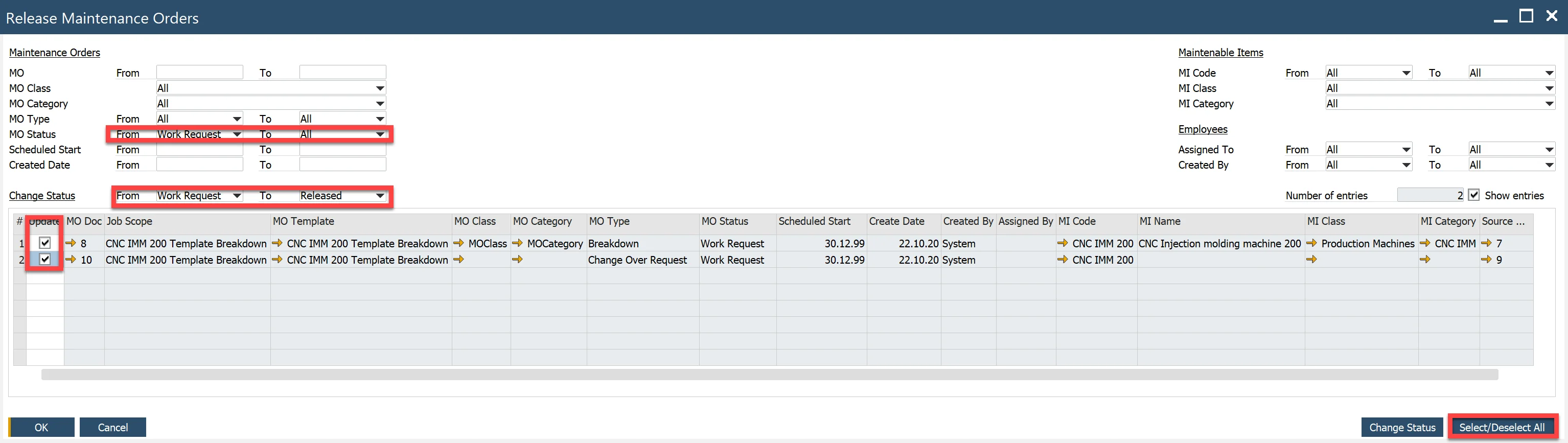
Example: Change Maintenance Orders with the status "Work Request" to "Released":
-
Apply filters as shown below.
-
Click the Select/Deselect All button.
-
Select the Change Status button.
Inspection Results
Main Menu/Plant Maintenance/Work Management/Inspection Results
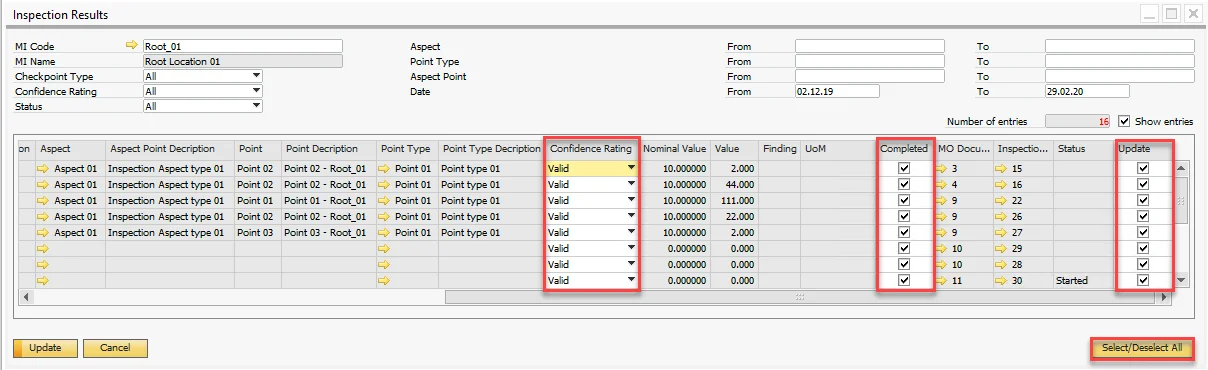
The Inspection Results window is designed to manage and verify inspection outcomes. Users can set or modify:
- Confidence Rating (Valid, Invalid, Discontinuity)
- Completed
Filters in the header work similarly to those in the Release Maintenance Orders window. By default, the date range is set to the current month.
Example: Complete the selected inspection results as valid:
-
Apply filter values to identify the desired inspection results.
-
Check the Show entries checkbox to display the relevant records in the grid.
-
Select the Select/Deselect All button to select all displayed lines. Ensure the following values are set:
- Confidence Rating=Valid,
- Completed=Yes,
- Update=Ye
-
Click the Update button to apply changes.