You are currently viewing documentation for CompuTec ProcessForce 2.0, which will be supported only until December 31, 2026. After this date, the product will no longer receive regular support or maintenance updates.
We recommend upgrading to CompuTec ProcessForce 3.0, which is a plugin installed and managed through CompuTec AppEngine 3.0, built on .NET 8.
However, please note that CompuTec AppEngine 3.0 has a different architecture, and all CompuTec components, including the CompuTec ProcessForce 3.0 plugin, need to be updated together to ensure full compatibility.
Before starting your installation or upgrade process, we strongly recommend reviewing the CompuTec AppEngine 3.0 and CompuTec ProcessForce 3.0 documentation.
Overview
Manufacturing Orders (MOs) are essential for managing production processes efficiently. In SAP Business One, there are multiple ways to create an MO, ensuring flexibility based on your business requirements. Below are the various methods to generate a Manufacturing Order.
Creating a Manufacturing Order
-
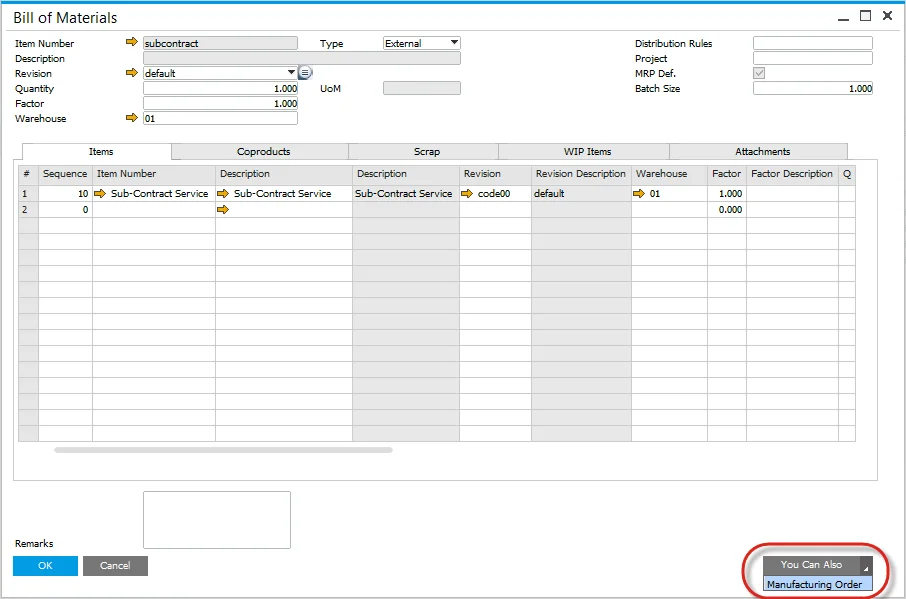
From the Bill of Materials Form
One of the easiest ways to create a Manufacturing Order is directly from the Bill of Materials (BOM) form:
- Click on the "You Can Also" option.
- Select Manufacturing Order.
-
Manually from the Production Menu
For a more hands-on approach, you can create an MO manually through the Production menu.
PathProduction → Manufacturing Order → Manufacturing Order
-
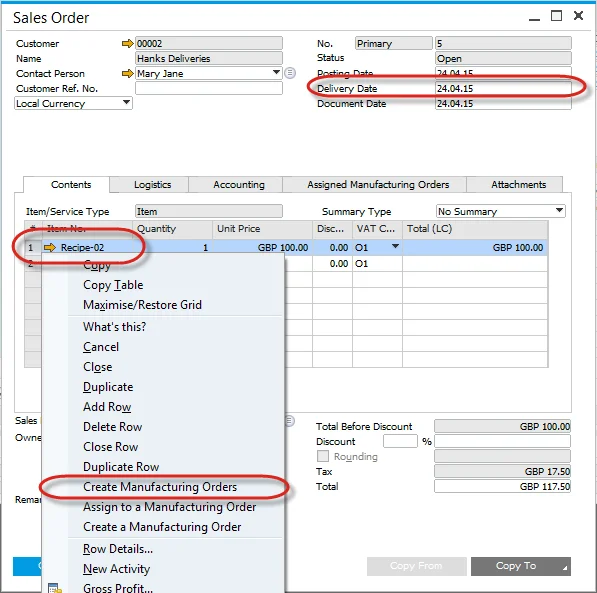
From a Sales Order
Creating an MO from a Sales Order ensures seamless order processing and inventory planning.
-
Enter the Delivery Date.
-
Select the Item Code; the default revision will be automatically entered.
-
Enter the Quantity.
-
Add the Sales Document and refresh it.
-
From the Context Menu, select "Create Manufacturing Order".
-
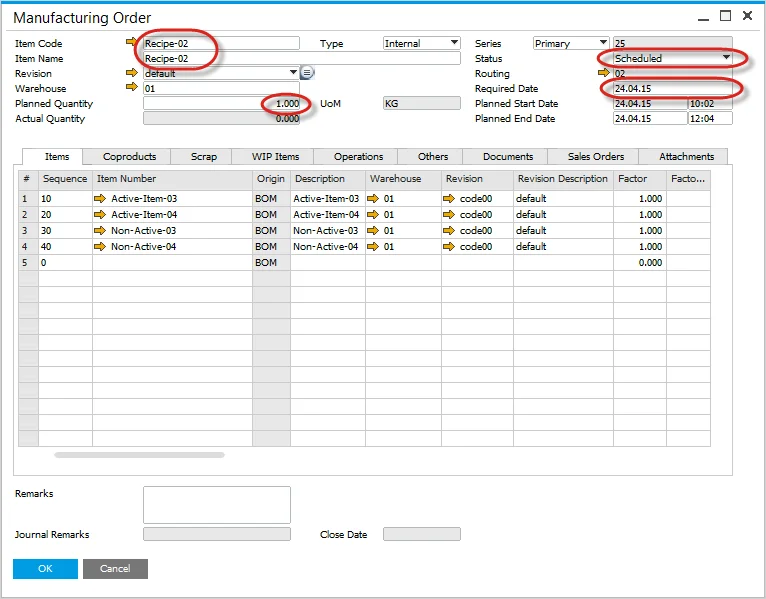
The Manufacturing Order Form will open.
-
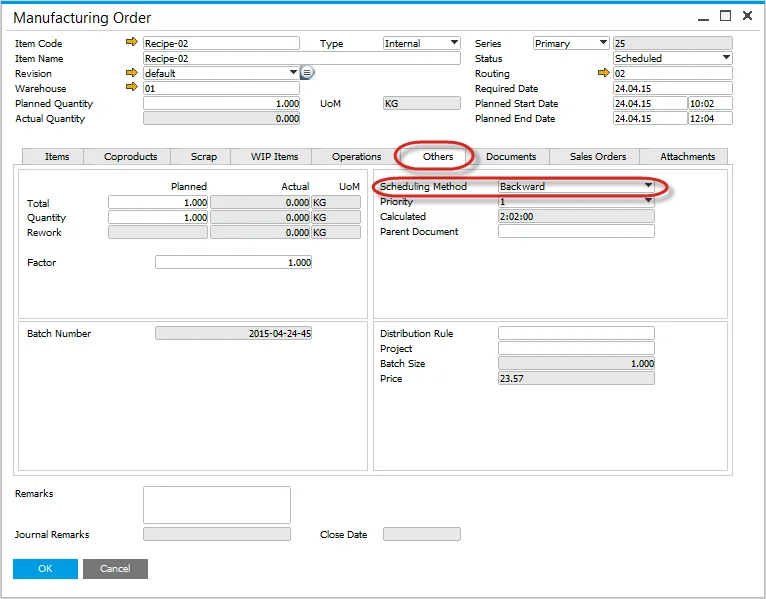
Sales Order Delivery Date is copied to the Required Date.
-
Sales Order Item Code, Revision Code, and Quantity from the Sales Order are copied also.
-
Manufacturing Order is automatically scheduled based on the Backwards scheduling method from the Required Date.
-
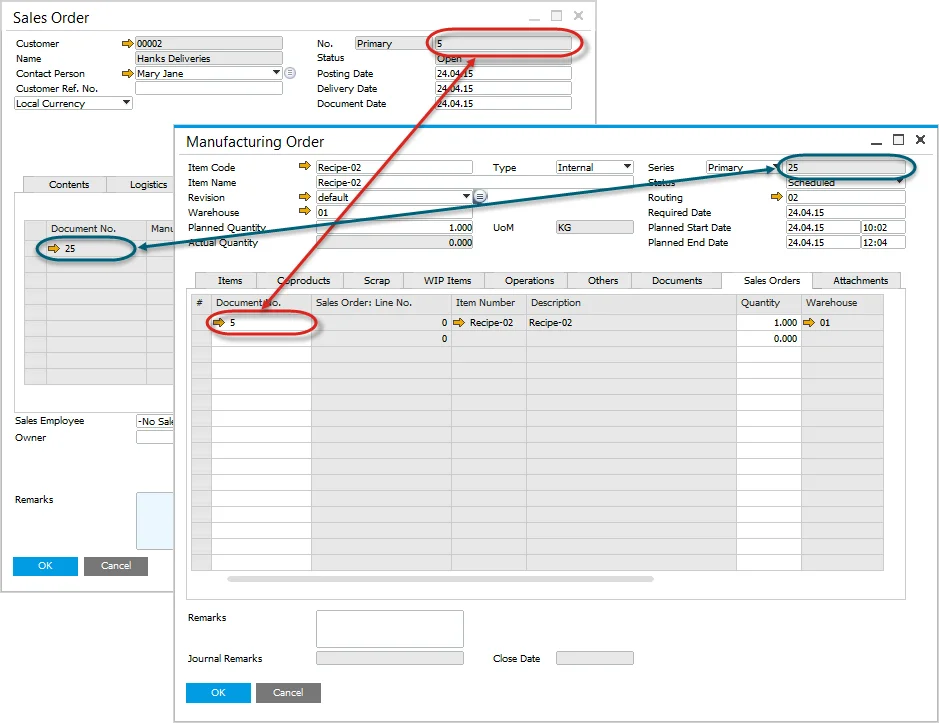
The Sales Order and Manufacturing Order documents are linked together for better tracking.
-
-
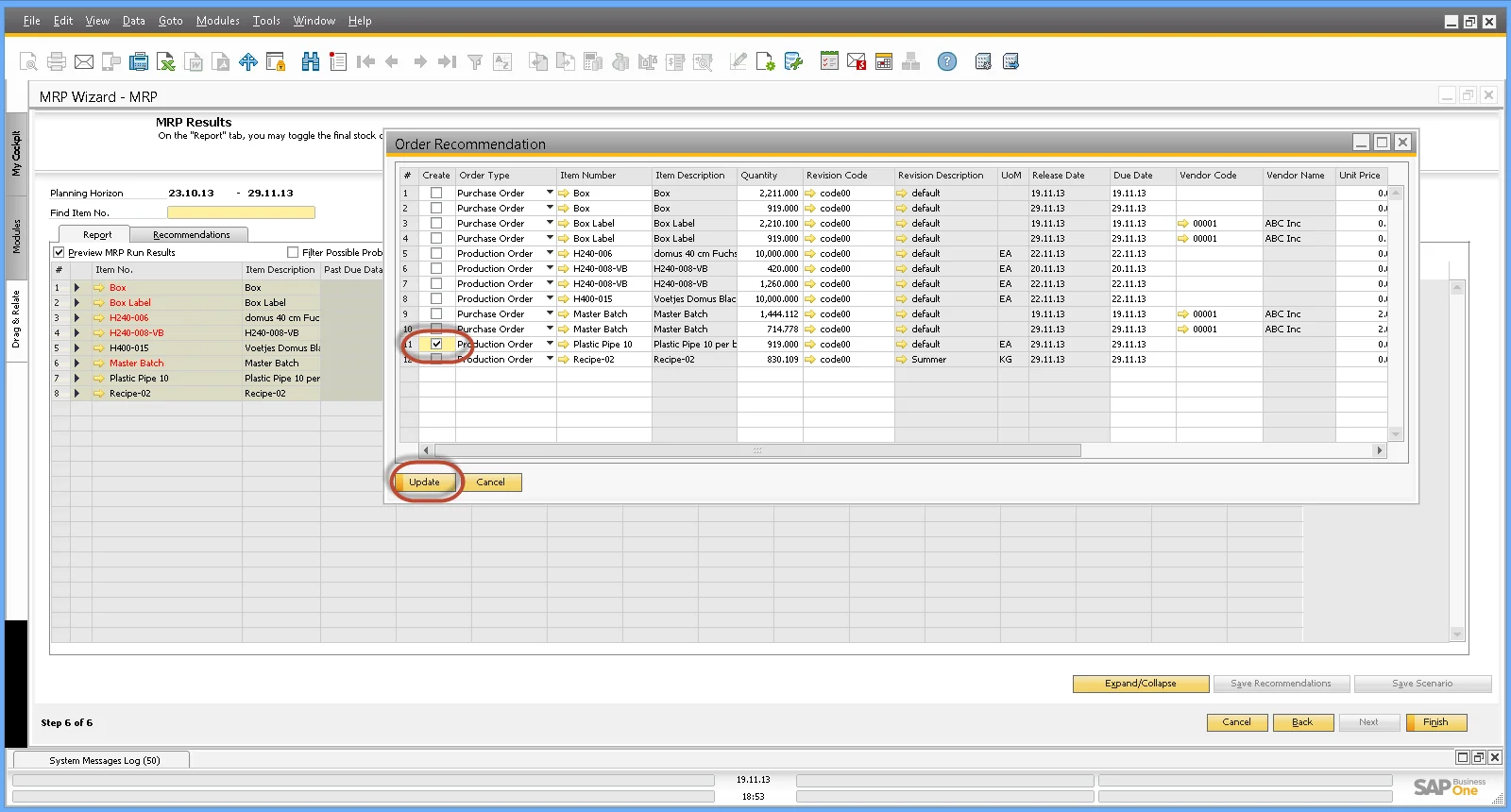
From MRP Wizard - Order Recommendation
For automated order planning, you can use the MRP (Material Requirements Planning) Wizard to generate Manufacturing Orders:
- Run the MRP Wizard.
- Save the Recommendations.
- Open Order Recommendations.
- Select the Orders to create.
- Press Update.