You are currently viewing documentation for CompuTec AppEngine 3.0 (.NET 8).
If you are working with older environments, you may need the documentation for CompuTec AppEngine 2.0 based on .NET Framework: https://learn.computec.one/docs/appengine/2.0/.
Please note that CompuTec AppEngine 2.0 will be supported only until December 31, 2026. After this date, the product will no longer receive regular support or maintenance updates. Read more
As CompuTec AppEngine 3.0 introduces a new architecture, all CompuTec components must be updated together to ensure full compatibility.
Please review the CompuTec AppEngine 3.0 documentation before starting your installation or upgrade process.
Actions in Analytics
Actions allow users to perform business operations directly from selected rows in CompuTec AppEngine Analytics report.
When users select one or more rows in a table, CompuTec AppEngine automatically displays the Actions available for that data. For example, users can release a production order, post a document, or run a custom plugin action without leaving the report.
Actions are available only when they are enabled for both the Source and the Variant.
Plugin developers can create custom CompuTec AppEngine Actions that become available automatically in Source configuration after the plugin is installed. Read more
How actions work in Analytics
Actions in CompuTec AppEngine Analytics are configured on two levels:
- Source: defines which actions are available and how report values are mapped to action parameters
- Variant: defines which actions are visible
Users then execute these configured actions directly from the report. This separation allows you to reuse the same action across multiple report variants while controlling how it appears in each one.
For example:
- In a Production variant, you can show the Release Production Order action.
- In a Warehouse variant, you can hide that action and show only warehouse-related actions.
- In a Manager variant, you can rename actions to use more business-friendly labels.
An action must be enabled in a source before it can be configured in a variant.
Variants can't create actions. They can only control the visibility of actions that were previously configured in the source. :::
Configure actions in a source
To configure an action in a source:
-
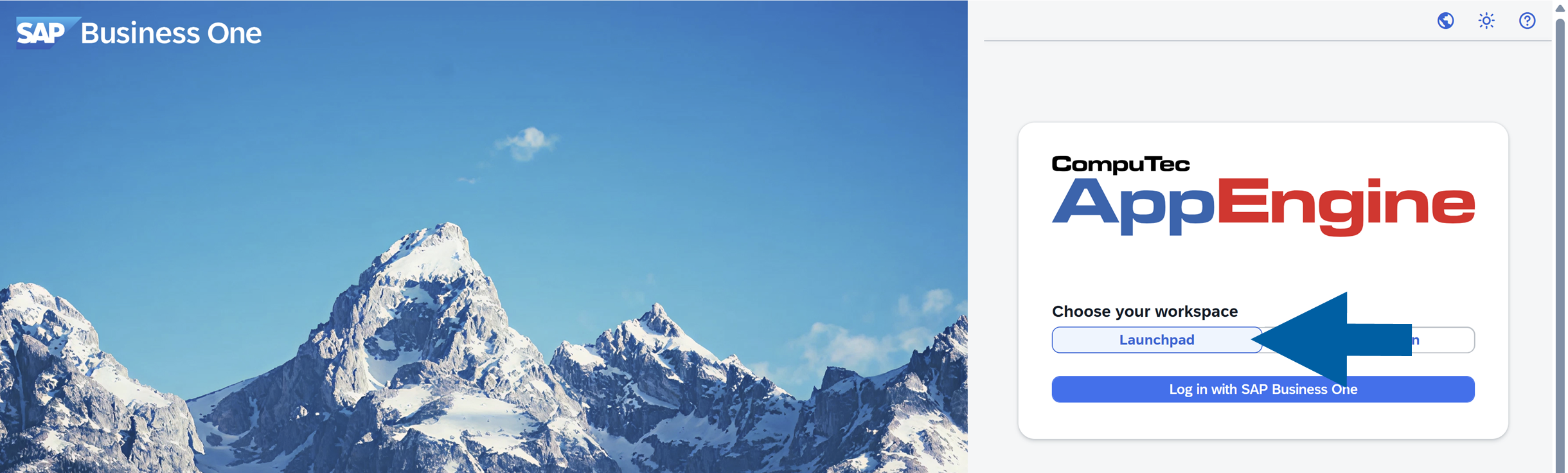
Open CompuTec AppEngine Launchpad.
-
Go to Analytics.

-
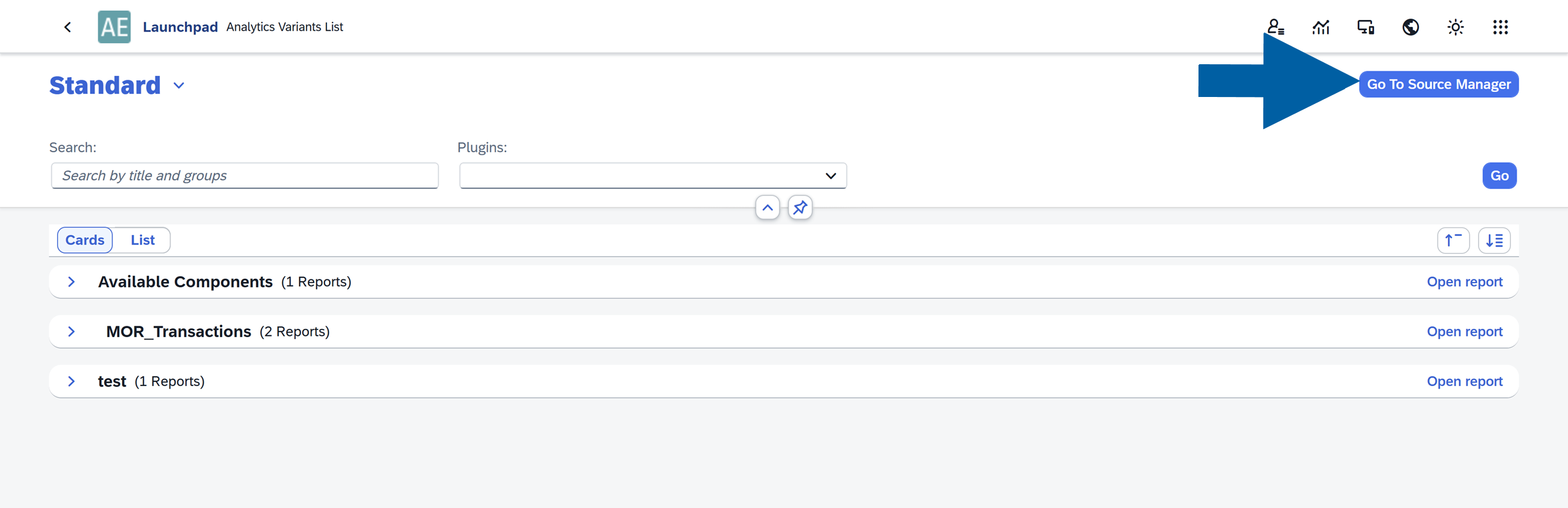
Navigate to Source Manager.
-
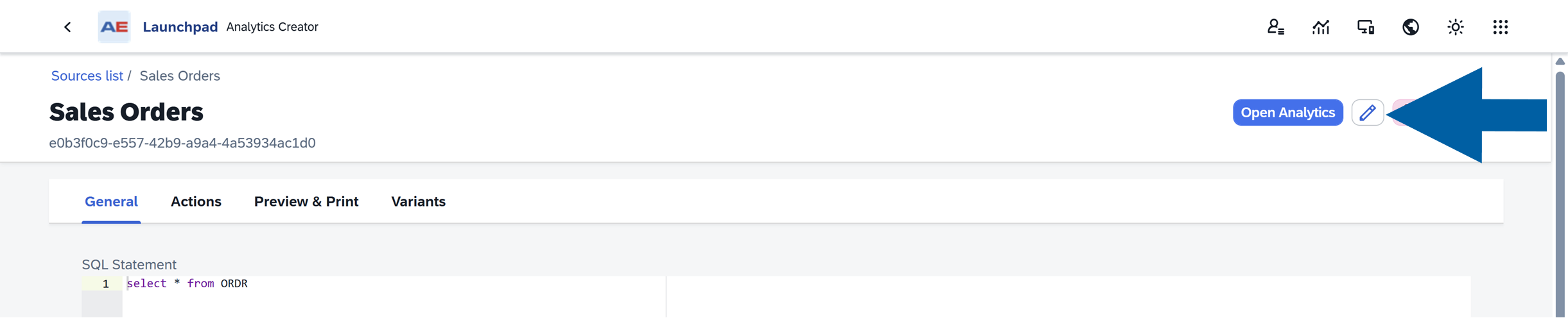
Click the source you want to edit, for example, Sales Orders.

-
Click the edit icon.
-
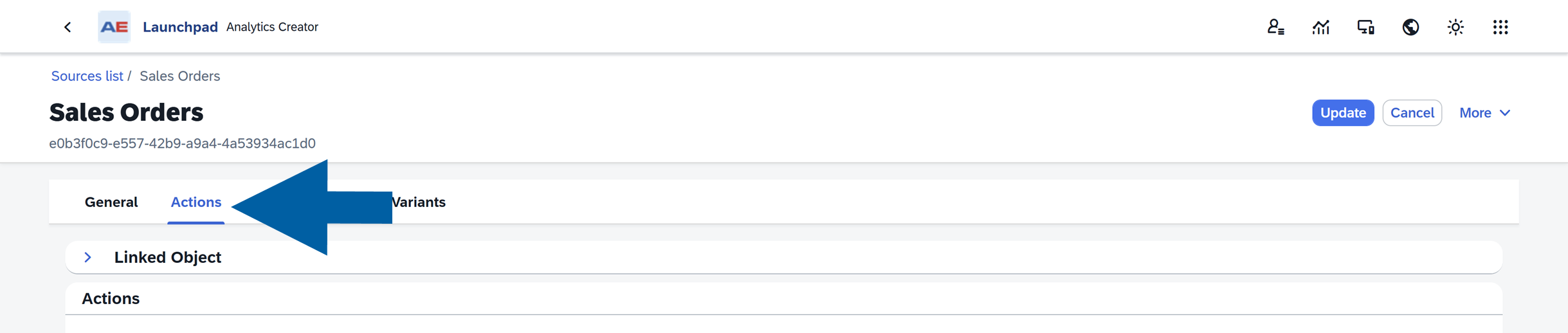
Open the Actions tab.
-
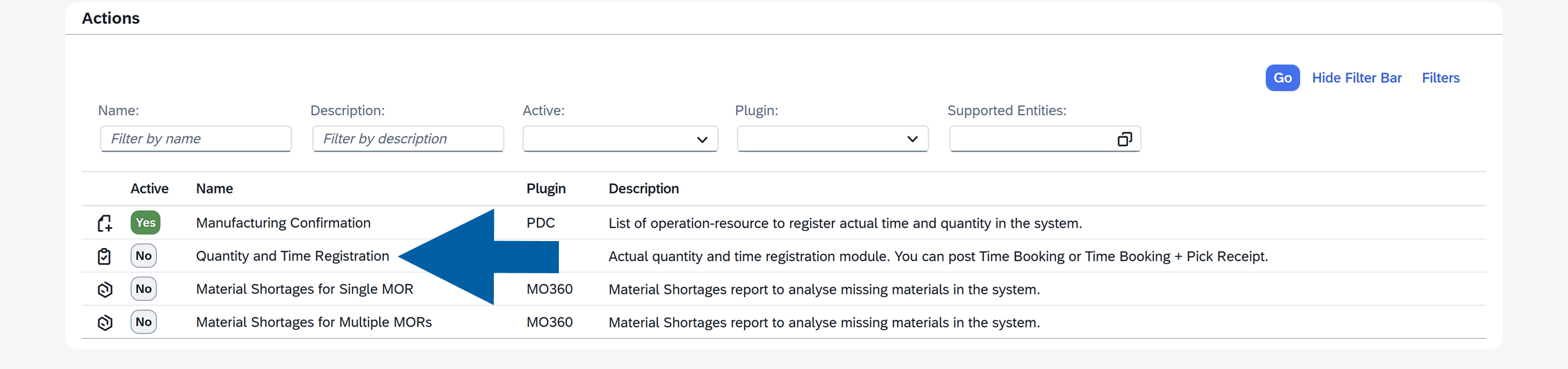
Select action you want to activate.
-
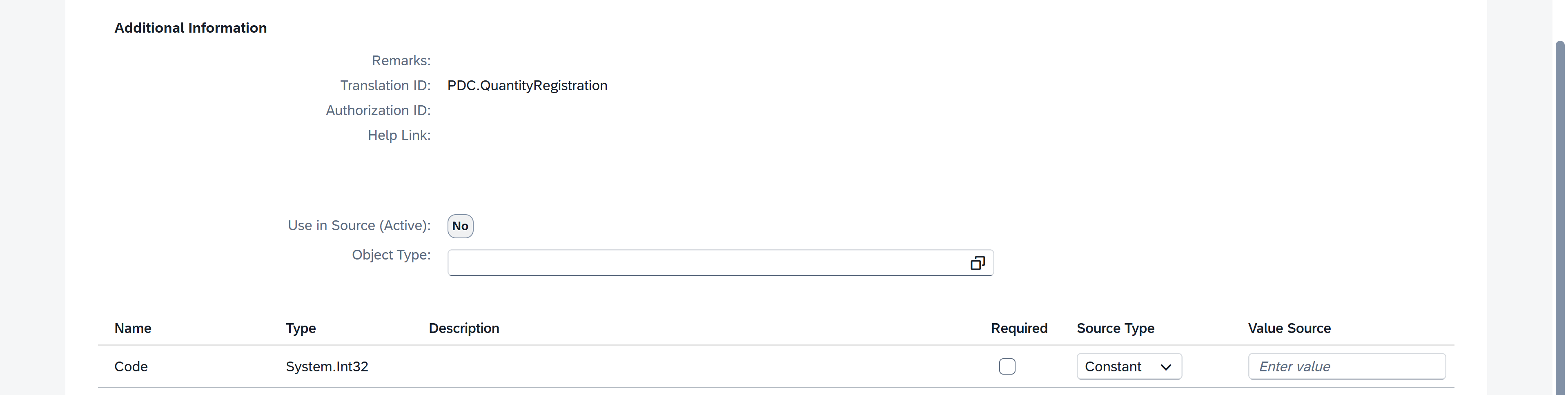
In the Additional Information section, define how the action receives values from the report:
- (optional) Object Type: Defines how the action should behave depending on the object it is applied to.
Example: If an action can work with both the Sales Orders and Manufacturing Orders object types, you can specify the rules for the selected object type. - Required: If enabled, the action will not be executed when the mapped value is empty.
- Source Type: Choose how the value will be provided:
- Constant: A fixed value defined manually
- Field: A value taken from a column in the report
- Value Source: Select the column from the report that should be mapped to the action parameter.
- (optional) Object Type: Defines how the action should behave depending on the object it is applied to.
-
Click Use in Source to apply the mapping.

-
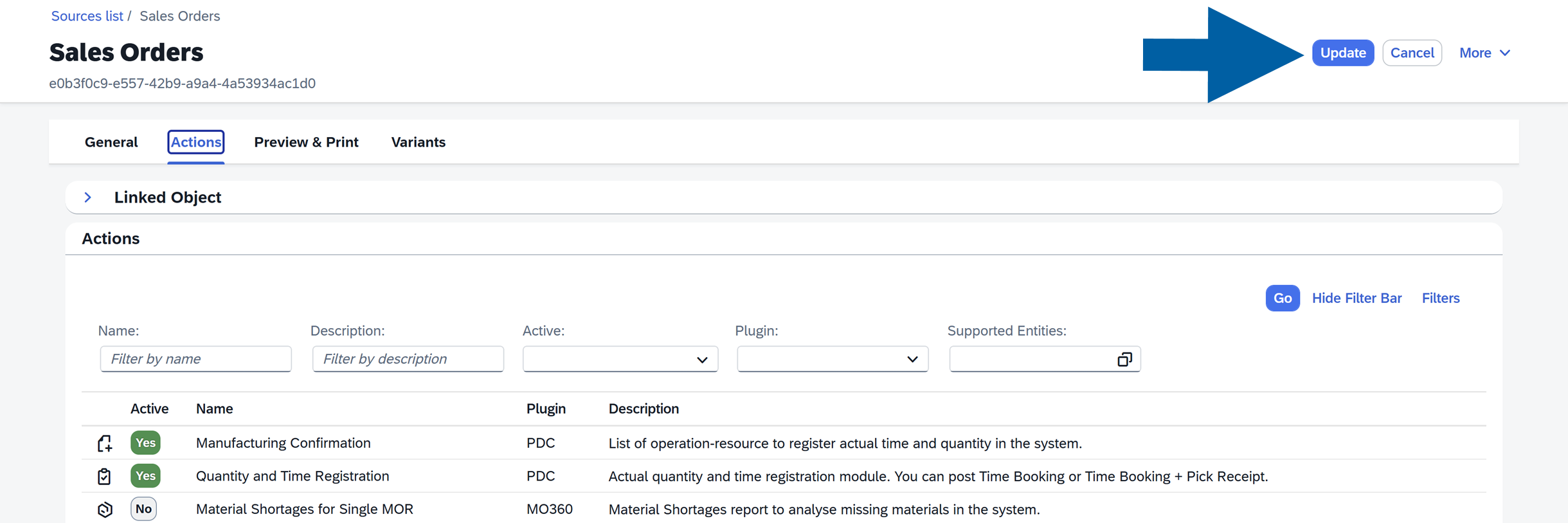
Click Update.
-
The action is now activated and available in the report.
Map action parameters
Actions require some information to know which data should be used when the action is executed, for example, the document's internal number DocEntry or its unique code Code. These values are called parameters.
For each parameter, you can define where the value should come from.

Available Source Types include:
- Constant value
- Field value
Constant value
Use Constant value when the action should always receive the same value.

Example:
DocType:17Status:ReleaseType:Header
Field value
Use Field value when the action should receive data from a selected row in the report.

When the user selects a row and runs the action, the system takes the value from the mapped column and passes it to the action automatically.
Required parameters
You can mark a parameter as Required.

If a required parameter is empty, the action cannot be executed.
For example, if the report row does not contain a value for a required document number, the action will not run.
Configure actions in a variant
After an action is added to a source, you can control its visibility in each variant.
For example, you may have different variants such as Sales, Warehouse, or Production. Each variant can have its own permissions and therefore only the relevant actions should be enabled for that specific variant.
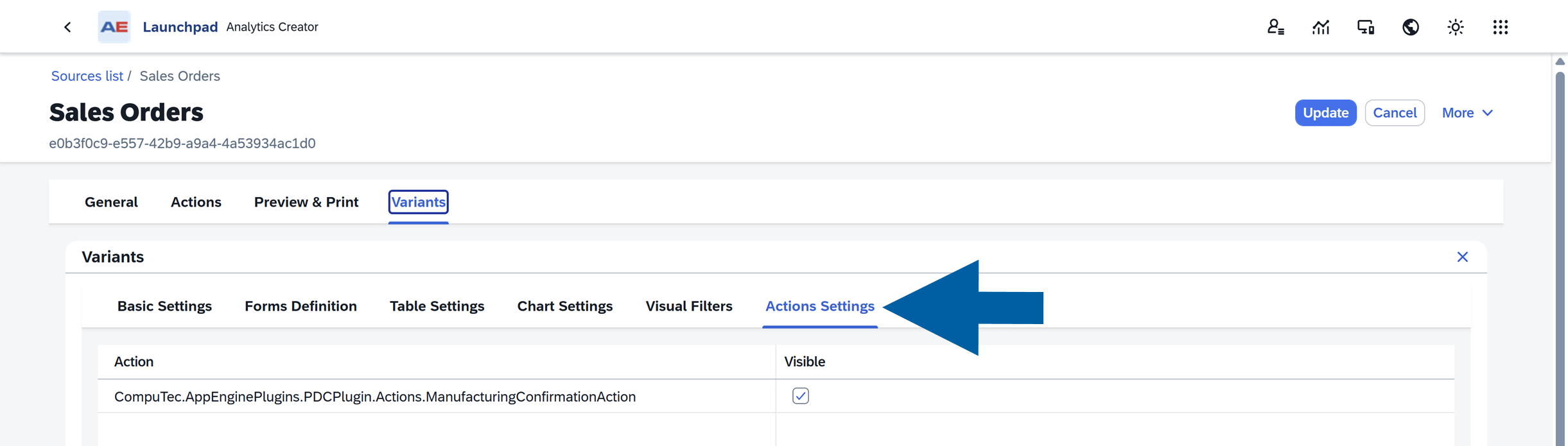
By configuring Action Settings, you ensure that users see only the actions that are appropriate for their role and report context.
To configure Action Settings in a variant:
-
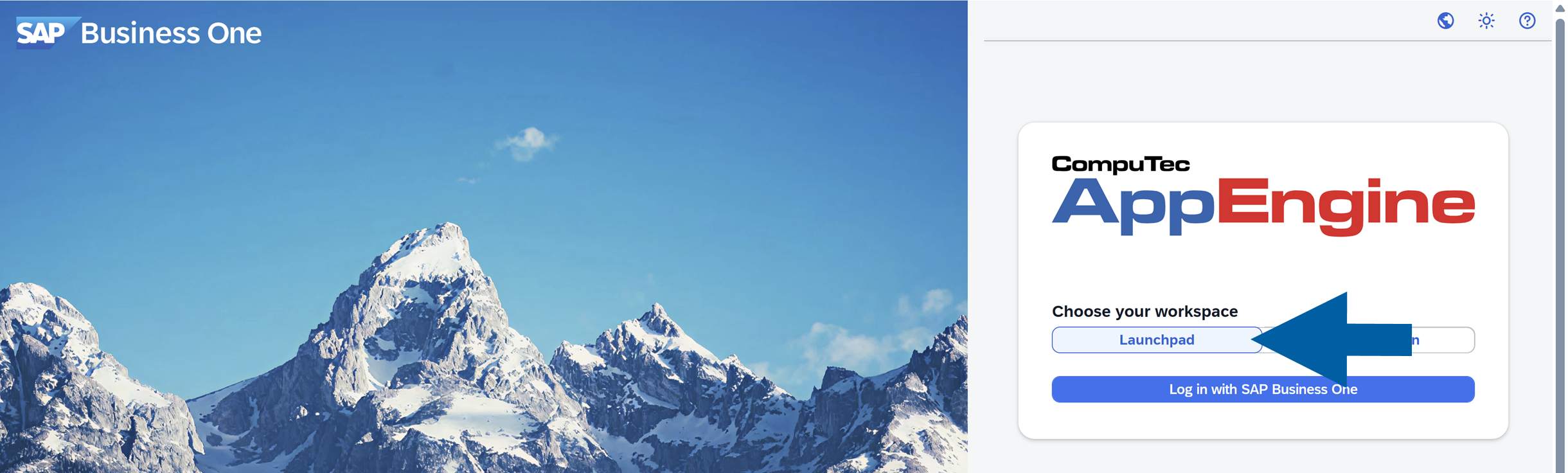
Open CompuTec AppEngine Launchpad.
-
Go to Analytics.

-
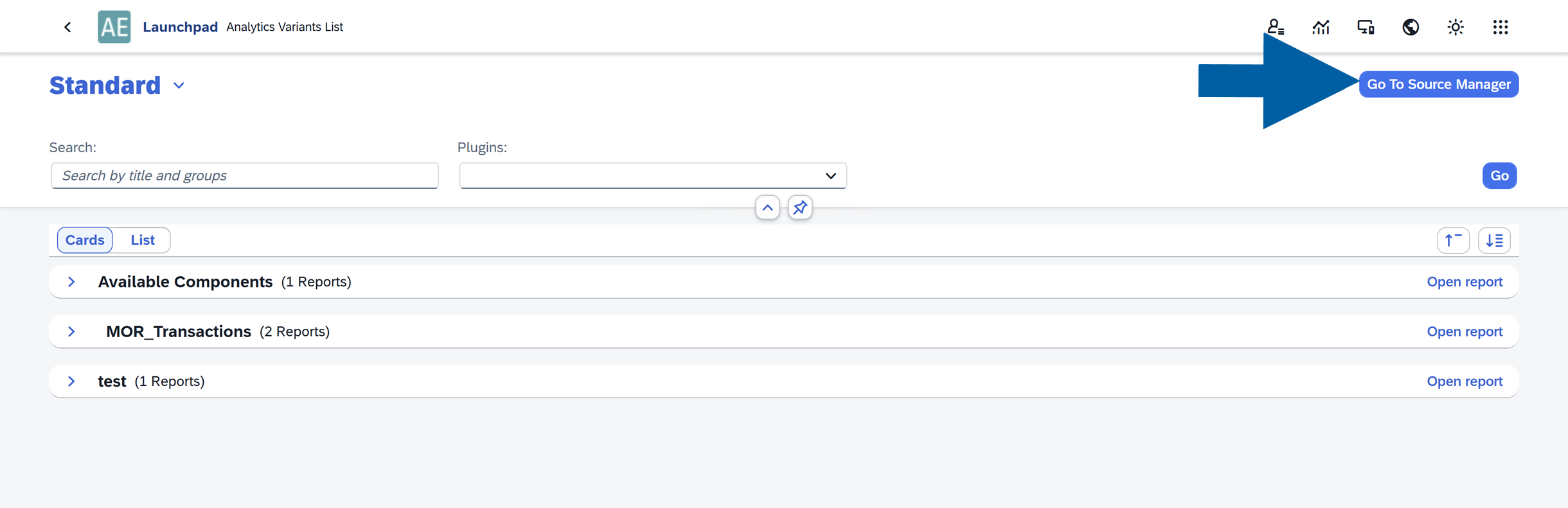
Navigate to Source Manager.
-
Click the Source you want to edit.

-
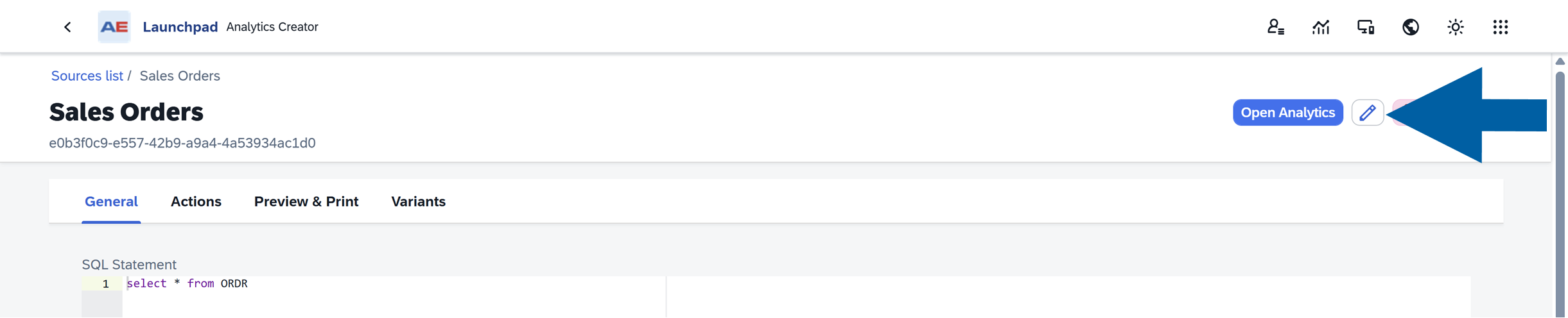
Click the edit icon.
-
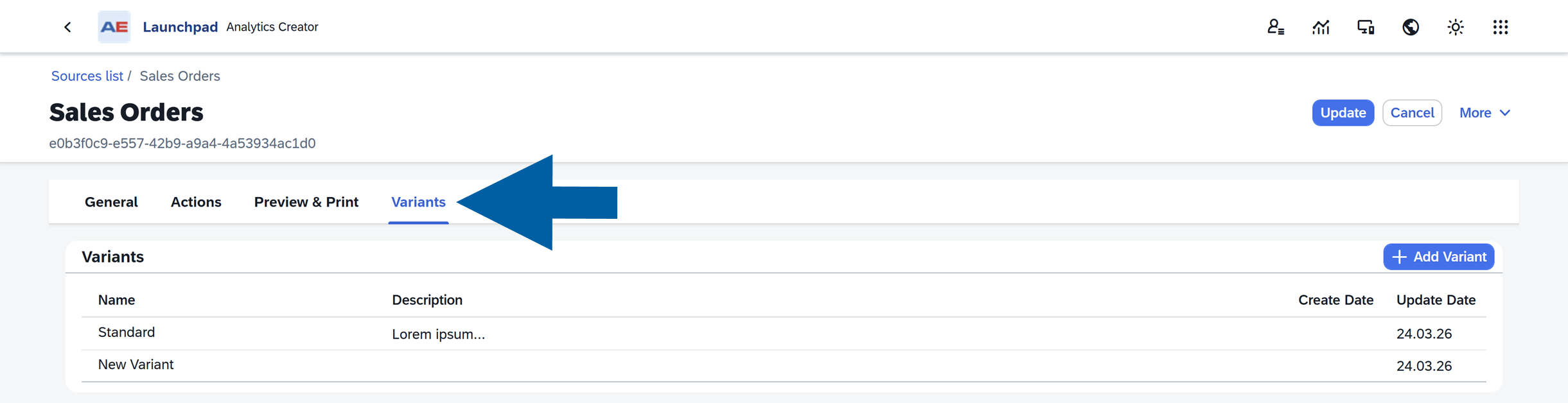
Open the Variants tab.
-
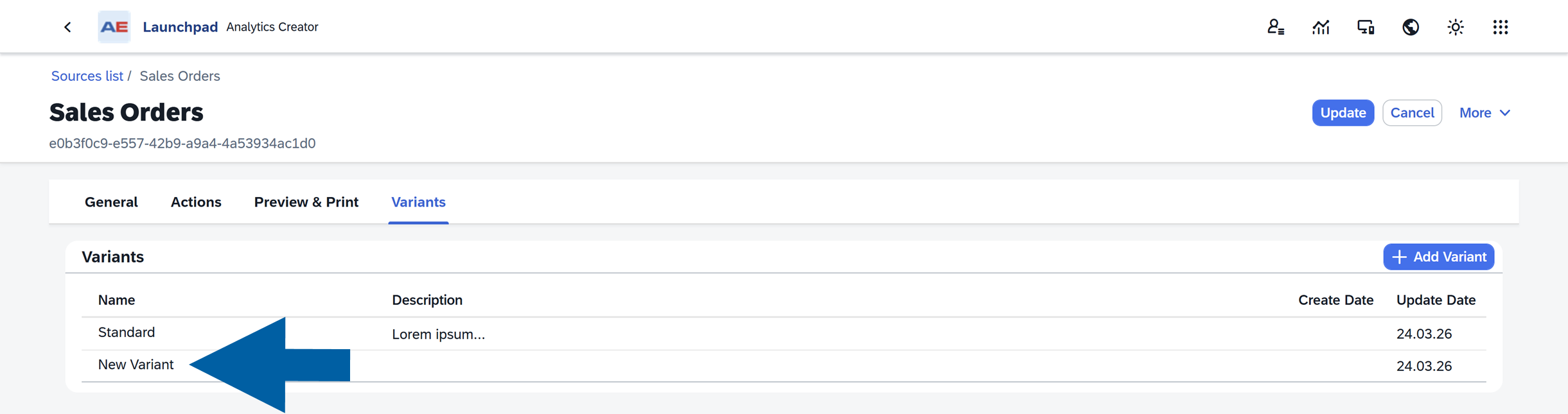
Select the variant you want to edit.
-
Open Action Settings.
-
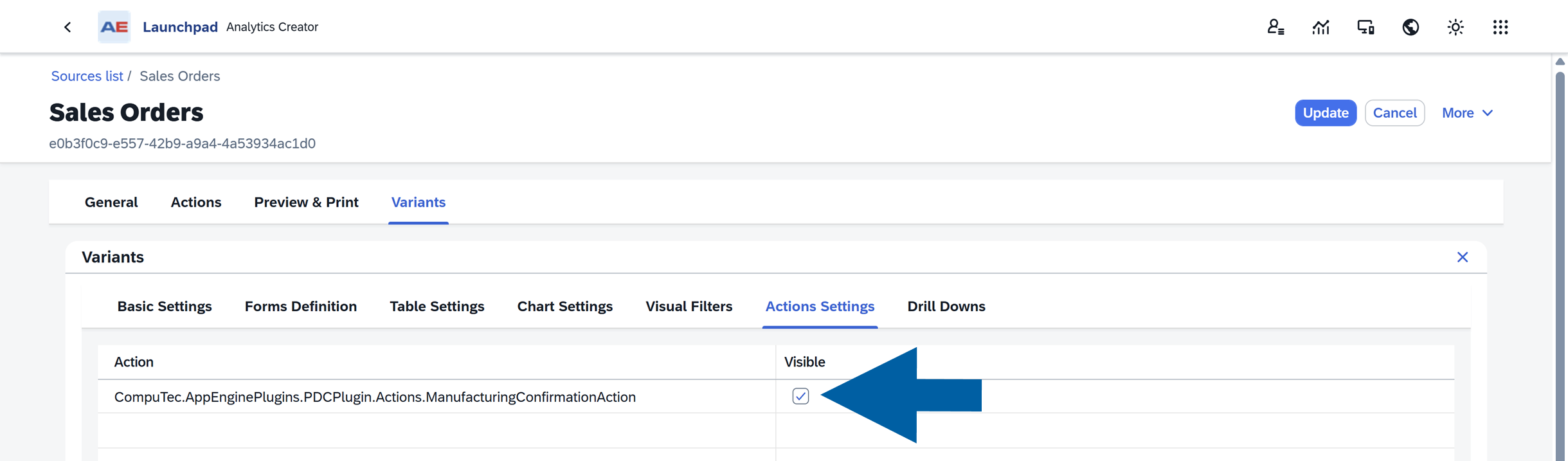
Set Visibility to show or hide an Action in a specific Variant.
-
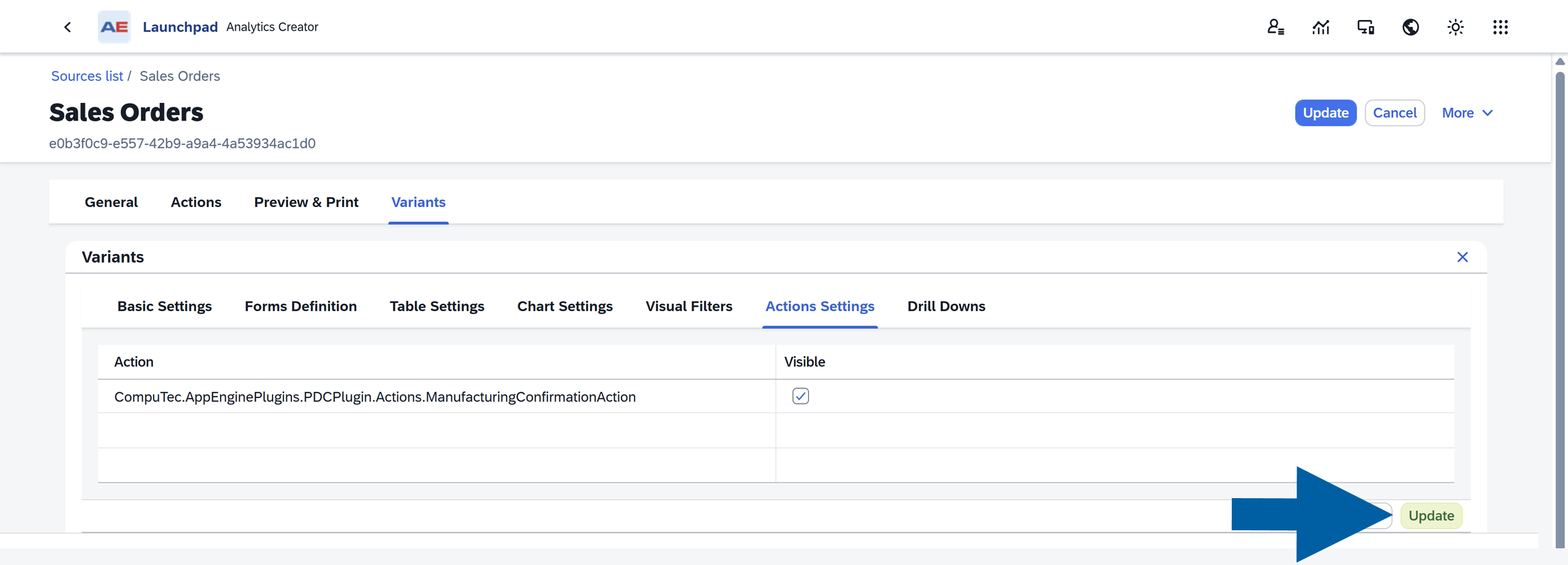
Click Update to save changes in the Variant.
-
Click Update to save the Source changes.

-
The action is now available in the report.
How actions appear in reports
The visibility of the Actions button depends on the actions enabled in the selected variant, the currently selected report rows, and whether all required parameter values are available for those rows.
If a required value is missing, the related action may be hidden or unavailable.
No visible actions
If no actions are visible, the Action button is hidden.

Action availability is evaluated dynamically.
Depending on the selected rows, some actions may become unavailable when they require a specific document status, or a mandatory parameter value. They may also support only specific object types.
If these specific conditions are not met, you won't see the Action button.
Visible actions
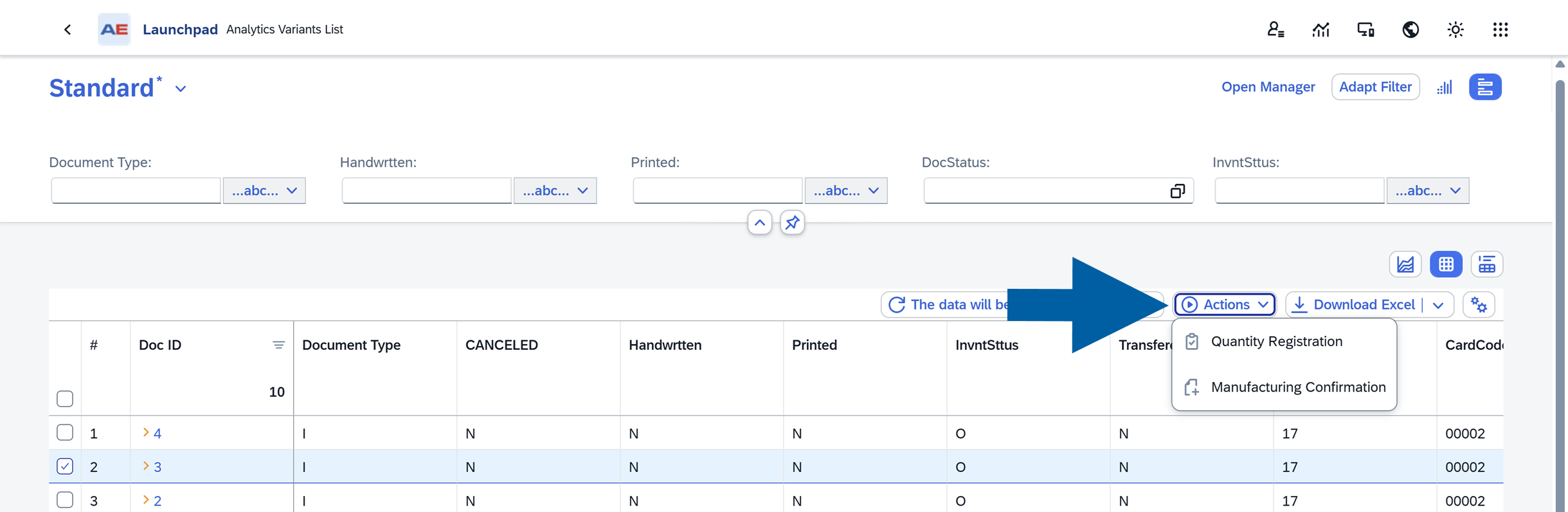
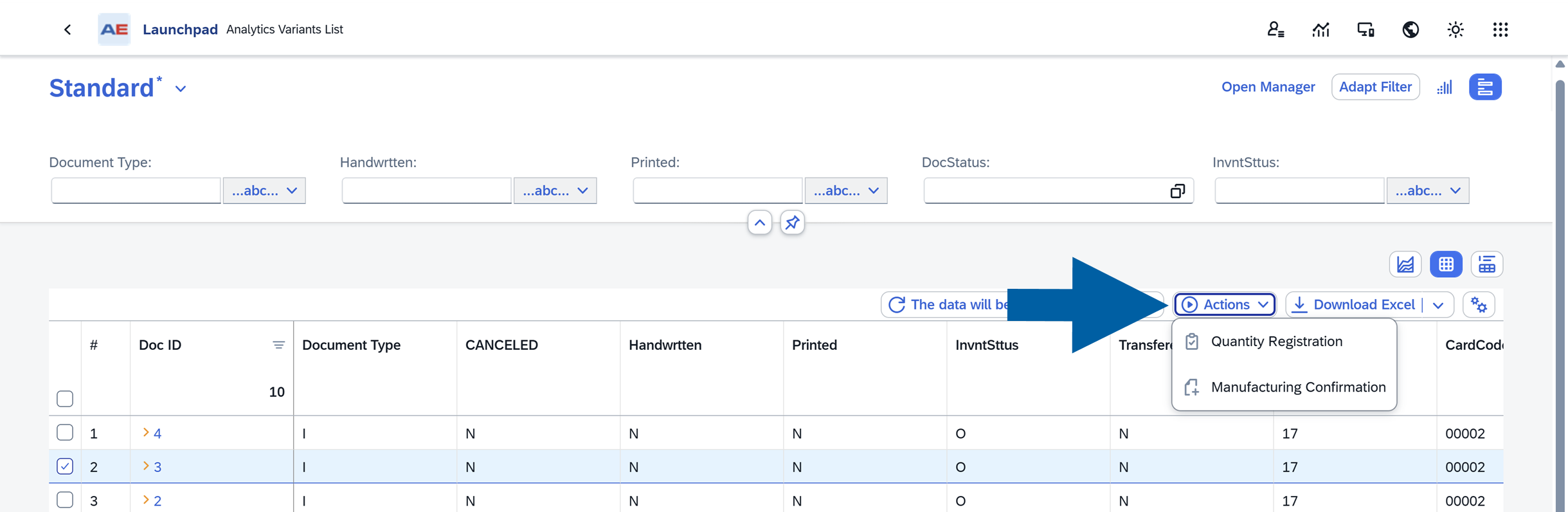
If one or more actions are visible, the report displays the Action button. Clicking it opens the list of available actions.
Execute actions in a report
To execute an action:
-
Open the chosen Variant.
-
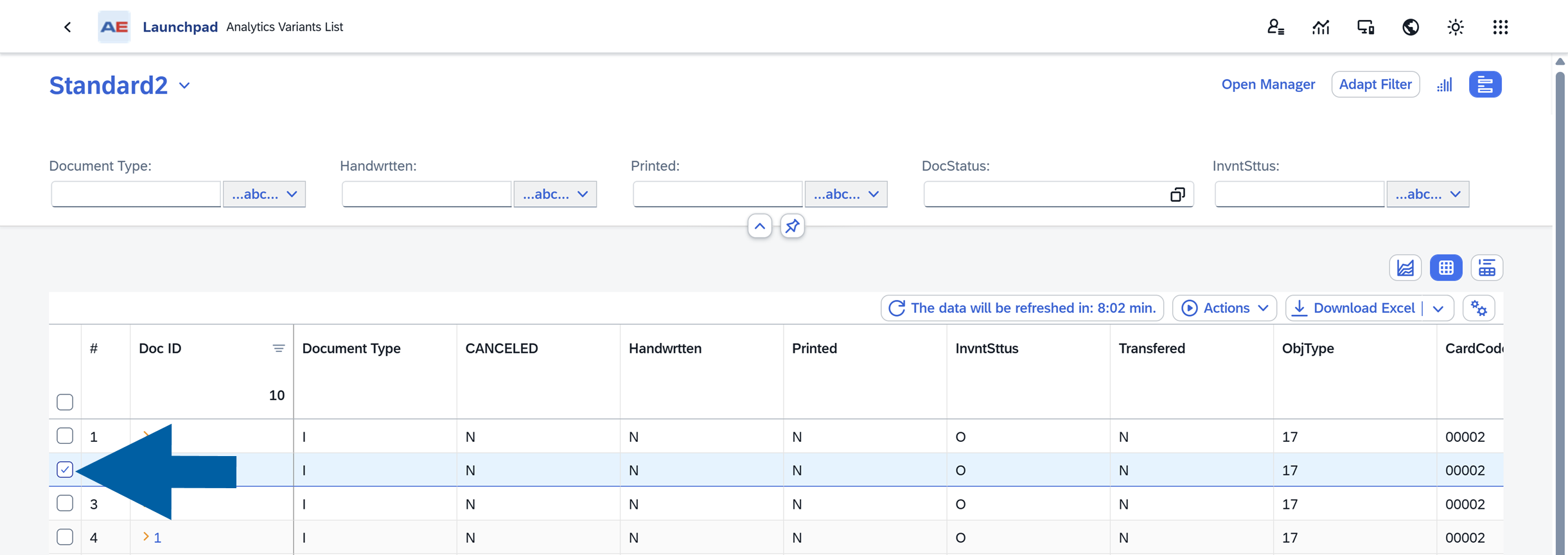
Select one or more rows in the Table View of the report.
 info
infoSome actions can process multiple selected rows at the same time.
When a user selects multiple rows, the system passes data from each selected row to the action. Whether multiple-row processing is supported depends on the action implementation.
For example, users may release multiple production orders in a single operation.
-
Click Actions.
-
Choose the action you want to run.
The system uses the selected rows and the configured parameter mappings to execute the action.
If no rows are selected, the action cannot be executed.
Best practices
- Use Field value mappings whenever the action depends on report data.
- Use Constant value mappings for fixed values that should always be passed.
Troubleshooting
Action is not visible
Check the following:
- The action is added to the source
- The action is enabled in the variant
- The user has permission to use the action
Action is disabled or does not run
Check the following:
- At least one row is selected
- All required parameters are mapped
- Required values are not empty
- The action supports the selected row data
Wrong data is passed to the action
- Review the parameter mappings and verify that the correct report columns are assigned to the correct action parameters.