Start CompuTec WMS Client
CompuTec WMS Client provides access to warehouse operations in CompuTec WMS.
This article explains how to start CompuTec WMS Client, log in, and review Pick List notifications.
Before you start
Make sure CompuTec WMS Client has been installed and configured.
For information about configuring the client, see CompuTec WMS Client configuration guide.
Start CompuTec WMS Client
-
Start the desktop version of CompuTec WMS Client from the Windows program list or run
CompuTec.Client.Desktop.exefrom the CompuTec WMS Client installation folder.
-
Select the required Company name.
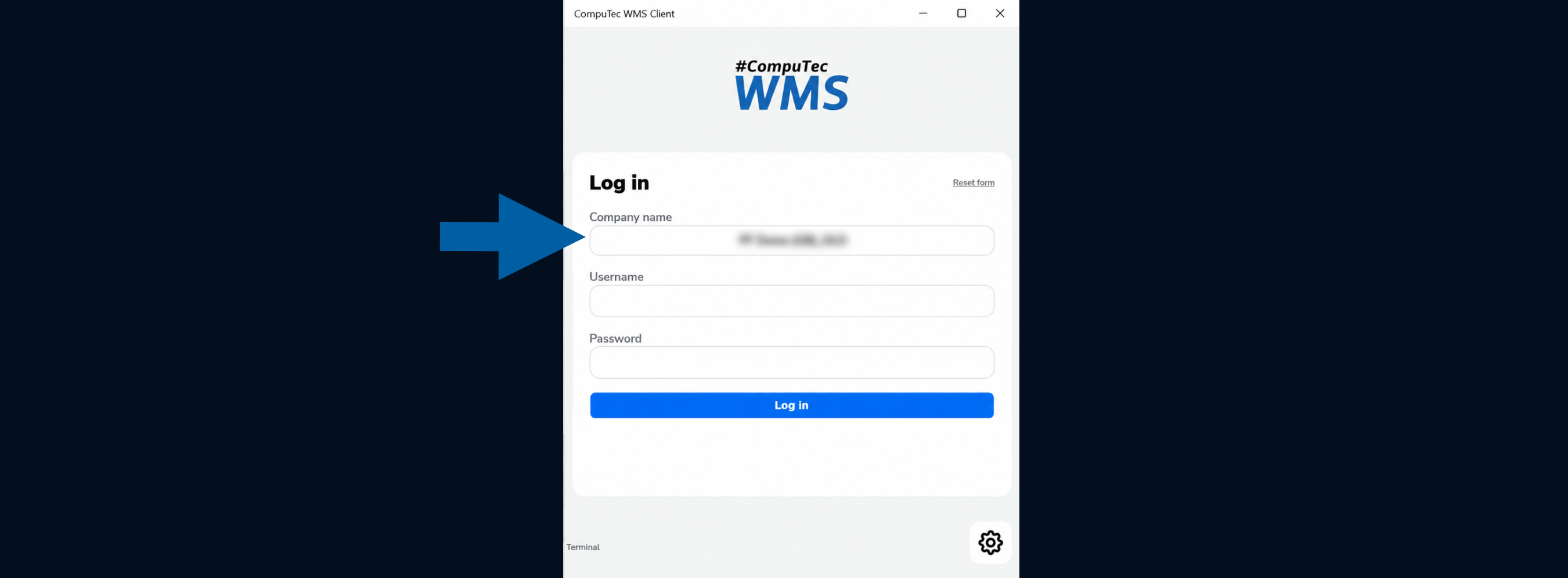
-
Enter the username and password configured for the WMS user.
If a barcode is assigned to the WMS user, you can scan the barcode instead of entering the login credentials. Read more
noteWhen you start CompuTec WMS Client for the first time, configure the connection to CompuTec WMS Server before logging in. Read more.
-
Click Log in.
After a successful login, the CompuTec WMS Client main menu appears.
Review Pick List notifications
The Notification Center displays informational messages and errors related to Pick Lists. Messages are displayed in the Notification Center instead of interrupting users while they work with Pick Lists.
To review notifications:
-
Go to the main screen of CompuTec WMS Client.
-
Click the Notification Center icon in the upper-right corner.

-
Review the available messages and errors.
The Notification Center icon is available on the main screen of CompuTec WMS Client. It is not displayed when you open a Pick List.
Notifications displayed in the Notification Center are based on entries in the @CT_WMS_ONOT table related to Pick Lists.