You are currently viewing documentation for CompuTec ProcessForce 3.0, which is a plugin installed and managed through CompuTec AppEngine 3.0, built on .NET 8. If you are working with older environments, you may need the documentation for CompuTec ProcessForce 2.0: https://learn.computec.one/docs/processforce/2.0/.
Please note that CompuTec ProcessForce 2.0 will be supported only until December 31, 2026. After this date, the product will no longer receive regular support or maintenance updates. Read more
CompuTec AppEngine 3.0 introduces a new architecture, and all CompuTec components, including the CompuTec ProcessForce 3.0 plugin, must be updated together to ensure full compatibility.
Before starting your installation or upgrade process, we strongly recommend reviewing the CompuTec AppEngine 3.0 and CompuTec ProcessForce 3.0 documentation.
Item Classifications
In inventory management, item classifications help categorize products based on specific attributes such as corrosive, toxic, or non-toxic. This feature enables better organization, compliance, and streamlined processes. Additionally, classifications can be grouped for enhanced management and reporting.
Item Classifications
To access Item Classifications, navigate to:
Administration → Setup → Item Details → Item Classification
Item classifications allow users to define unique names and codes for categorizing items. Users can also specify which documents a classification applies to by selecting the corresponding checkbox.
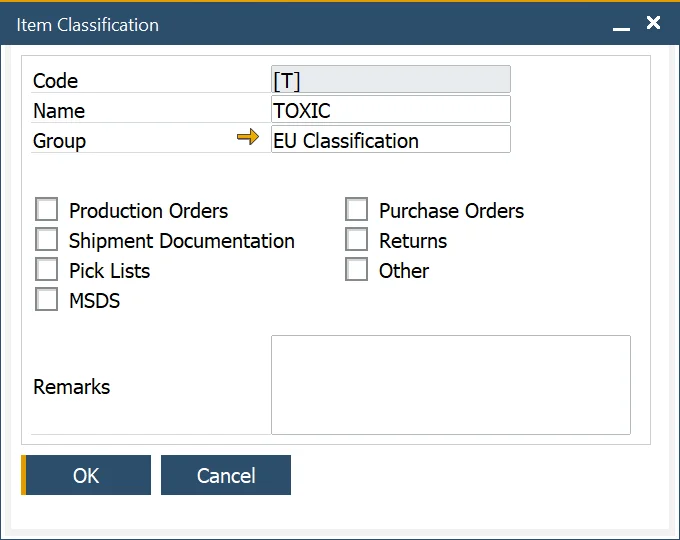
Item Classification Groups
To access Item Classification Groups, navigate to:
Administration → Setup → Item Details → Item Classification Groups
To further streamline inventory organization, users can group related classifications under Item Classification Groups. For example, regulatory frameworks like EU Classifications can be structured into predefined groups for easy reference.

Item Classification Assigning
Once created, classification can be assigned to an item in the Item Details form, Classifications tab.
Steps to Assign a Classification:
- Navigate to the second column.
- Click the circle icon that appears in the field.
- Choose the appropriate classification from the list.
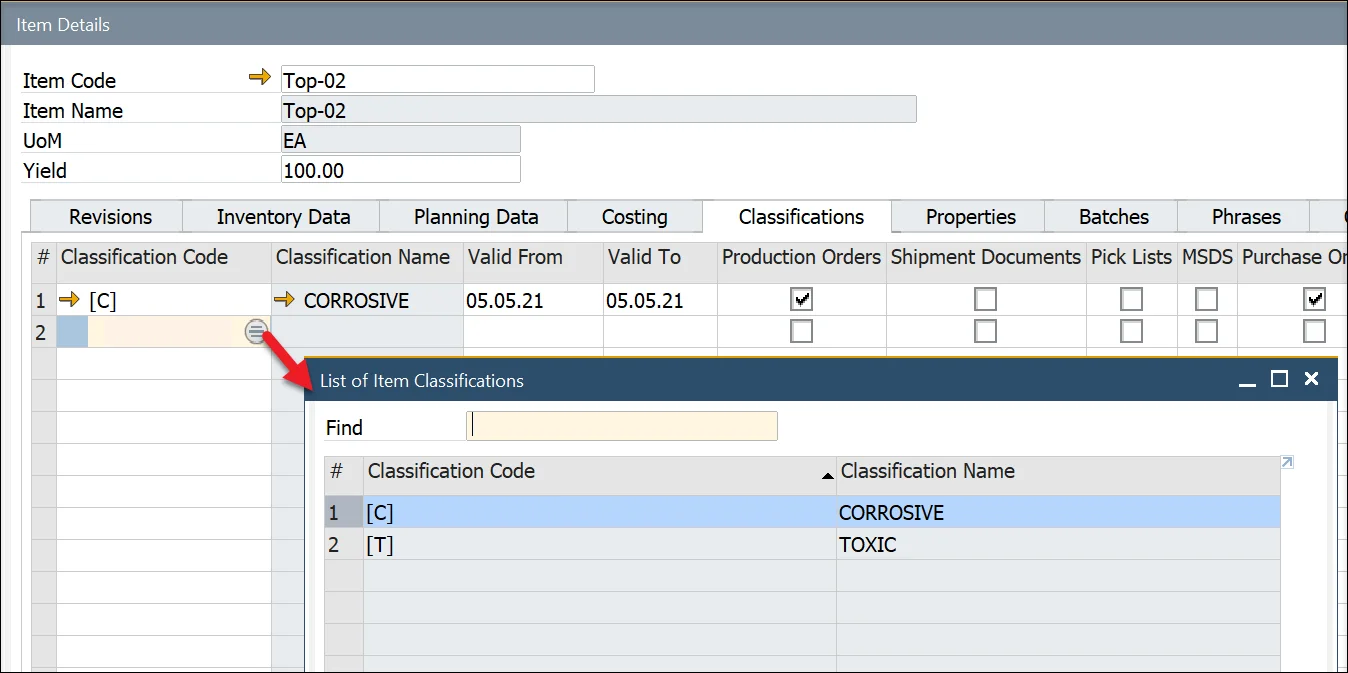
Classifications can also be linked to specific document types by selecting the checkbox in the related column, ensuring seamless integration into various workflows.