You are viewing documentation for CompuTec PDC 4.0, which runs on CompuTec AppEngine 3.0 (.NET 8).
If you use CompuTec PDC 3.0, see the CompuTec PDC 3.0 documentation.
When upgrading to CompuTec PDC 4.0, update all required CompuTec components together to ensure compatibility.
Before installing or upgrading, review the CompuTec PDC Installation Guide and the system requirements.
First Installation
This guide describes how to install CompuTec PDC for the first time. CompuTec PDC consists of two parts: the CompuTec PDC plugin, which runs in CompuTec AppEngine, and the CompuTec PDC client, which you install on the devices where operators register production data.
The setup consists of two steps:
- Install the CompuTec PDC plugin – Installs the plugin for an SAP Business One company and activates it on a CompuTec AppEngine instance.
- Download and install the CompuTec PDC client – Installs the client application on a device from the CompuTec AppEngine Launchpad.
To upgrade an existing installation, read the Update CompuTec PDC guide.
Before you start
Before you begin, make sure that:
- All hardware and software requirements are met. Read more
- CompuTec AppEngine is installed and configured. Read more
- You can log in to the CompuTec AppEngine Administration Panel.
- You can log in to the CompuTec AppEngine Launchpad with an SAP Business One user.
Step 1: Install the CompuTec PDC plugin
To install the CompuTec PDC plugin, follow these steps:
-
Log in to the CompuTec AppEngine Administration Panel.
-
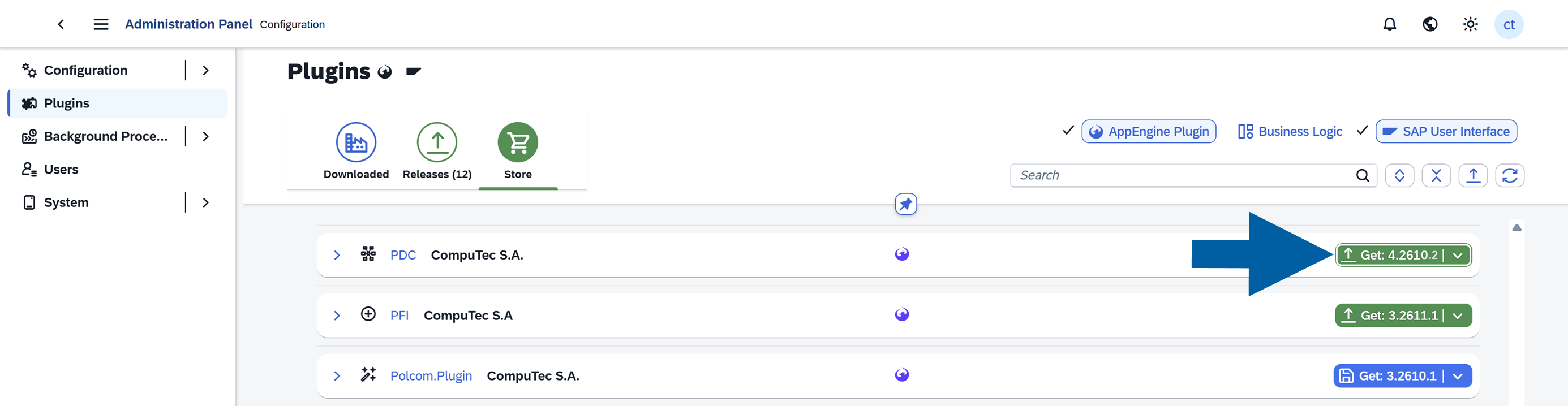
Go to Plugins > Store.
-
Find PDC and click Get next to it.
-
In Select Company for installation, select the company where you want to install CompuTec PDC, and click Accept.

-
In Select AppEngine Instance for installation, select the CompuTec AppEngine instance on which you want to activate the plugin, and click Accept.

-
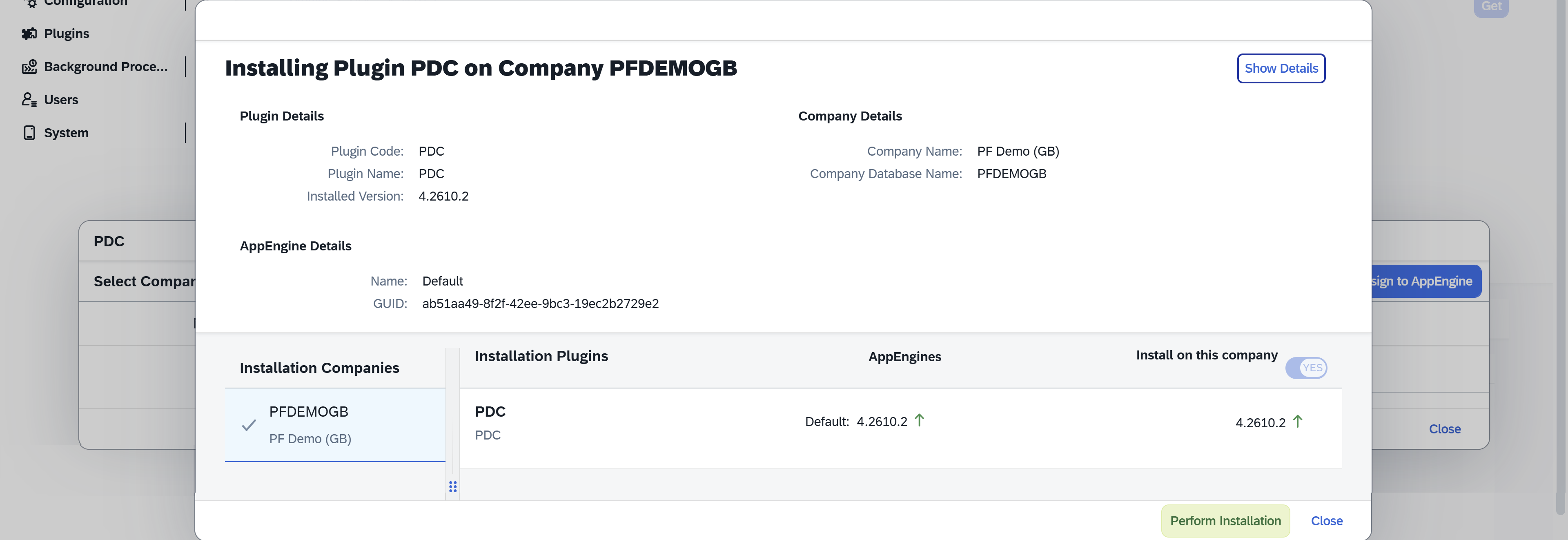
In the Installing Plugin PDC on Company window, make sure Install on this company is set to YES.
-
Click Perform Installation.
-
Wait until the installation is complete, and then click Close.

Done! The CompuTec PDC plugin is installed and activated.
Step 2: Download and install the CompuTec PDC client
You download the CompuTec PDC client from the CompuTec AppEngine Launchpad. Perform this step on each device where you want to use CompuTec PDC.
To download and install the CompuTec PDC client, follow these steps:
-
Open the CompuTec AppEngine Launchpad in your browser.
-
Under Choose your workspace, select Launchpad.

-
Click Log in with SAP Business One.
-
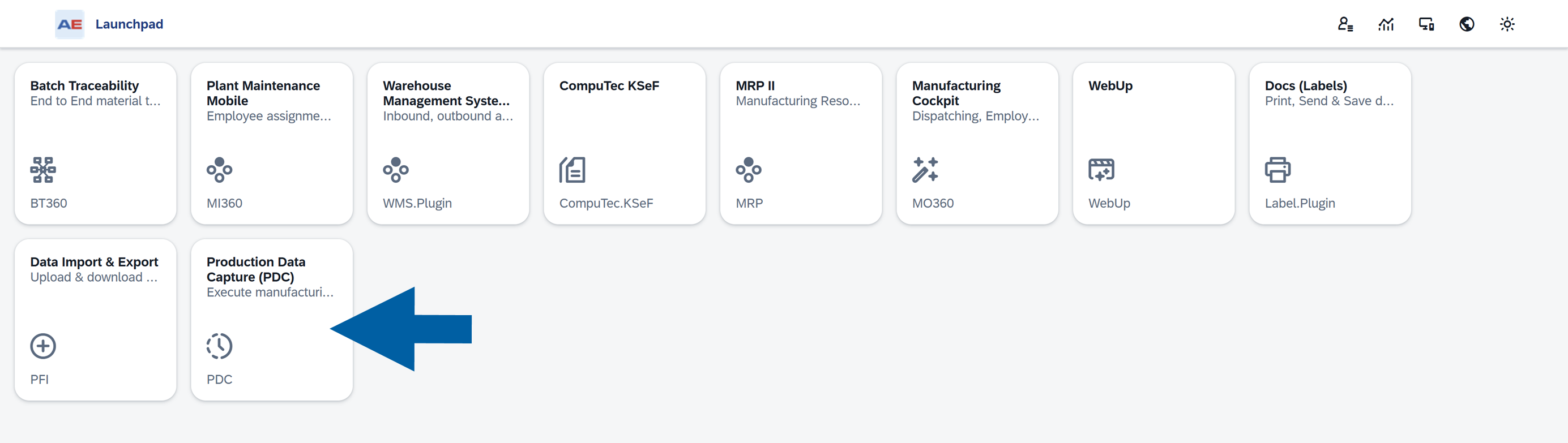
On the Launchpad, click the Production Data Capture (PDC) tile.
-
In CompuTec PDC, click the Download tile.

-
In Available Files, click the
CompuTec.PDC.Setupinstallation file with the.msiextension to download it.
-
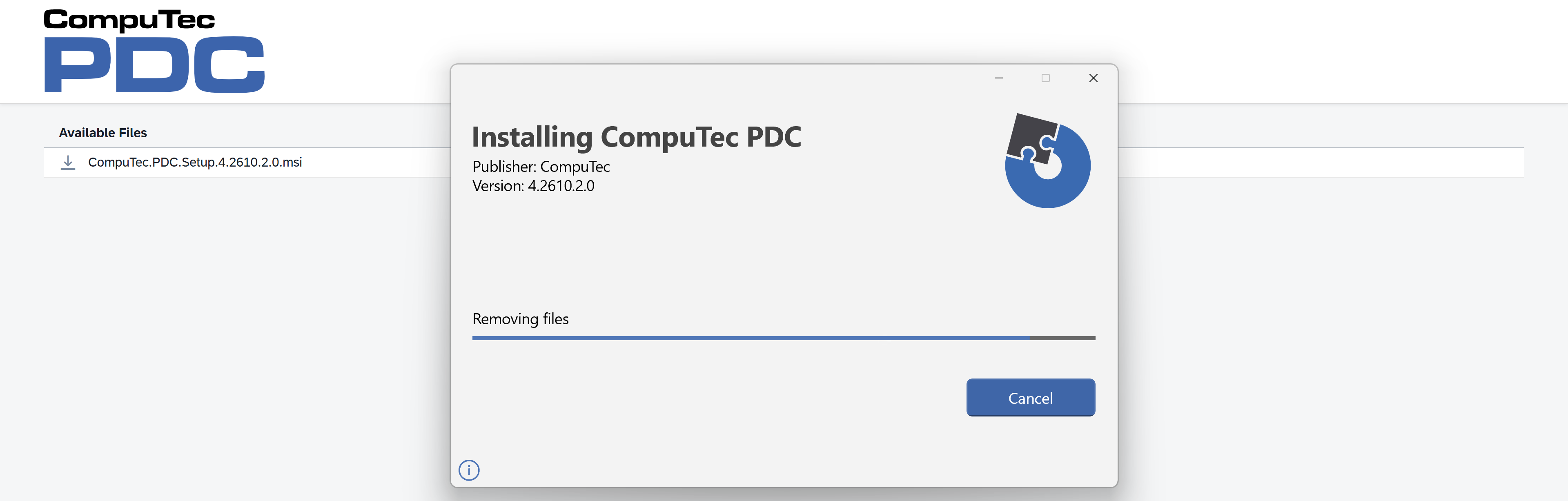
Run the downloaded file.
-
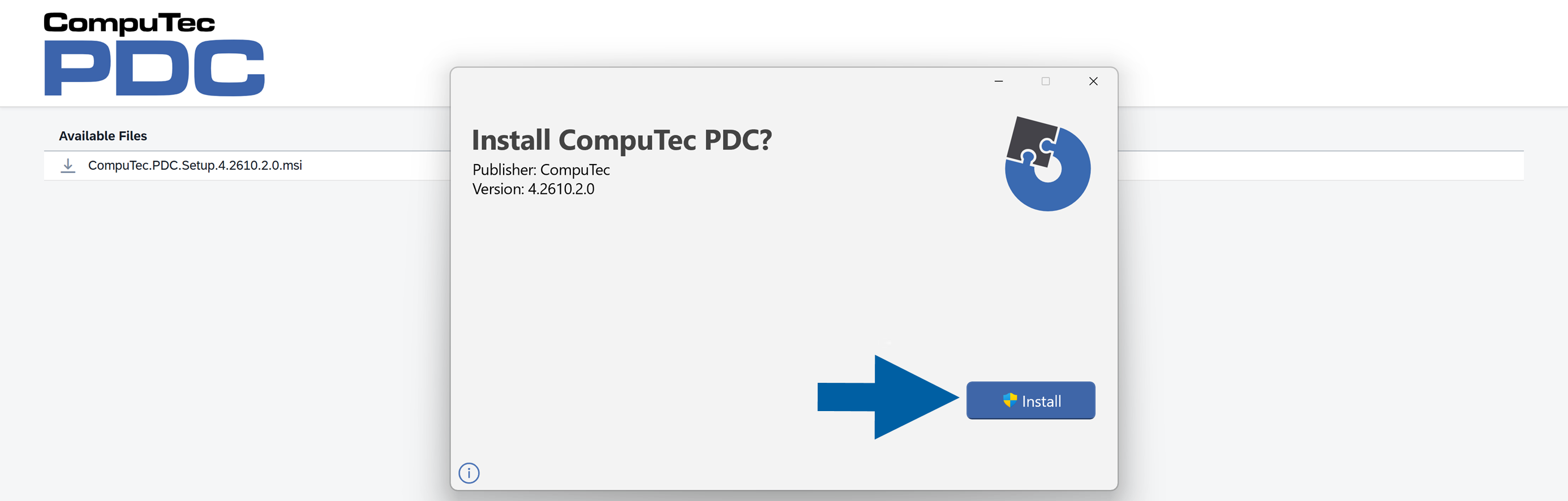
In the Install CompuTec PDC? window, click Install.
-
Wait until the installation is complete.
Done! The CompuTec PDC client is installed on the device.
Verify the installation
To verify the installation, check that:
- The Production Data Capture (PDC) tile is available on the CompuTec AppEngine Launchpad.
- The CompuTec PDC client is installed on the device.
Next steps
After the installation, configure CompuTec PDC for your company.
See Configure CompuTec PDC for the configuration process.