Send Reports by Email
CompuTec Labels can automatically send generated reports by email. You can configure the email account, recipients, subject, and message body, and use SQL queries to determine email recipients and content dynamically.
Emails can be sent to multiple recipients. Document parameters, such as @DocEntry, can be used in SQL queries to determine values for the To, CC, Subject, and Body fields.
The email body can also contain HTML content, including tables returned by SQL queries.
Before you start
Before configuring email sending:
- Configure an email account in CompuTec Labels. Read more
- Make sure the email account can send messages successfully.
Enable email sending
To enable email sending, follow these steps:
-
In CompuTec Labels Printing Manager, go to Companies.
-
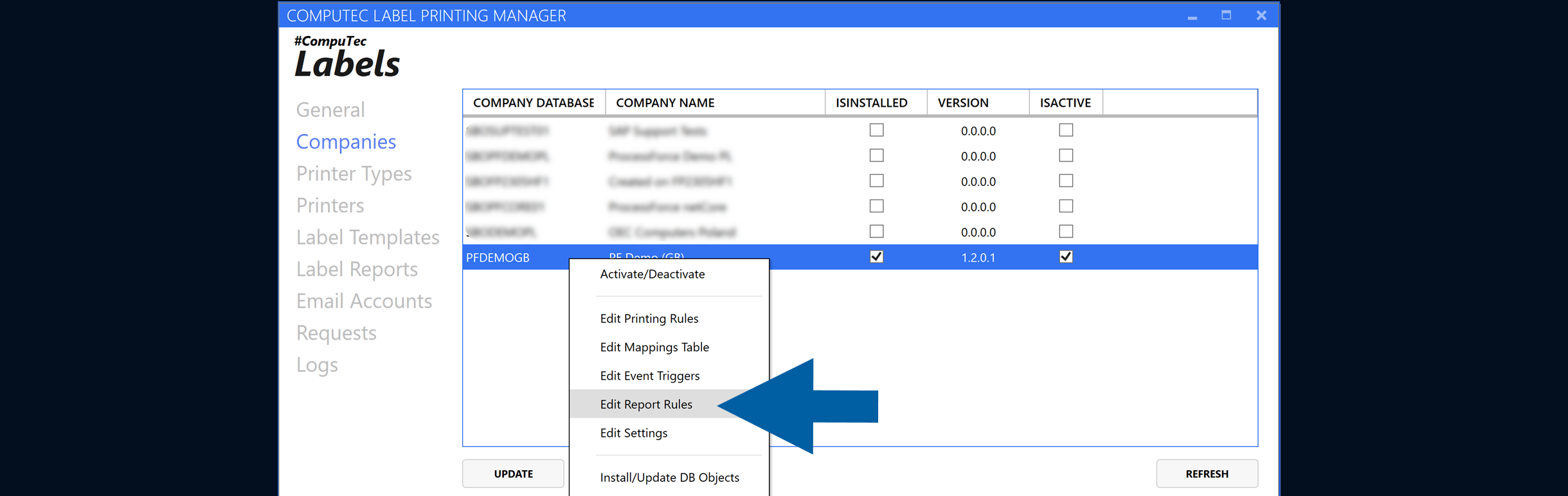
Select the company that you want to configure and click Edit Report Rules.
-
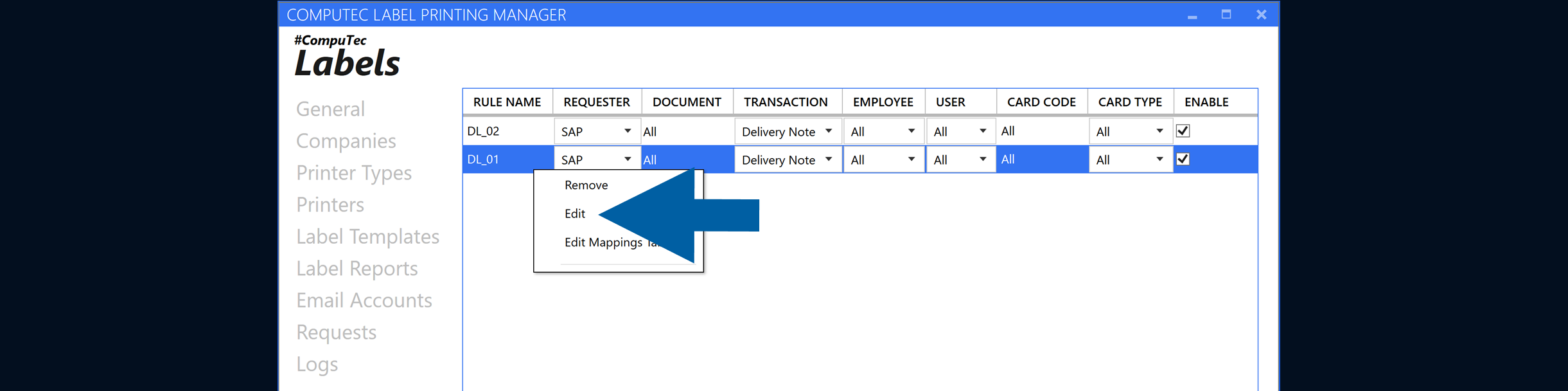
Select an existing rule and click Edit, or add a new rule. Read more
-
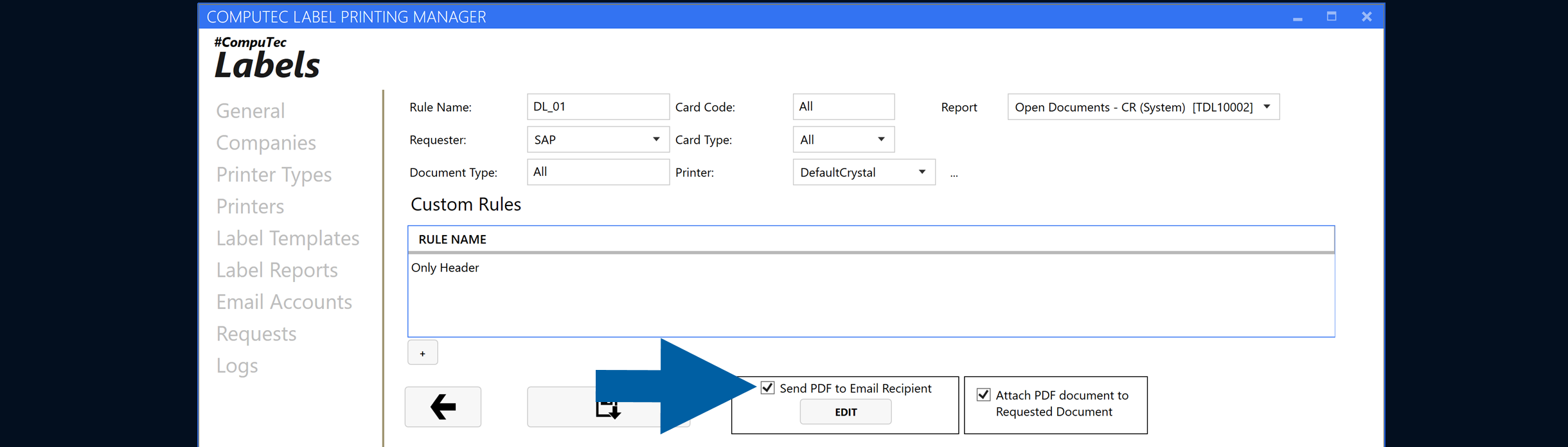
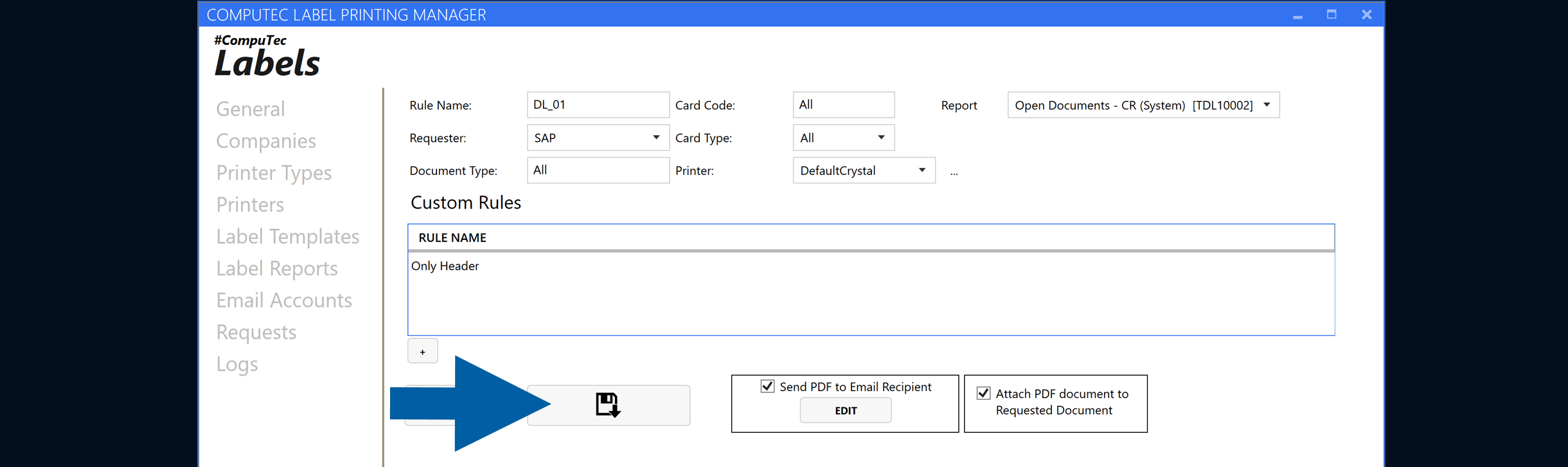
Enable Send PDF to Email Recipient.
-
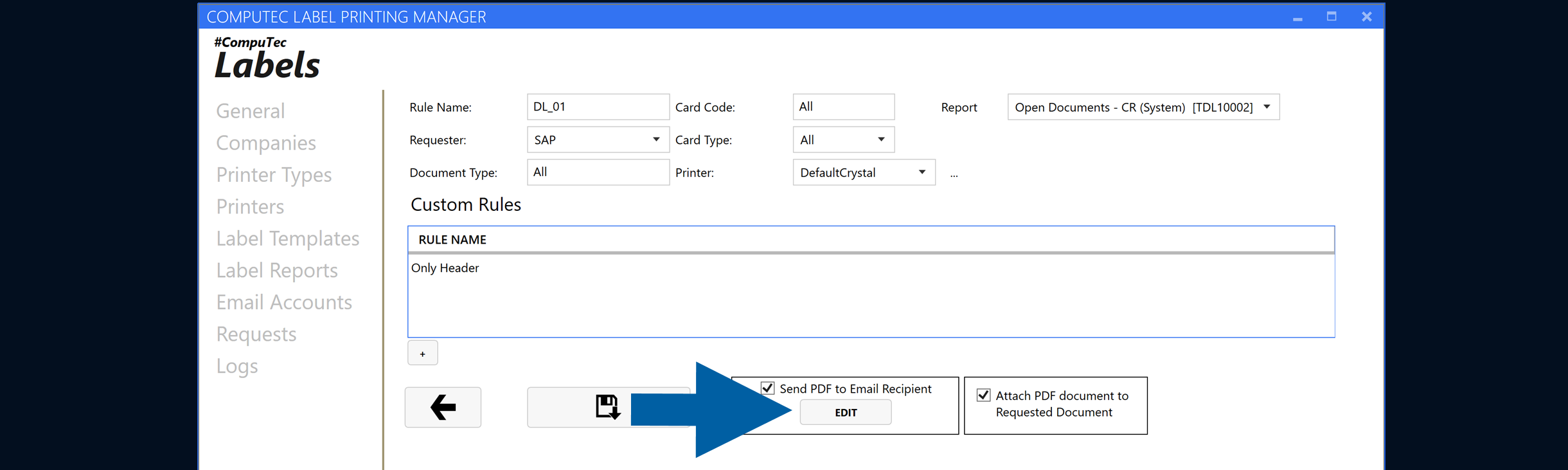
Click Edit to configure the email settings.
-
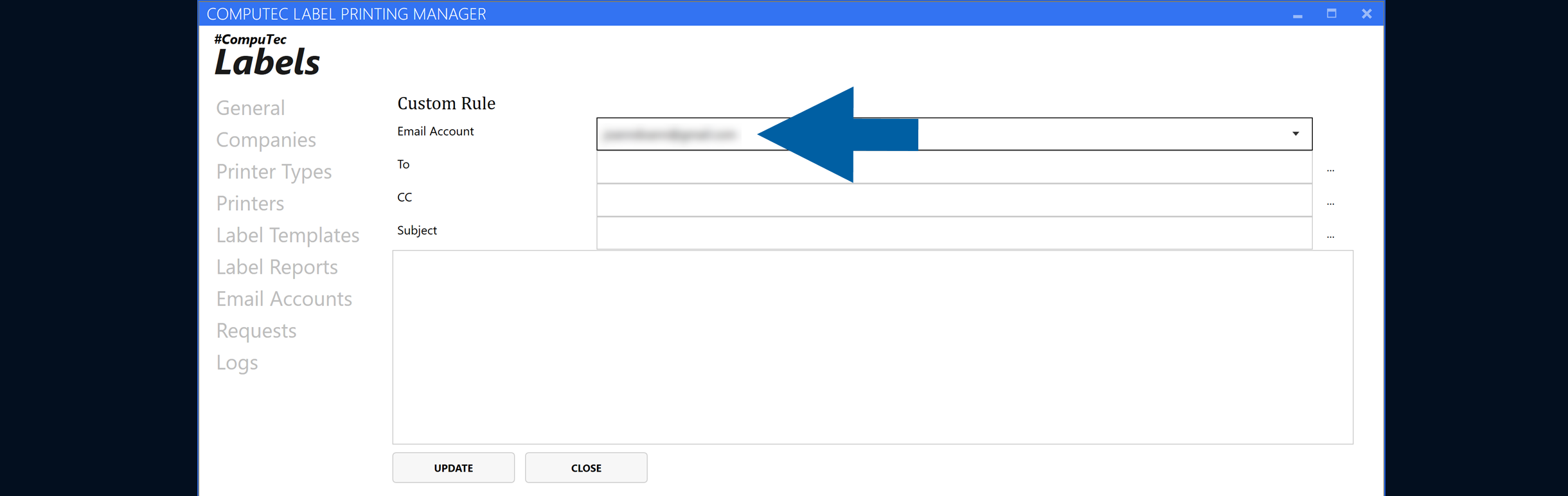
Select the email account that you want to use.
-
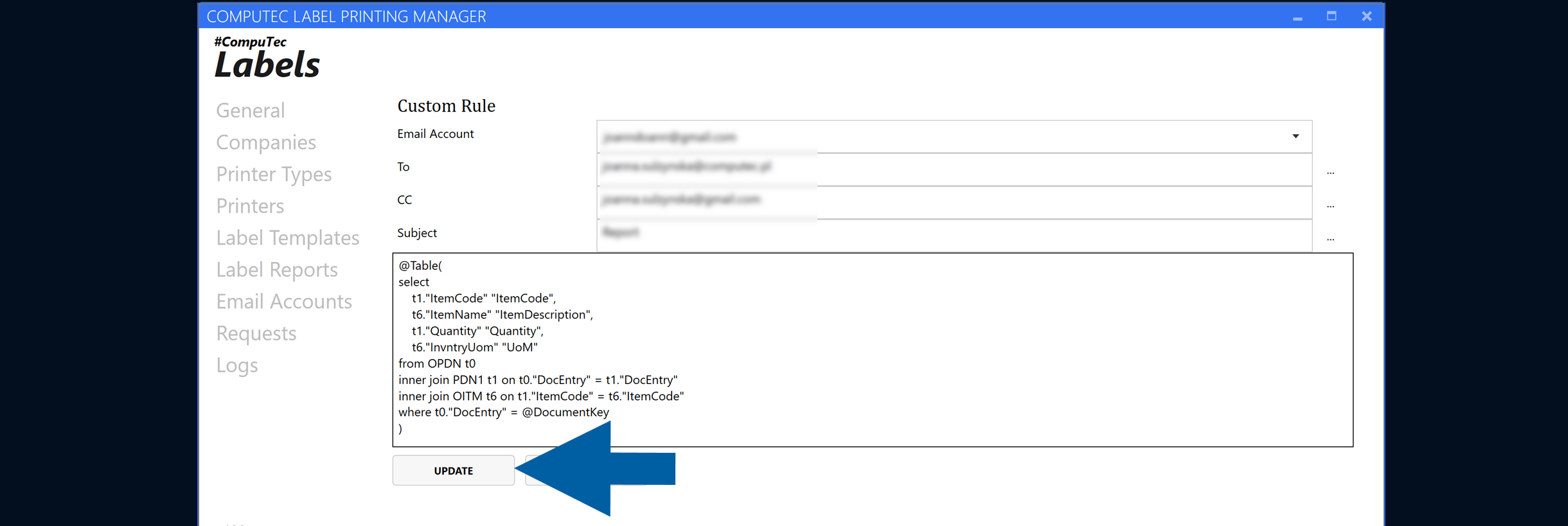
Configure the following fields:
- To – Primary email recipients.
- CC – Additional email recipients.
- Subject – Email subject.
- Body – Email message content.
-
Click Update to save the configuration.
-
Click Close.

-
Click the save icon to save your configuration.
Configure multiple recipients
The To and CC fields support multiple email addresses. You can enter the addresses manually or retrieve them using an SQL query.
Enter recipients manually
To specify multiple recipients manually, separate the email addresses with semicolons:
e-mail-01@domain.com; e-mail-02@domain.com
You can use this format in both the To and CC fields.
Retrieve recipients with an SQL query
You can also retrieve recipients using an SQL query:
-
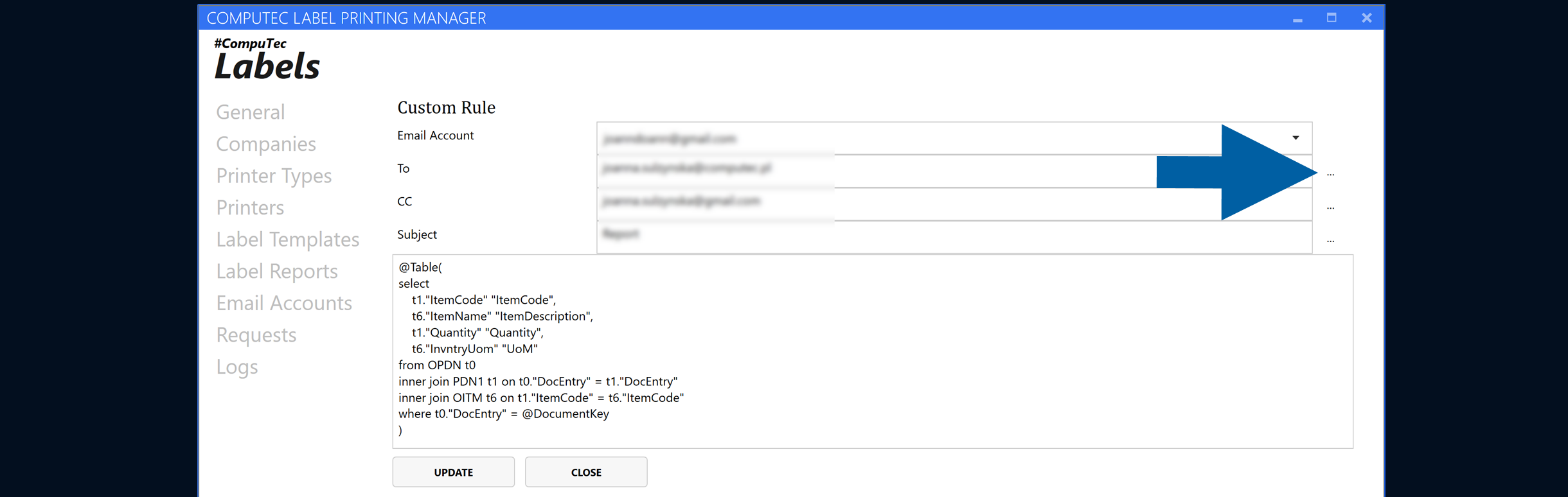
Click the three-dot icon next to the chosen field.
-
Enter an SQL query returning multiple email addresses as a single semicolon-separated value:
SELECT 'e-mail-01@domain.com; e-mail-02@domain.com' FROM DUMMY -
Click Update.
Alternatively, the query can return each email address as a separate row:
SELECT 'e-mail-01@domain.com' FROM DUMMY
UNION ALL
SELECT 'e-mail-02@domain.com' FROM DUMMY
UNION ALL
SELECT "E_mails" FROM "@EMAIL_TABLE"
Both methods allow CompuTec Labels to send the email to multiple recipients.
Use document parameters
Use document parameters in SQL queries to determine email recipients and content dynamically.
For example, you can use the @DocEntry parameter to retrieve values related to the document being processed.
Parameters such as @DocEntry can be used in SQL queries for the following fields:
- To
- CC
- Subject
- Body
Add a document parameter to an SQL query
To add a document parameter to an SQL query, follow these steps:
-
Click the three-dot icon to open the query editor for the required field, for example, To.
-
Enter your SQL query.
-
Use the required document parameter in the query, for example,
@DocEntry.noteThe available parameters depend on the SAP Business One object type being processed. You can check the queries and available parameters for each object type in the company settings.
Check available parameters for an object type
To check the available parameters for an object type, follow these steps:
-
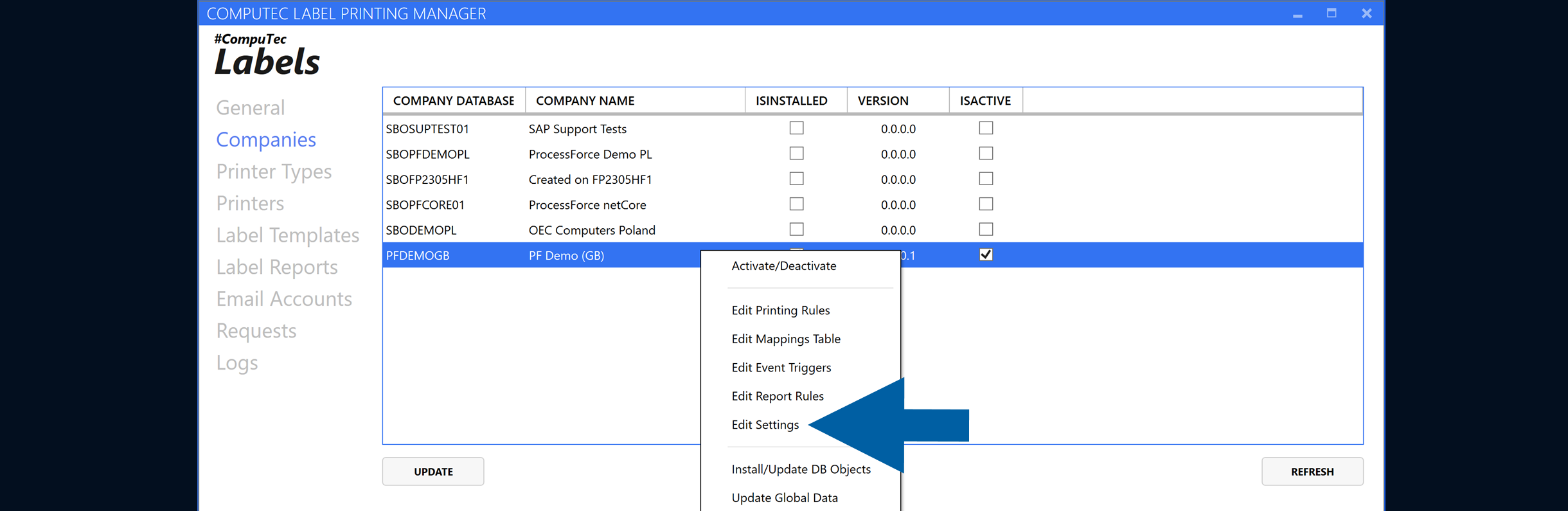
Go to Companies.
-
Right-click the required company and select Edit Settings.
-
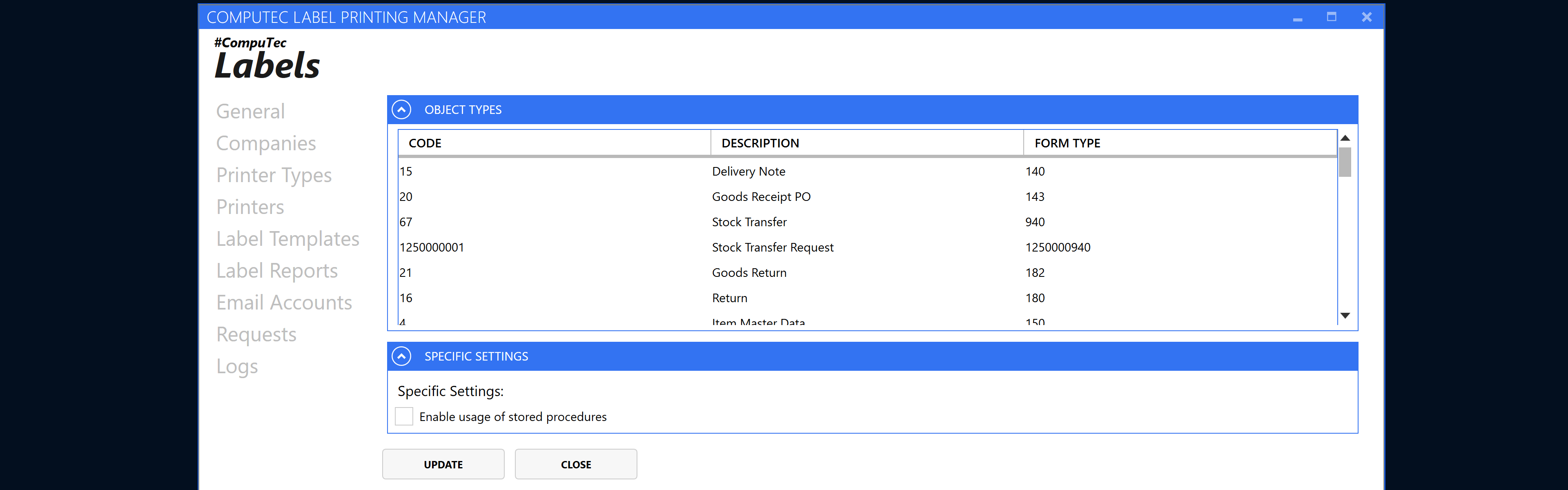
Find the required object type in the list.
-
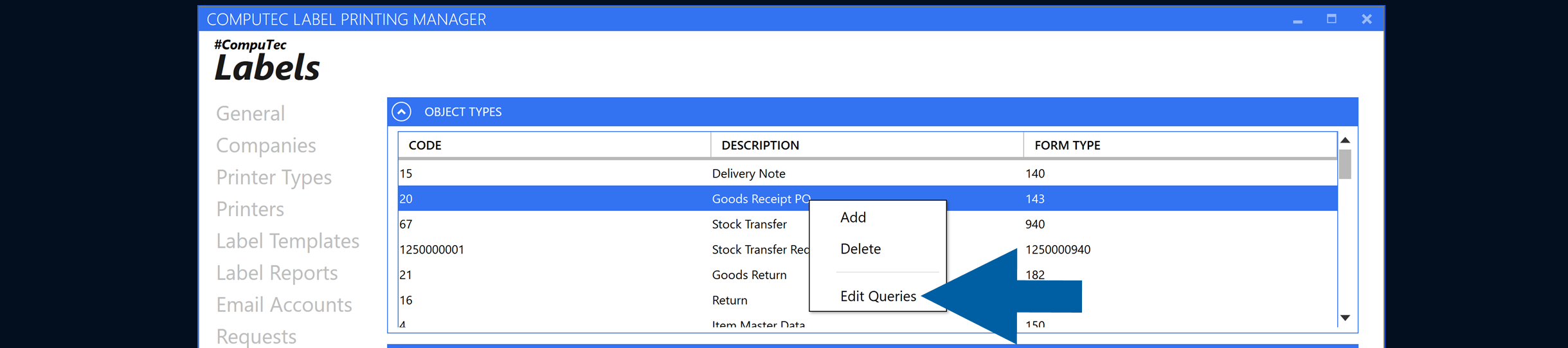
Right-click the object type and select Edit Queries.
-
Review the available queries and parameters for the selected object type.
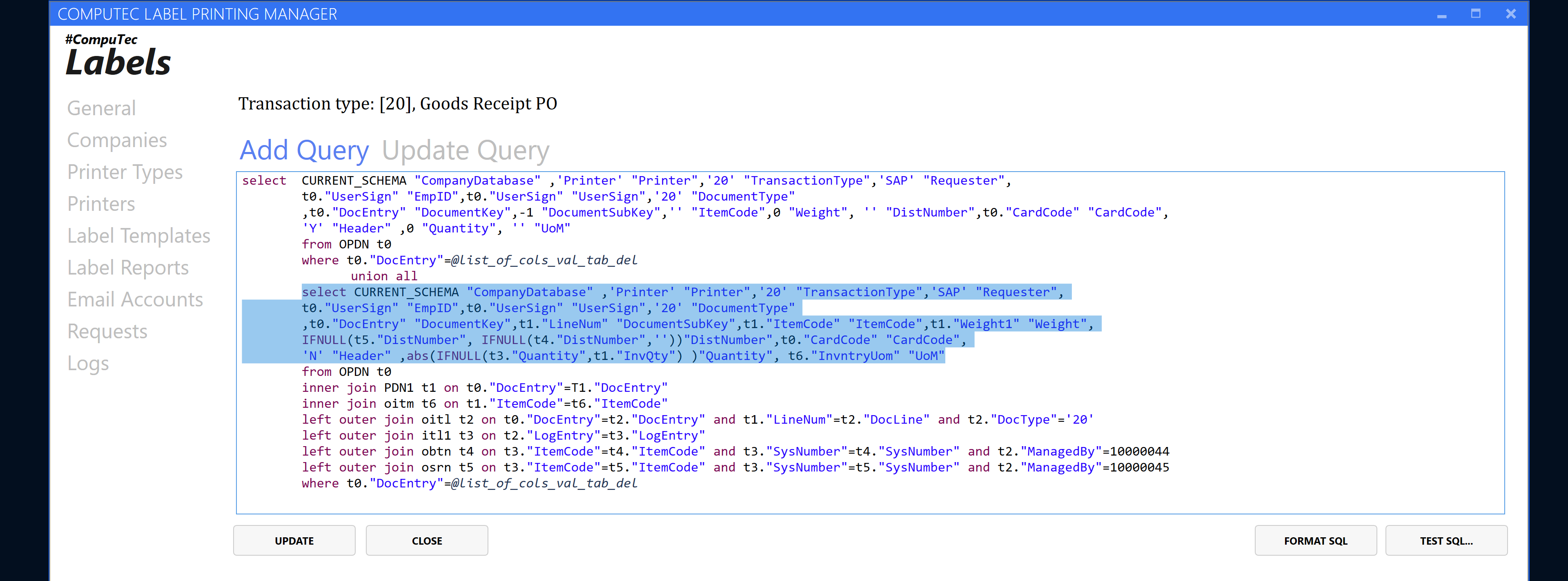
You can use the listed parameters when creating SQL queries for email recipients and content.
Add HTML to the email body
The Body field supports HTML, allowing you to add formatted and structured content to the message.
SQL queries can also return HTML tables for the email body. You can use this to present document information in a structured format instead of plain text.
The content displayed in the email depends on the HTML and data returned by the SQL query.
Use case: Send emails when a Goods Receipt PO is posted
CompuTec Labels can automatically send an email when a Goods Receipt PO is posted with reference to one of the following source documents:
- Purchase Order
- A/P Reserve Invoice
- Production Order
The email is sent using the email account and report configured in the applicable CompuTec Labels rule.
Result
When the configured rule conditions are met, CompuTec Labels generates the report and sends it by email.
Depending on the configuration, the email can:
- Include multiple recipients.
- Use recipients entered manually or returned by SQL queries.
- Use document parameters, such as
@DocEntry, to generate dynamic recipients and content. - Include HTML formatting and tables returned by SQL queries in the email body.
Additional information
Email sending is configured as part of a CompuTec Labels rule.
If you also want to attach the generated PDF to the requested document, enable Attach PDF document to Requested Document.