Sort Order Definitions
The Sort Order Definitions feature allows you to control how document lines are displayed in the Document Details window in the WMS client.
By creating sorting templates, you can define custom sorting rules based on specific document properties. This helps users view and process document lines in a logical and operationally efficient order. For example, you can sort lines by completion status, or other available properties, in ascending or descending order.
Once configured, users can select the required sorting template directly in the WMS client.
Settings
To configure Sort Order Definitions, follow these steps:
-
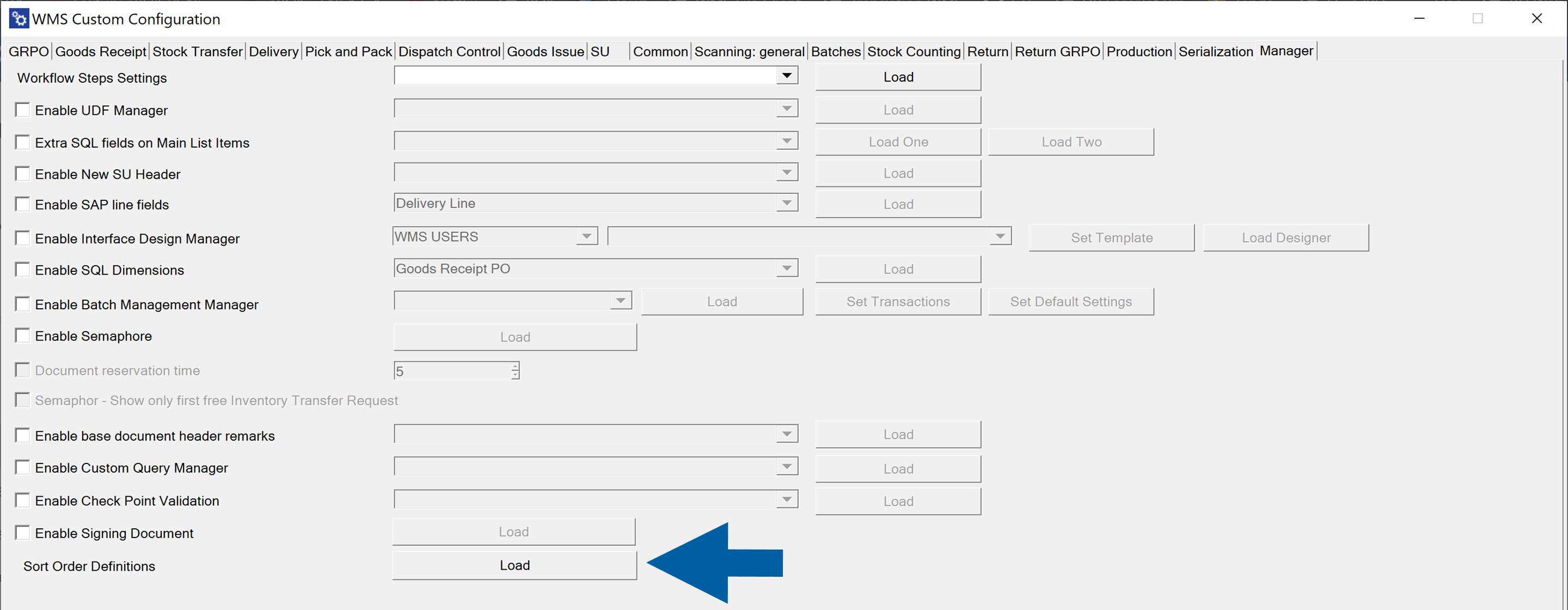
Go to WMS Custom Configuration.
-
Open the Manager tab.
-
Click Load next to Sort Order Definitions.
-
Done! The Sort Order Definitions window displays all available sorting templates.
To create a new Sort Order Definition, follow these steps:
-
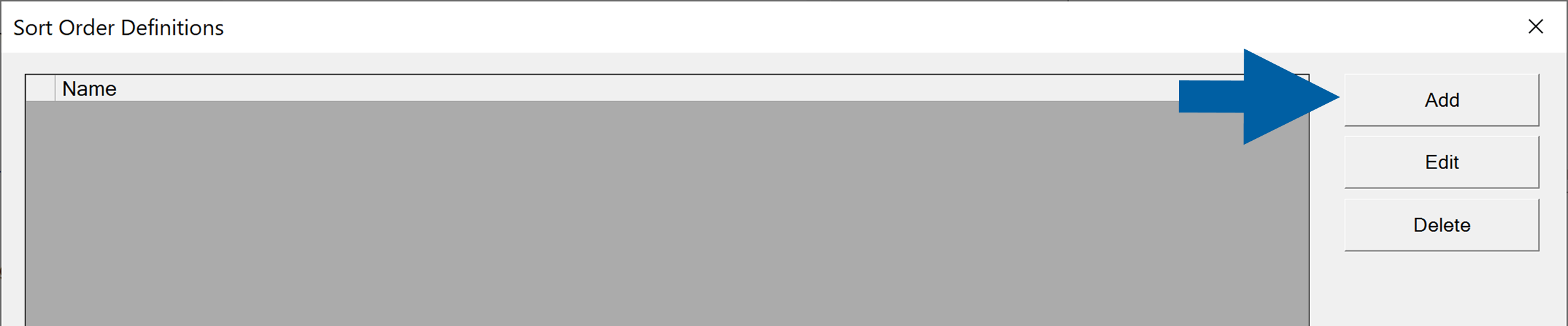
In WMS Custom Configuration > Manager , click Load next to Sort Order Definition.
-
Click Add.
-
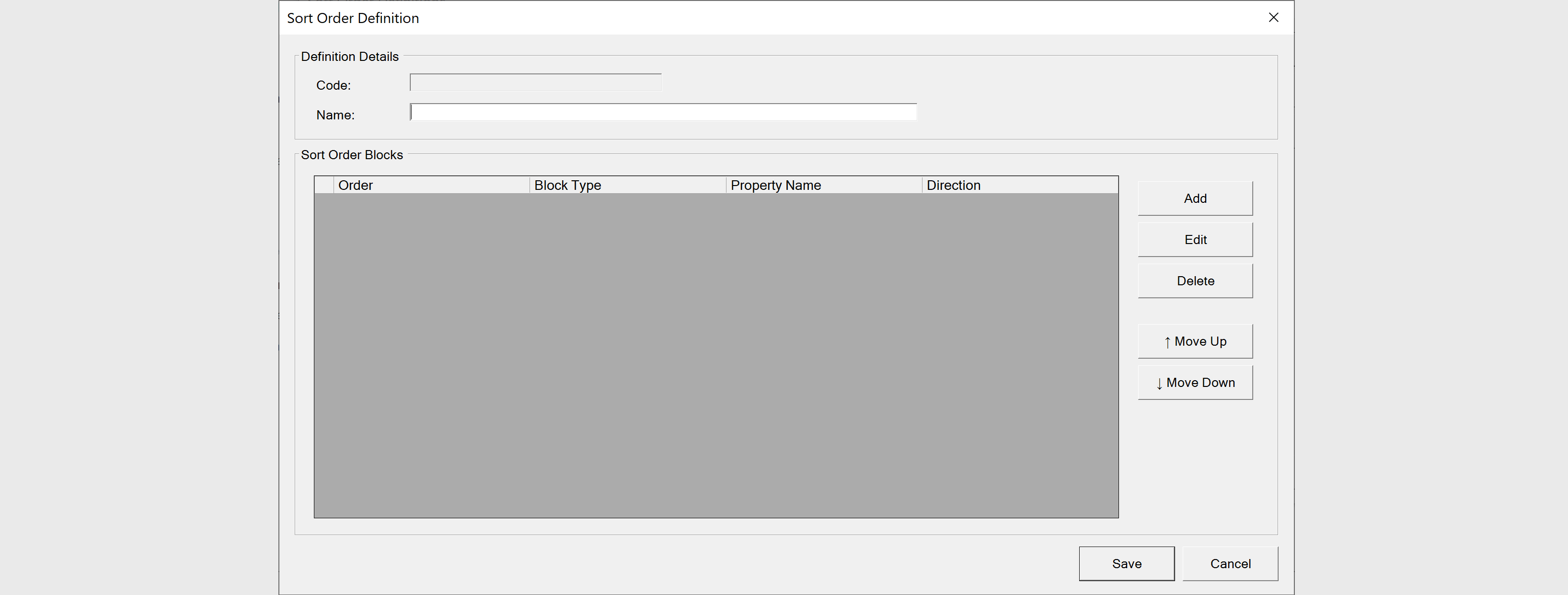
In the Definition Details section enter Name (this is the name displayed in the WMS client).
-
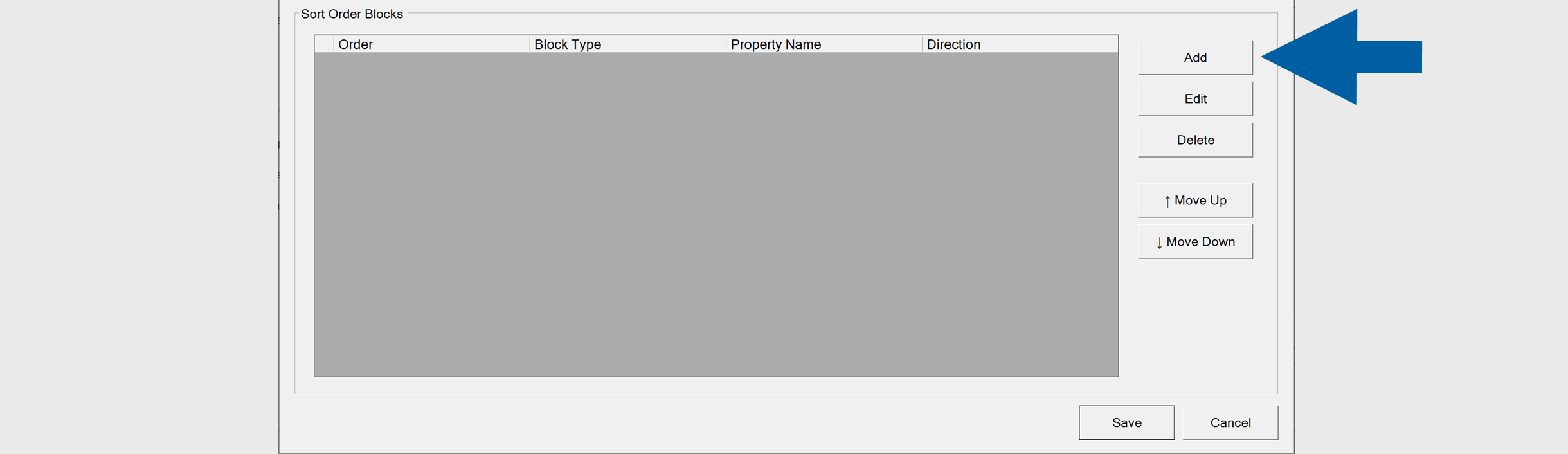
In the Sort Order Blocks section, click Add to define a sorting rule.
-
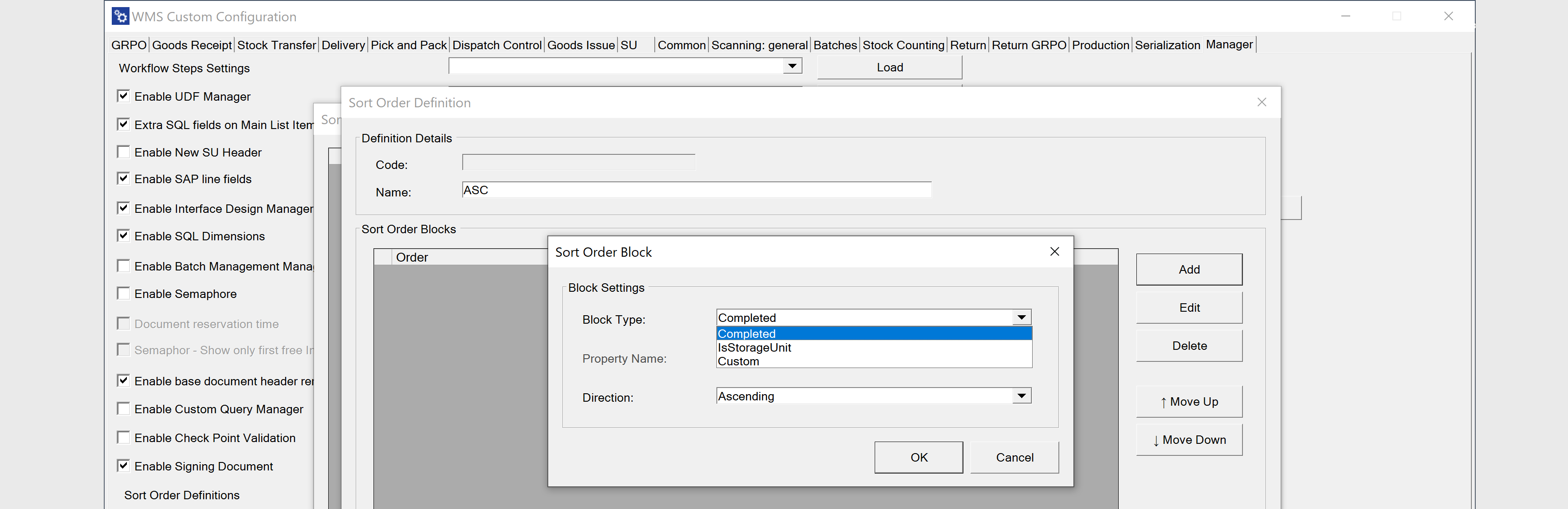
In Sort Order Block window, select the following fields:
-
Block Type: Defines the type of data used for sorting (for example,
Completed,IsStorageUnit, orCustom). -
Property Name: Specifies the document field that the system uses for sorting. It determines which value from each document line is evaluated when applying the sort order. The value must match a field defined in the WMS workflow configuration.
infoWhere to find Property Names?
-
Go to the WMS server directory:
C:\Program Files\CompuTec\WMS Server\Workflows\Default. -
Open the XML file that corresponds to your document type, for example:
GoodsReceiptPO,InventoryTransfer, orPickAndPack. -
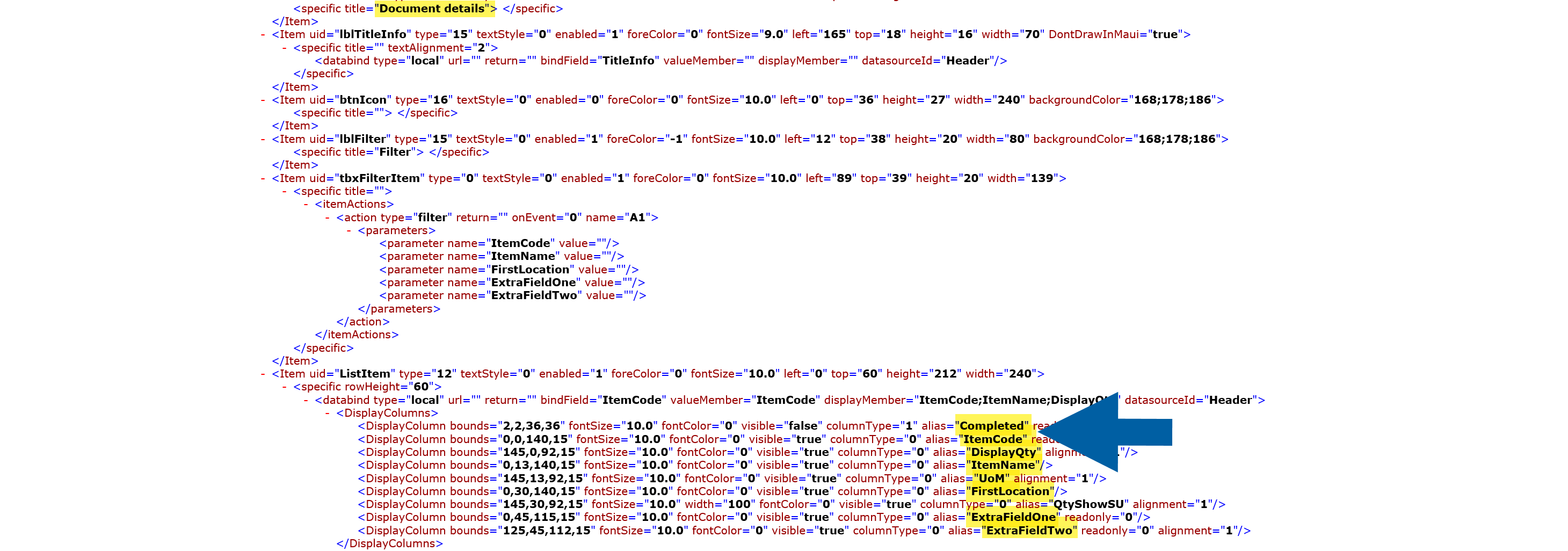
Locate the Document Details section in the file.
-
In this section, find the list of columns defined as DisplayColumn.
-
Look for the
aliasattribute. Its value in the XML file is the Property Name used in Sort Order Definitions.Example:
<DisplayColumn ... alias="ItemCode" />In this case: Property Name =
ItemCode -
When defining sorting rules, always copy the
aliasvalue exactly as shown in the XML.
Property Names are case-sensitive.
-
-
Direction – Select
AscendingorDescending.
-
-
Click OK to confirm the block.
-
Use Move Up or Move Down to adjust the priority of sorting blocks. The order of blocks determines sorting priority (
top= highest priority). -
Click Save.
You can also:
- Use Edit to modify an existing template.
- Use Delete to remove a template.
Usage
Once a Sort Order Definition is created:
-
Open a transaction in the WMS client (for example, Goods Receipt PO).
-
Go to the Document Details screen.
-
Tap More.

-
Select Sort Order Definition. A list of available sorting templates will appear.
-
Select the required template (for example,
ASCorDESC). The document lines will immediately be reordered based on the selected sorting rules.
Important Notes
- The sorting behavior depends on the defined Block Type and Direction.
- Multiple blocks allow layered sorting (primary, secondary, etc.).
- If no Sort Order Definition is selected, the default system sorting applies.