You are currently viewing documentation for CompuTec ProcessForce 2.0, which will be supported only until December 31, 2026. After this date, the product will no longer receive regular support or maintenance updates.
We recommend upgrading to CompuTec ProcessForce 3.0, which is a plugin installed and managed through CompuTec AppEngine 3.0, built on .NET 8.
However, please note that CompuTec AppEngine 3.0 has a different architecture, and all CompuTec components, including the CompuTec ProcessForce 3.0 plugin, need to be updated together to ensure full compatibility.
Before starting your installation or upgrade process, we strongly recommend reviewing the CompuTec AppEngine 3.0 and CompuTec ProcessForce 3.0 documentation.
PowerShell Application Configuration
PowerShell is a powerful scripting tool that can be used to automate data imports and updates in your SAP Business One and CompuTec ProcessForce environment. This guide provides a step-by-step approach to configuring PowerShell for seamless integration, ensuring compatibility, and setting the correct execution policies.
On this page, you can find a step-by-step manual for configuring PowerShell to import or update data.
If you modify our scripts and encounter issues requiring our team’s intervention, any time spent reviewing and resolving these issues will be charged on a time and material basis at an hourly rate of 150 EUR/USD, plus any applicable expenses. Work will only commence after mutual email confirmation agreeing to these charges.
Installation
To ensure a smooth PowerShell setup, make sure that the machine where the scripts are executed has the same version of the CompuTec ProcessForce API as the version used in your company database.
For easier script editing and debugging, install one of the following:
- Windows PowerShell ISE
- Visual Studio Code with the PowerShell extension
Additionally, ensure that you are using the correct bit version (64-bit) of PowerShell to match your SAP Business One and CompuTec ProcessForce environment.
If you are using Windows Server, you can add Windows PowerShell ISE through Server Manager by following these steps:

Execution Policy
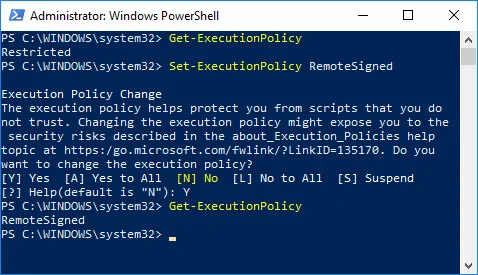
Set execution policy to RemoteSigned. To check which execution policy is selected, choose the Get-ExecutionPolicy command.

If the result/output is Restricted (as in the screenshot above), perform the Set-ExecutionPolicy RemoteSigned command and type Y on the dialog window to complete it.
After rechecking the policy, you should see RemoteSigned communication.
Now that PowerShell is configured, you can begin using scripts to import and update data. Follow the data import guide to proceed with the next steps.