You are currently viewing documentation for CompuTec ProcessForce 2.0, which will be supported only until December 31, 2026. After this date, the product will no longer receive regular support or maintenance updates.
We recommend upgrading to CompuTec ProcessForce 3.0, which is a plugin installed and managed through CompuTec AppEngine 3.0, built on .NET 8.
However, please note that CompuTec AppEngine 3.0 has a different architecture, and all CompuTec components, including the CompuTec ProcessForce 3.0 plugin, need to be updated together to ensure full compatibility.
Before starting your installation or upgrade process, we strongly recommend reviewing the CompuTec AppEngine 3.0 and CompuTec ProcessForce 3.0 documentation.
CompuTec License Server Installation
The CompuTec License Server is a crucial component for managing licenses in CompuTec solutions. This guide provides step-by-step instructions for installing and configuring the CompuTec License Server in a Windows environment. It also covers setting up necessary firewall rules to ensure proper functionality.
You can check the available CompuTec ProcessForce user license types here.
Installing CompuTec License Server
Before installing a new version, uninstall any previous versions of CompuTec ProcessForce License Server and SAP COM License Bridge if you have used them with CompuTec ProcessForce 8.81, 8.82, or 9.0 PL05 - PL08 HotFix.
CompuTec License Server can be installed in a Windows environment only.
-
Download the latest version of CompuTec License Server from here
-
Extract the ZIP file.
-
Run the
CompuTec.LicenseServer.Setup.msifile and click "Next":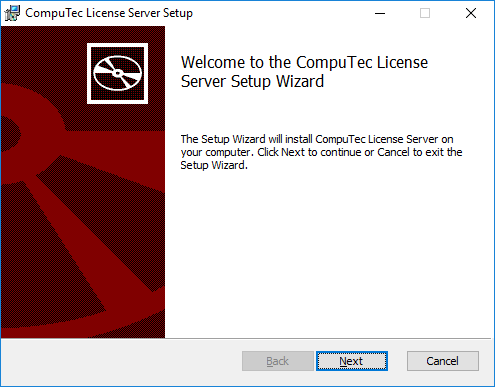
-
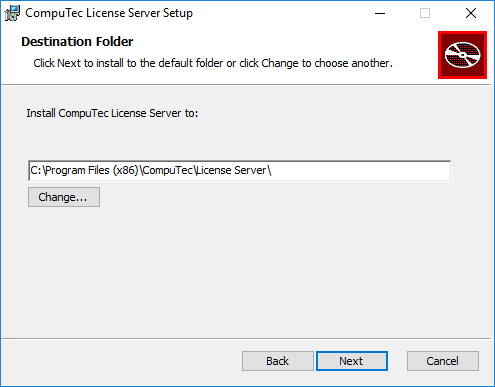
Specify the installation folder (default path is recommended) and click "Next":
-
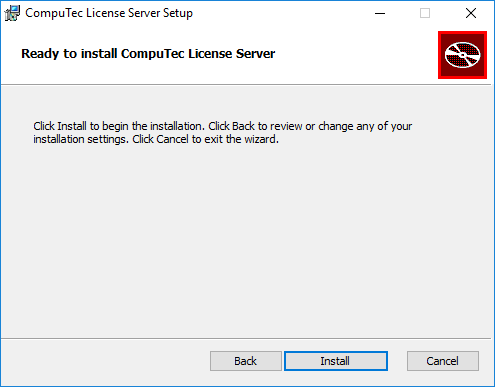
Confirm installation – click the "Install" button:
-
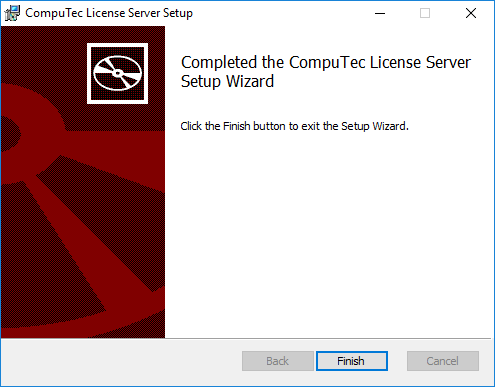
Once the installation is completed successfully, click "Finish".
Setting Windows Firewall rule
-
Navigate to
Windows Settings → Network & Internet → Windows Firewall: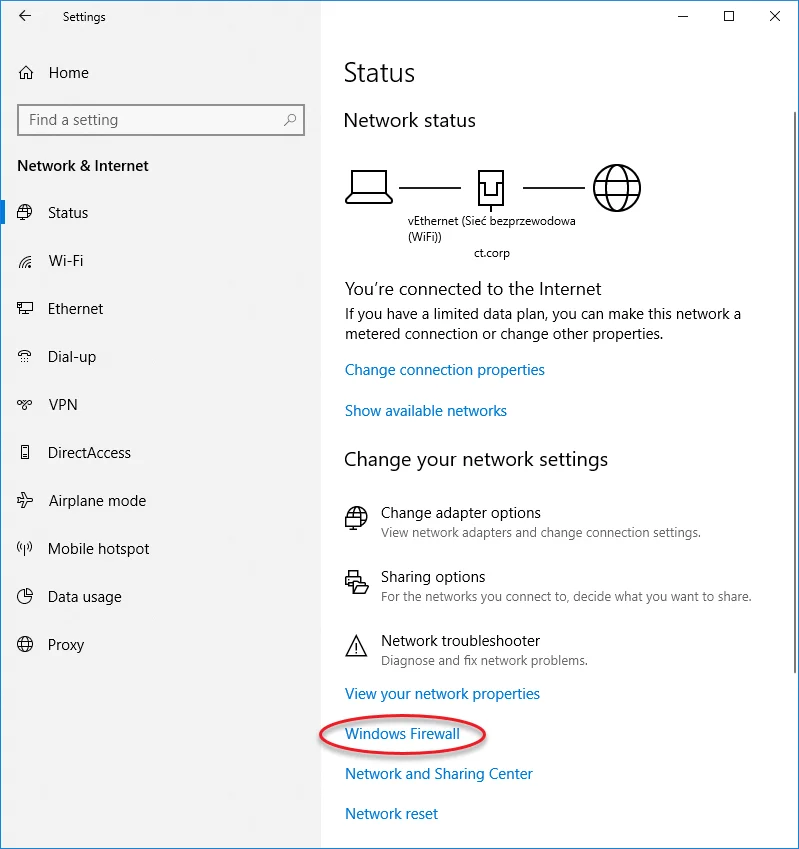
-
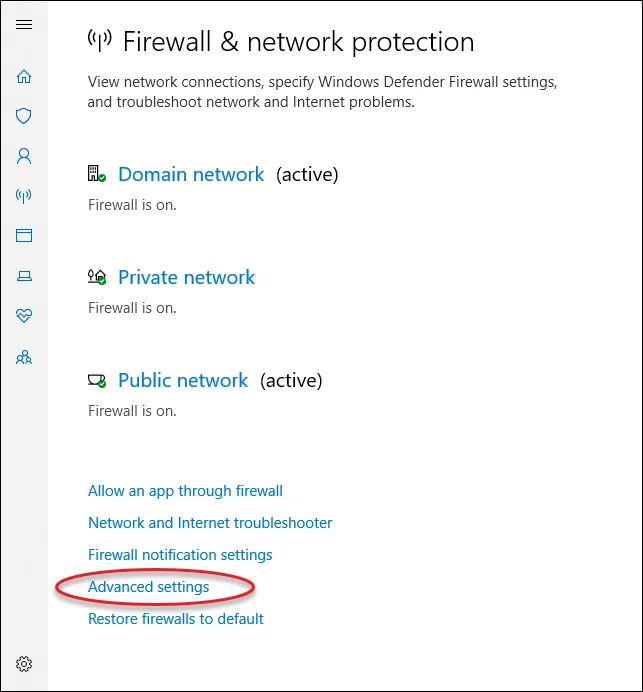
Click on Advanced settings option:
-
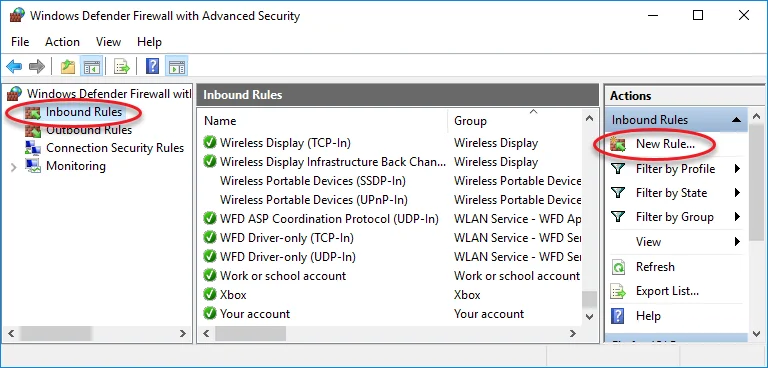
In the Windows Firewall with Advanced Security window, select Inbound Rules and click New Rule... to open the New Inbound Rule Wizard.
-
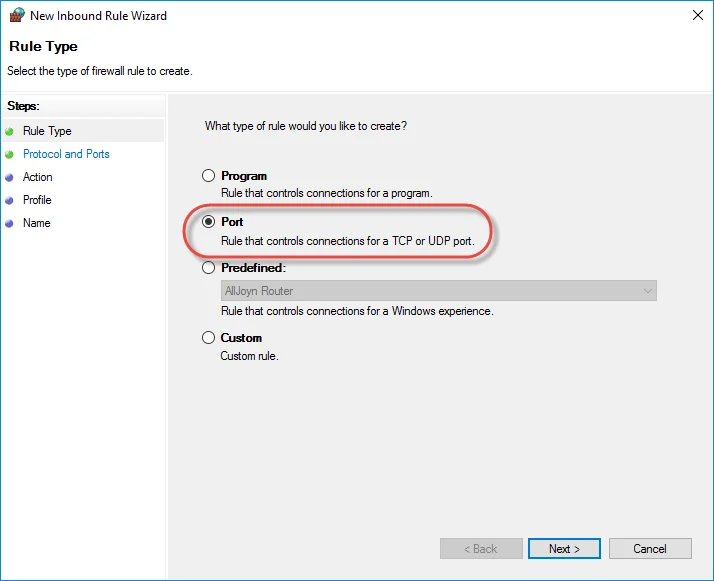
Choose "Port" as the rule type:
-
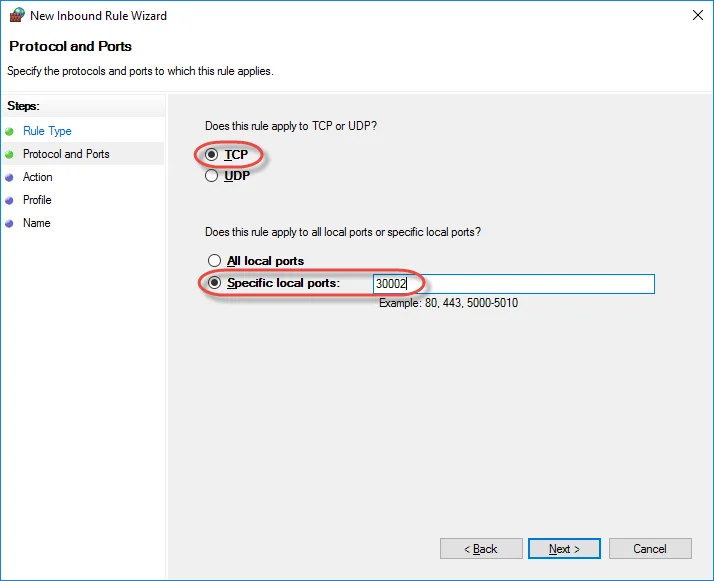
Choose TCP protocol and specify 30002 as the local port:
-
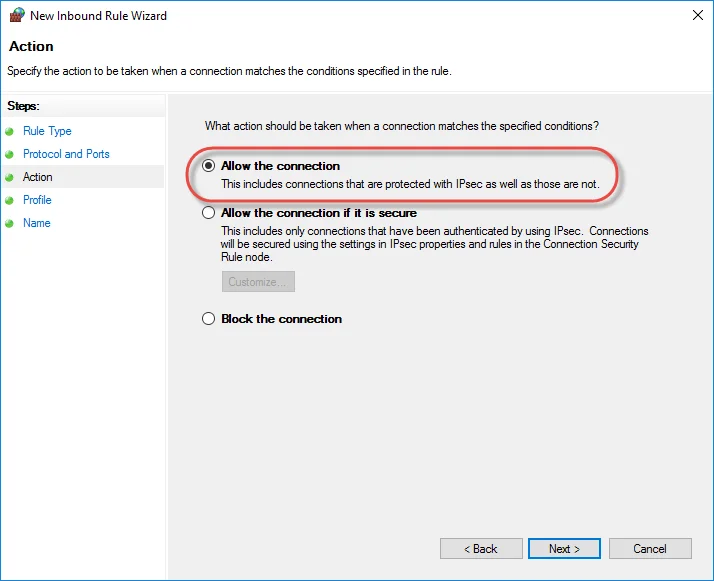
Choose "Allow the connection" action:
-
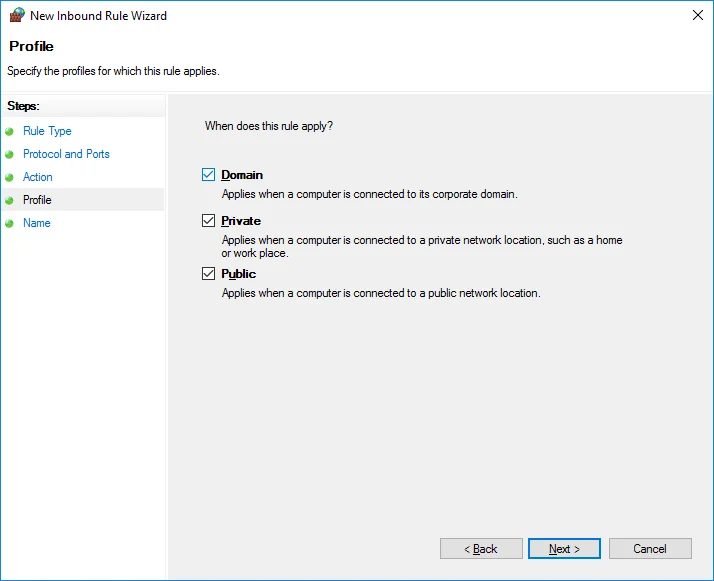
Choose all profiles:
-
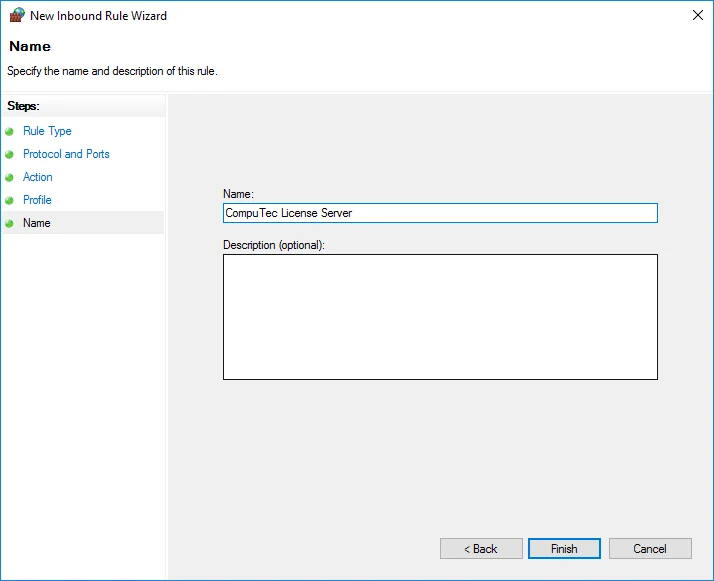
Specify the rule name and click Finish:
Using CompuTec Service Manager and Configuring Direct Data Access mode
For instructions on using CompuTec Service Manager and configuring Direct Data Access mode, refer to the detailed guide here.