You are viewing documentation for CompuTec PDC 4.0, which runs on CompuTec AppEngine 3.0 (.NET 8).
If you use CompuTec PDC 3.0, see the CompuTec PDC 3.0 documentation.
When upgrading to CompuTec PDC 4.0, update all required CompuTec components together to ensure compatibility.
Before installing or upgrading, review the CompuTec PDC Installation Guide and the system requirements.
Mettler Toledo
Introduction
Proper configuration of your Mettler Toledo weighing scale ensures accurate weight readings and seamless integration with CompuTec Gateway and CompuTec PDC. This guide walks you through setting up a template, selecting a work mode, and assigning the template to your device.
This section was created based on the MettlerToledoICS429 model configuration.
Defining a Template
-
Go to the Communication option in the main menu.
-
Choose the Define Template option.
-
Choose Template 1 and set up what will be pointed/sent by the weight scale. Set up the following details:
-
Line 1: Date
-
Line 2: Time
-
Line 3: Gross
-
Line 4: Net
-
Line 5: Tare
-
Line 6: SNo. Terminal.
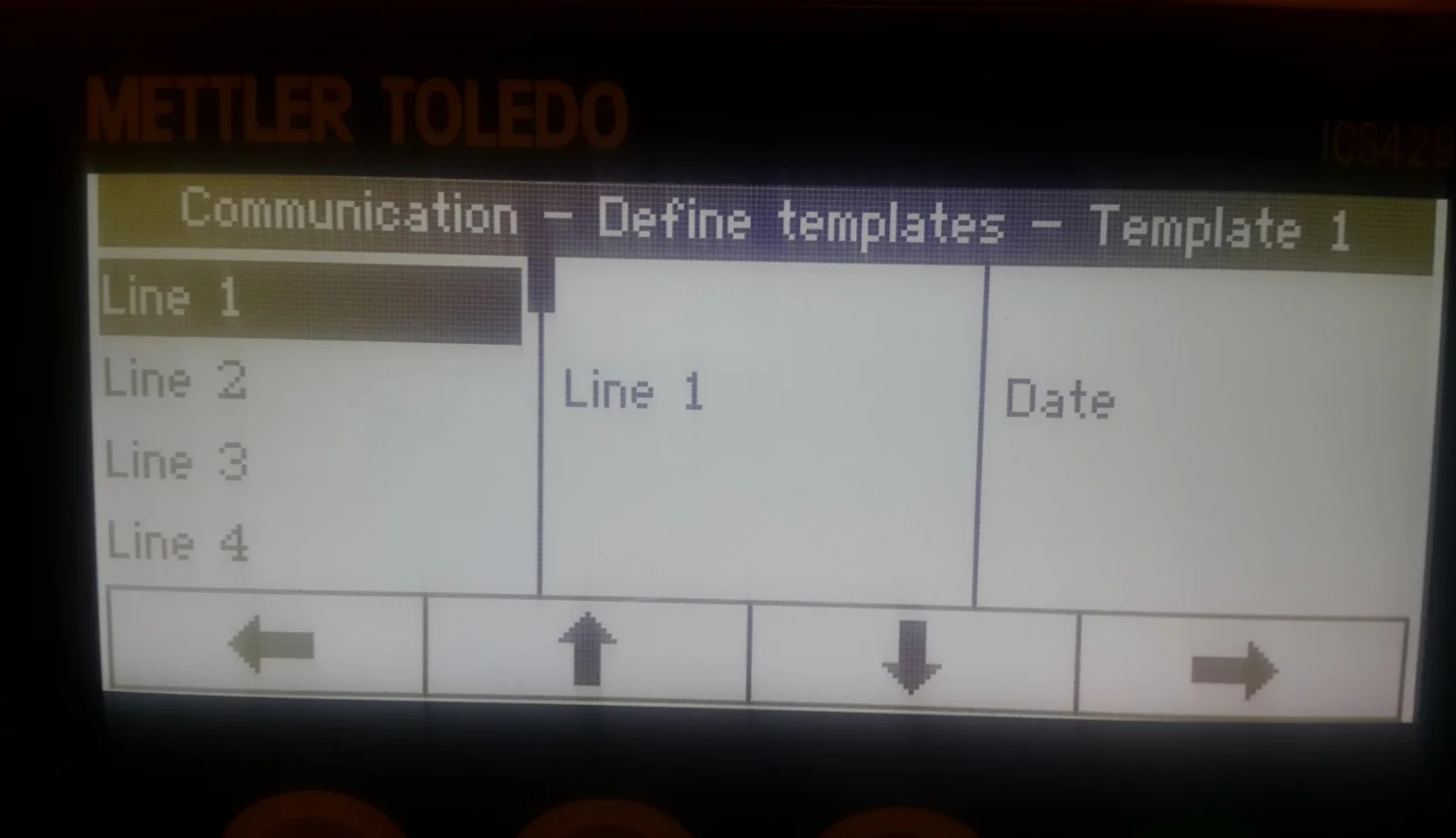
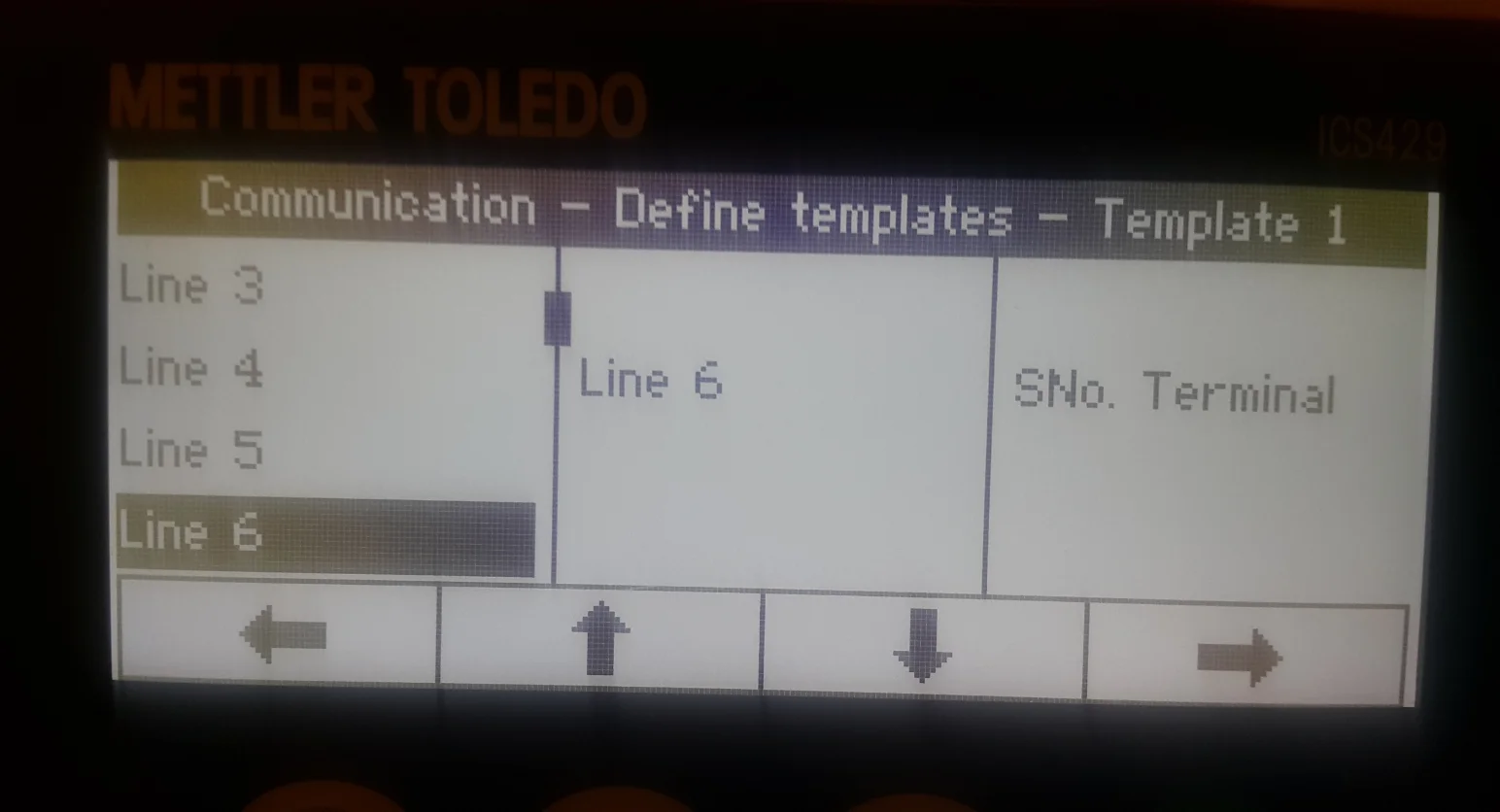
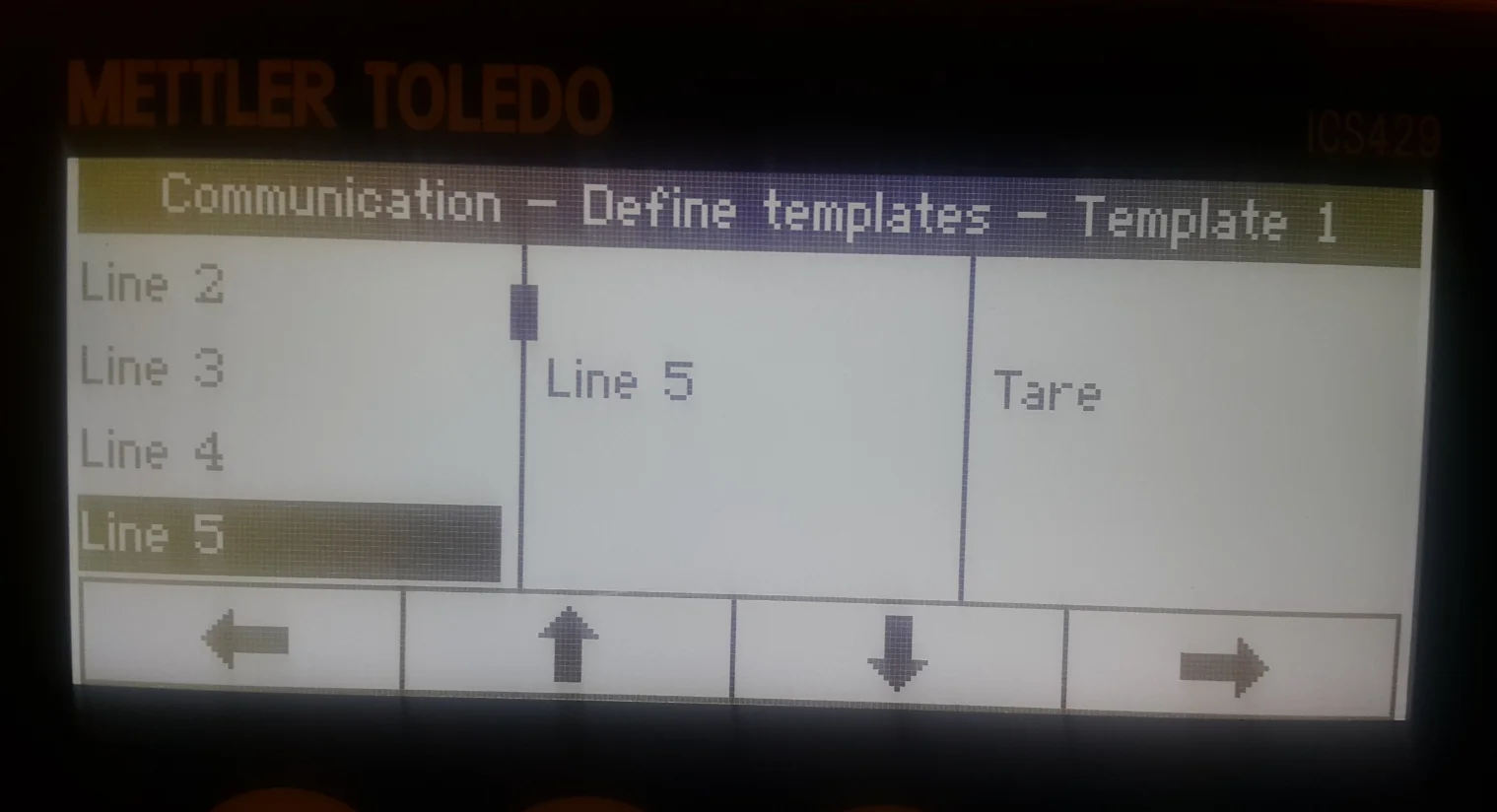
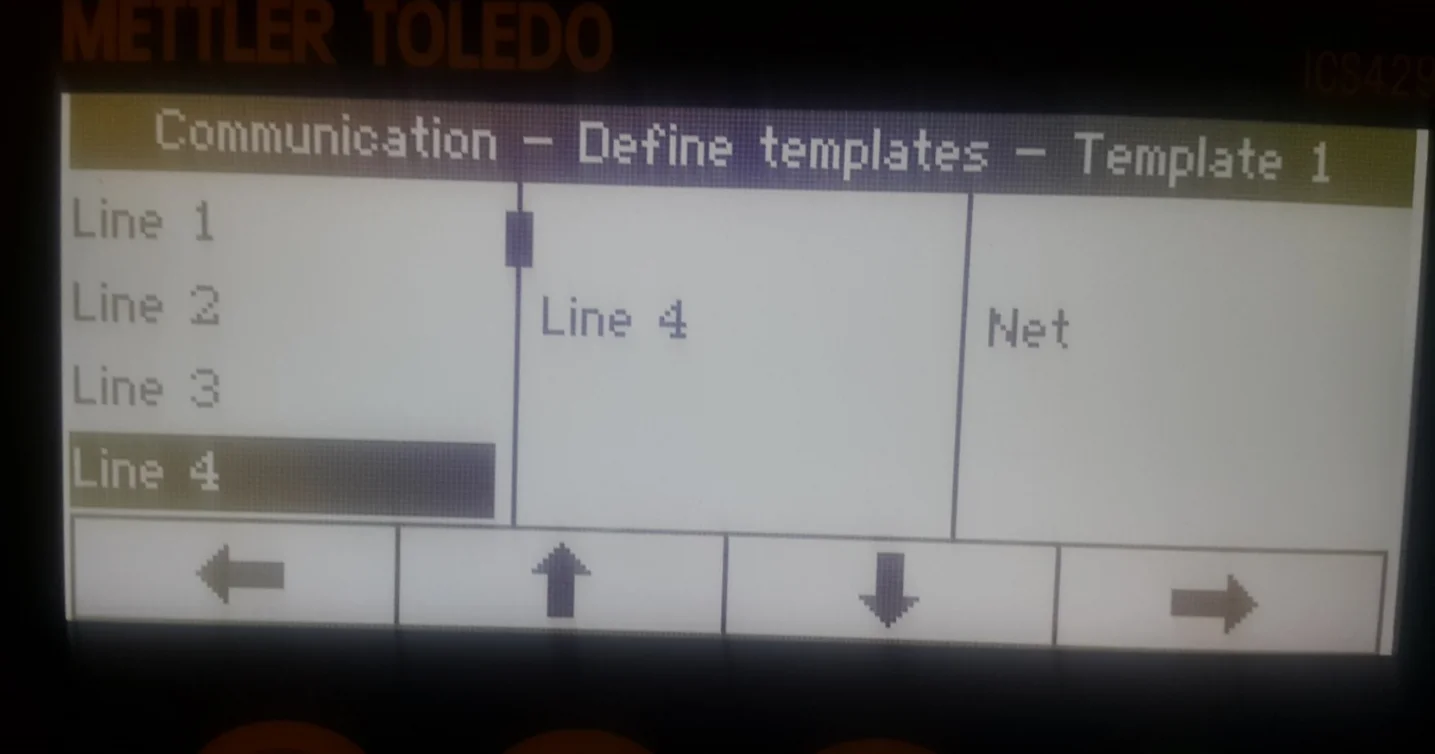
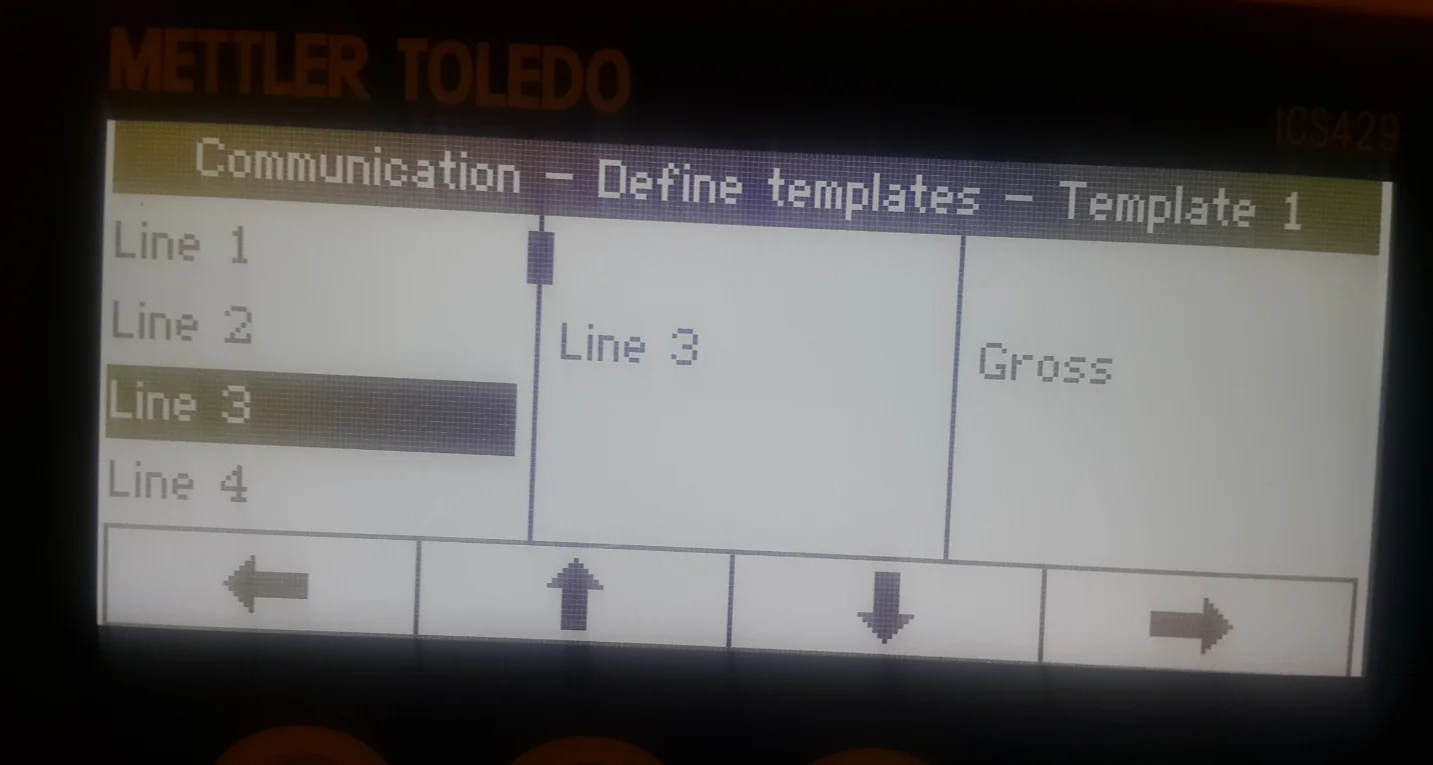
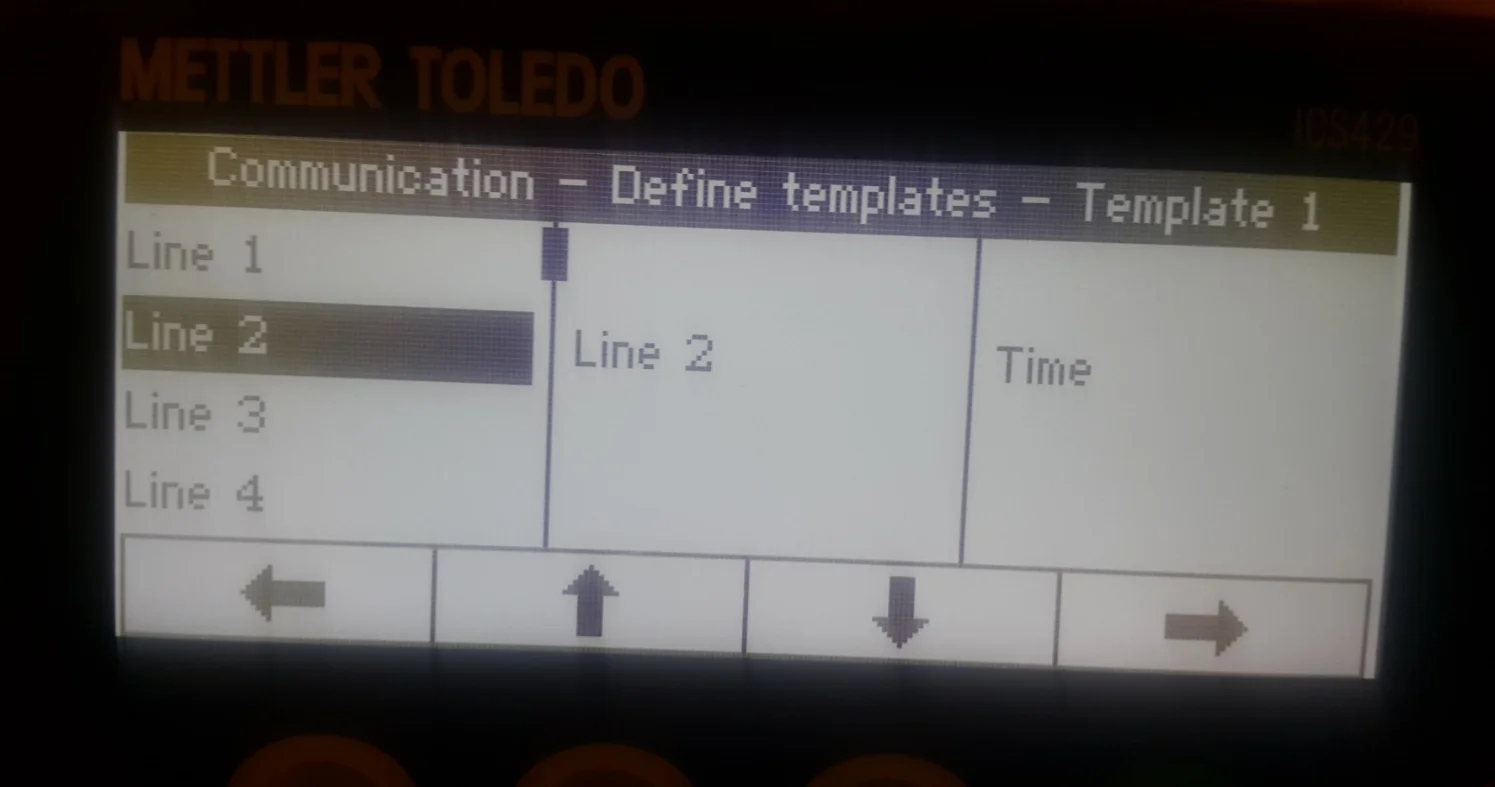
-
Choosing Mode for Weight Scales
- Go to the Communication option in the main menu
- choose COM2
- choose Mode
- choose Continuous print.
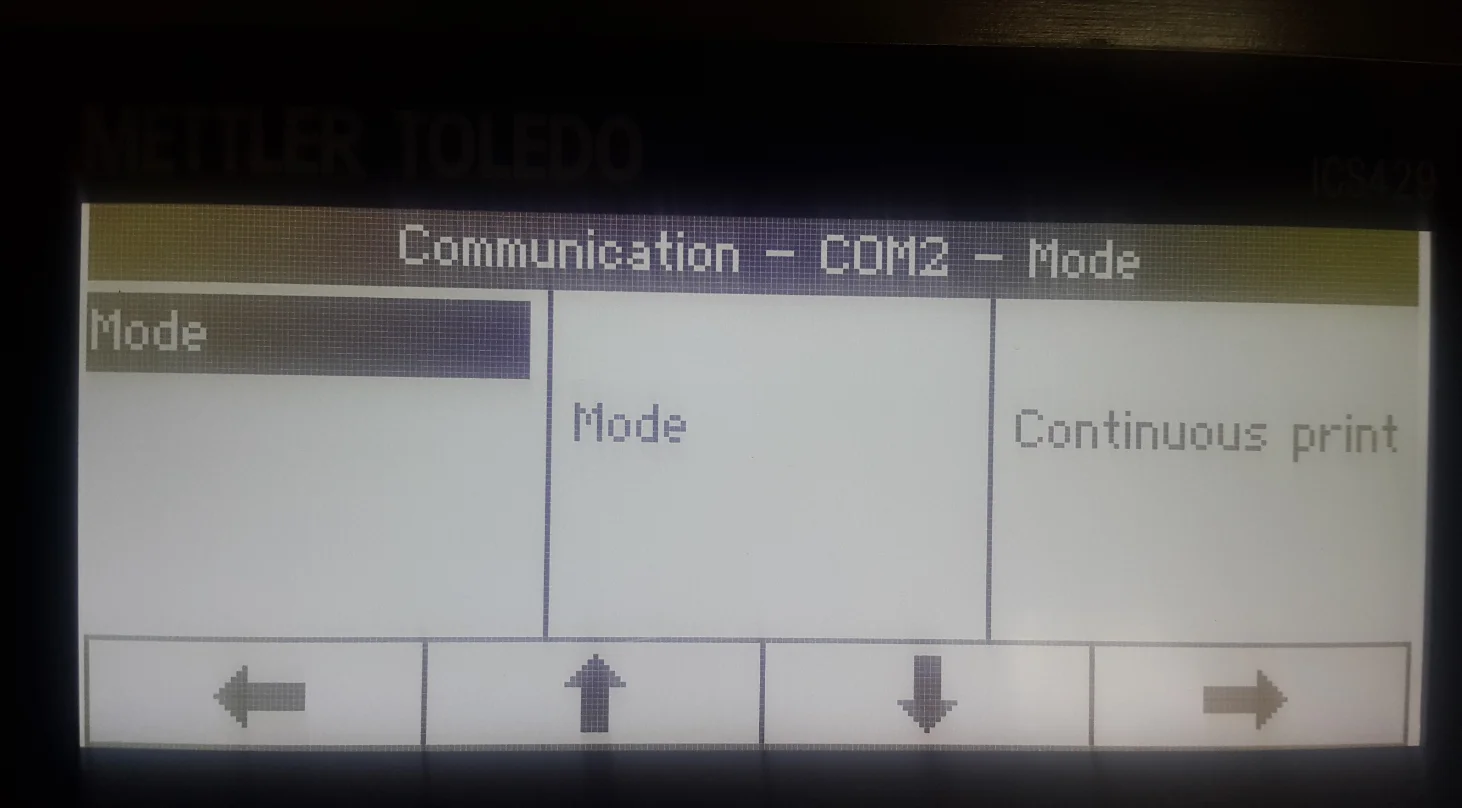
Assigning the Defined Template to the Weight Scales
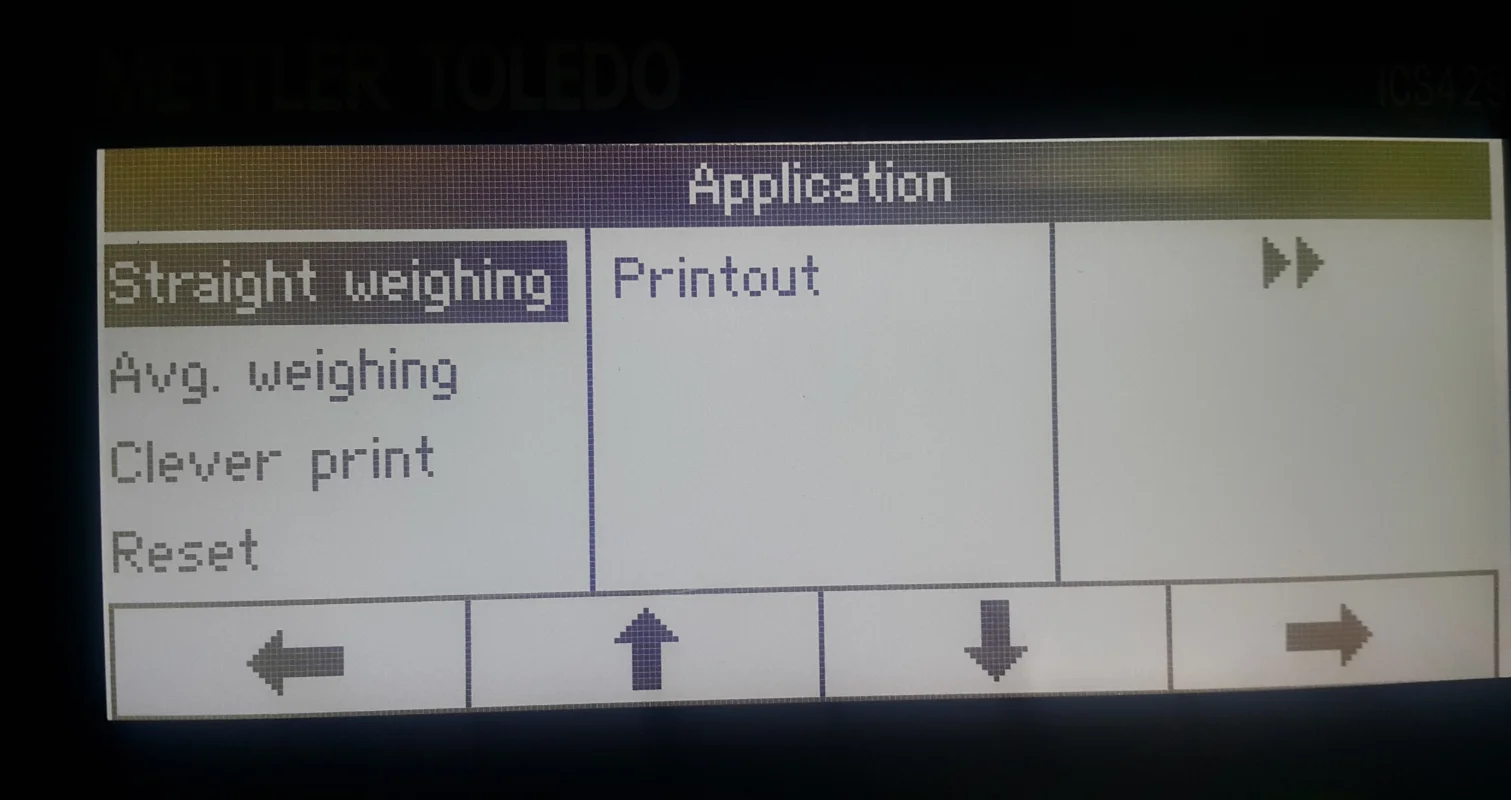
- Choose the Application option from the menu
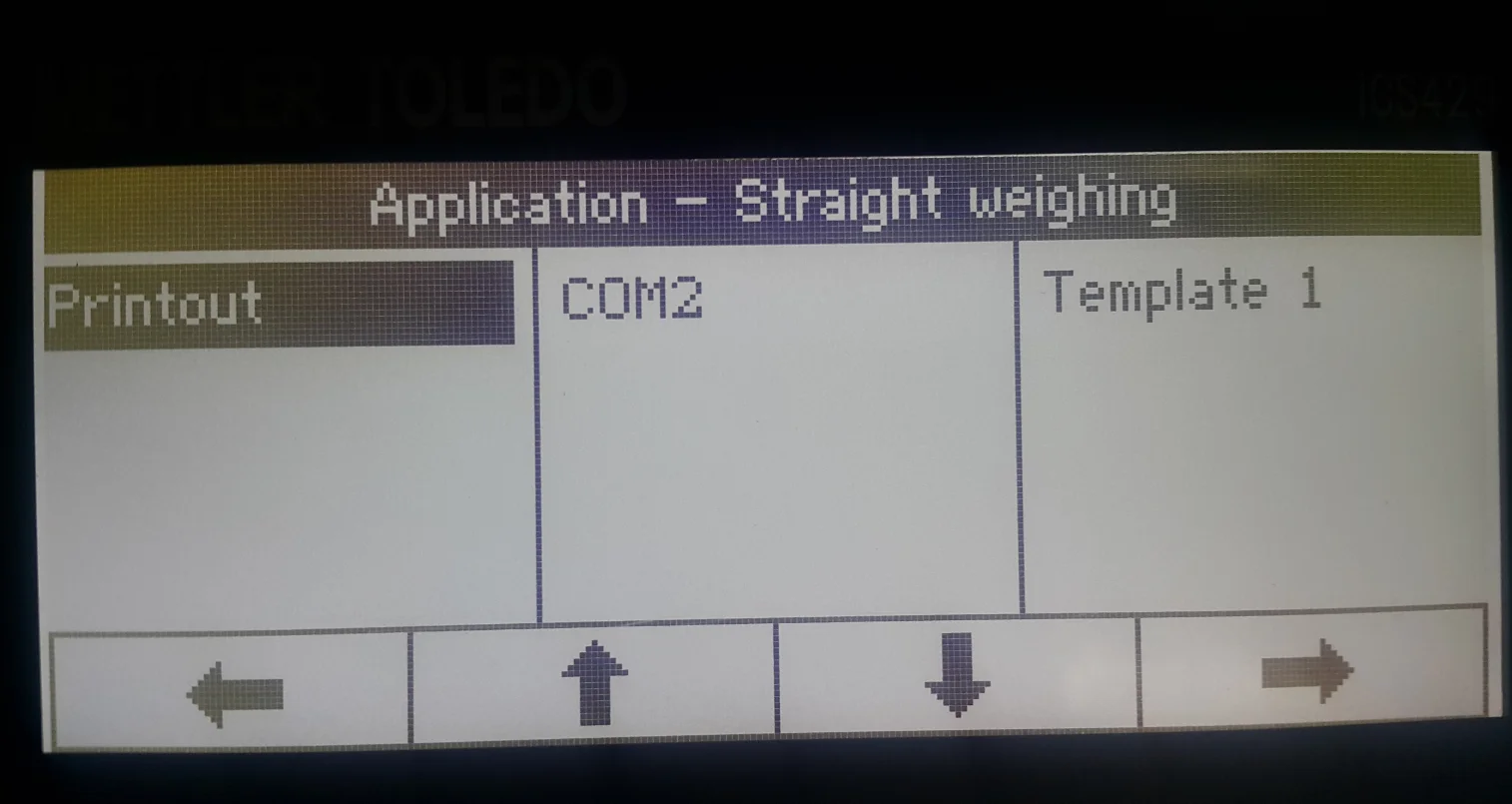
- Choose Straight weighing option
- Choose Printout
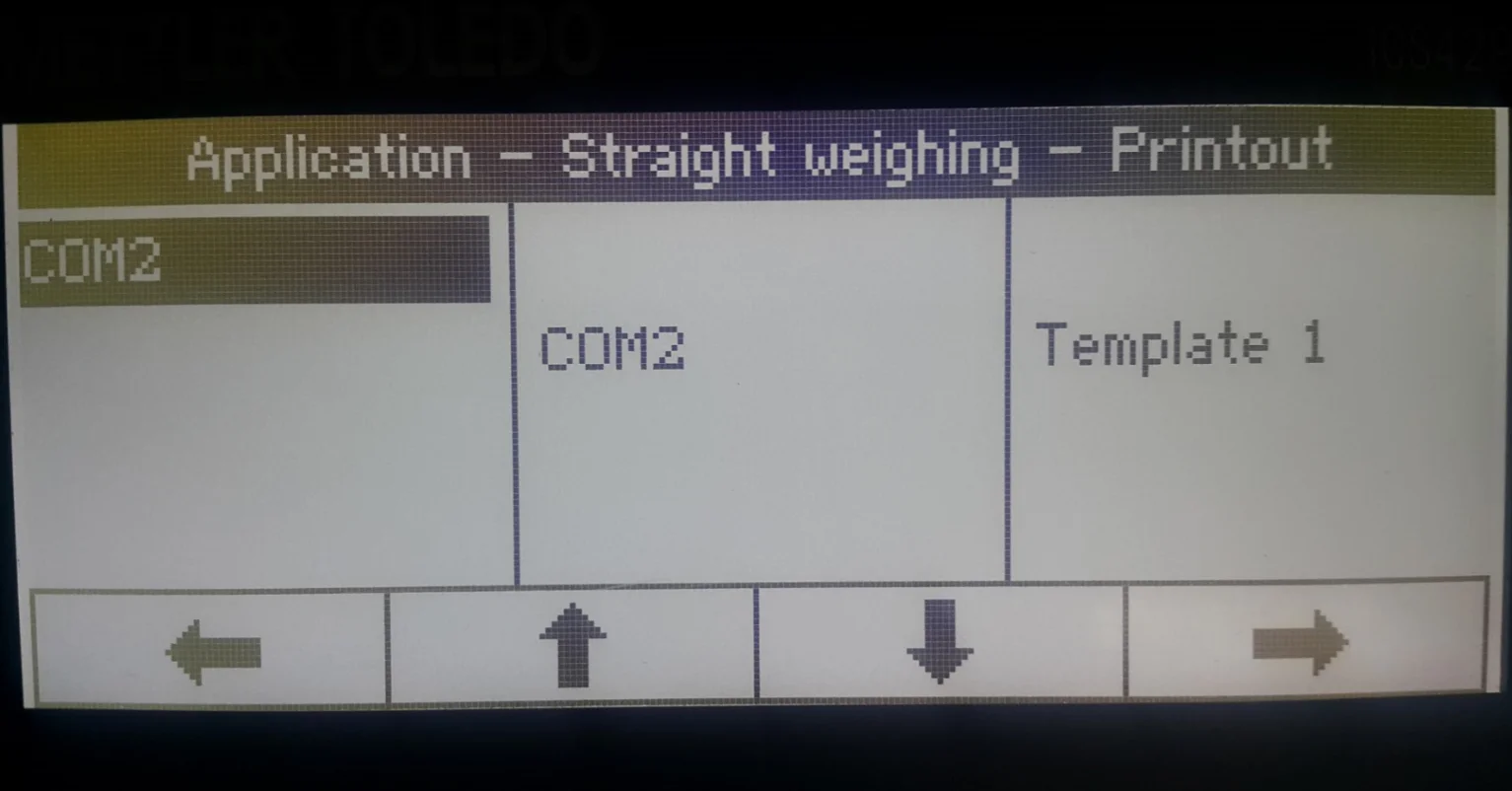
- Choose COM2
- Choose COM2 again
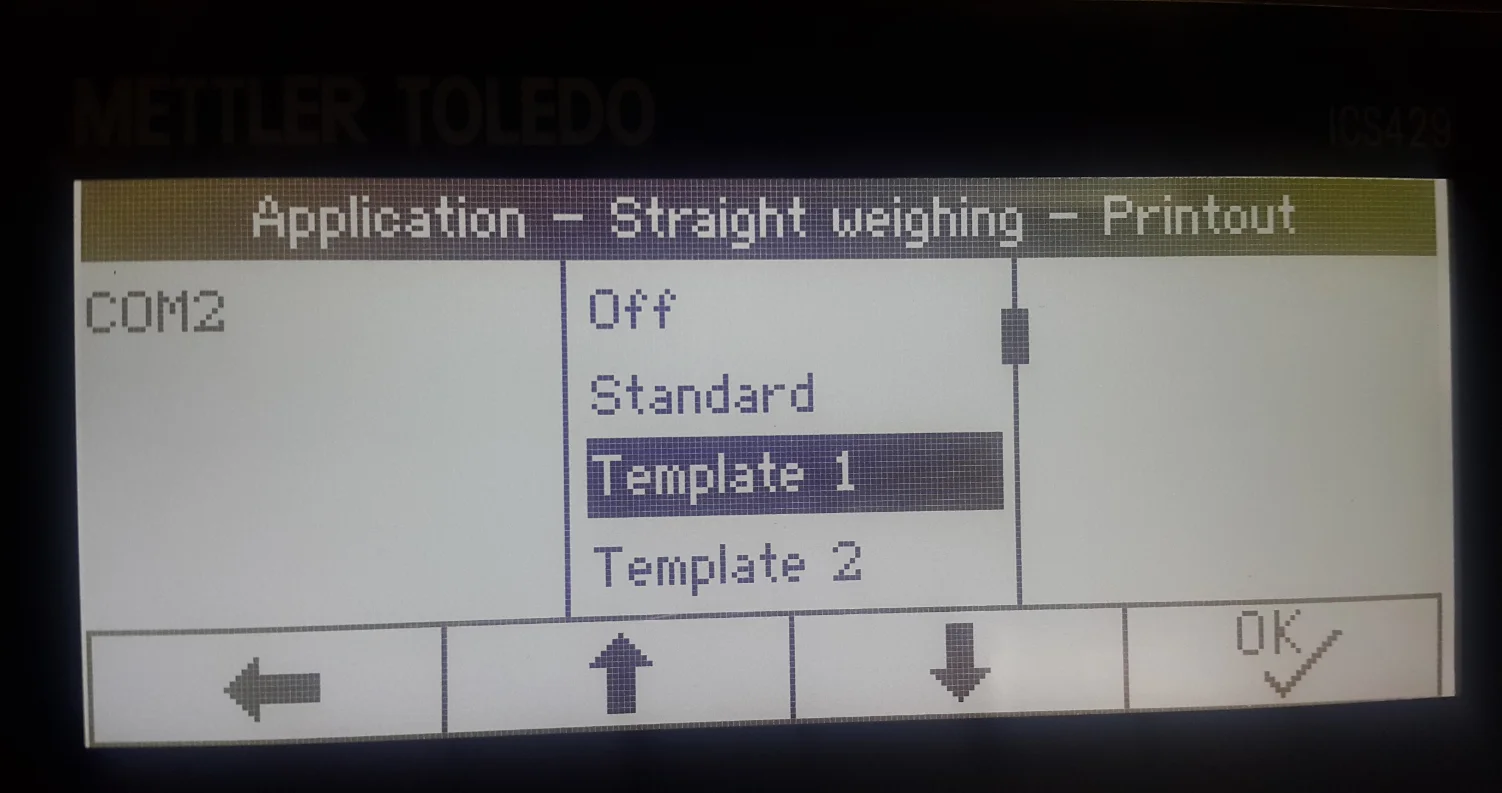
- Choose the Template name of the Template that was defined in the first step ('Template 1' in this example)
- Click OK to save the changes.
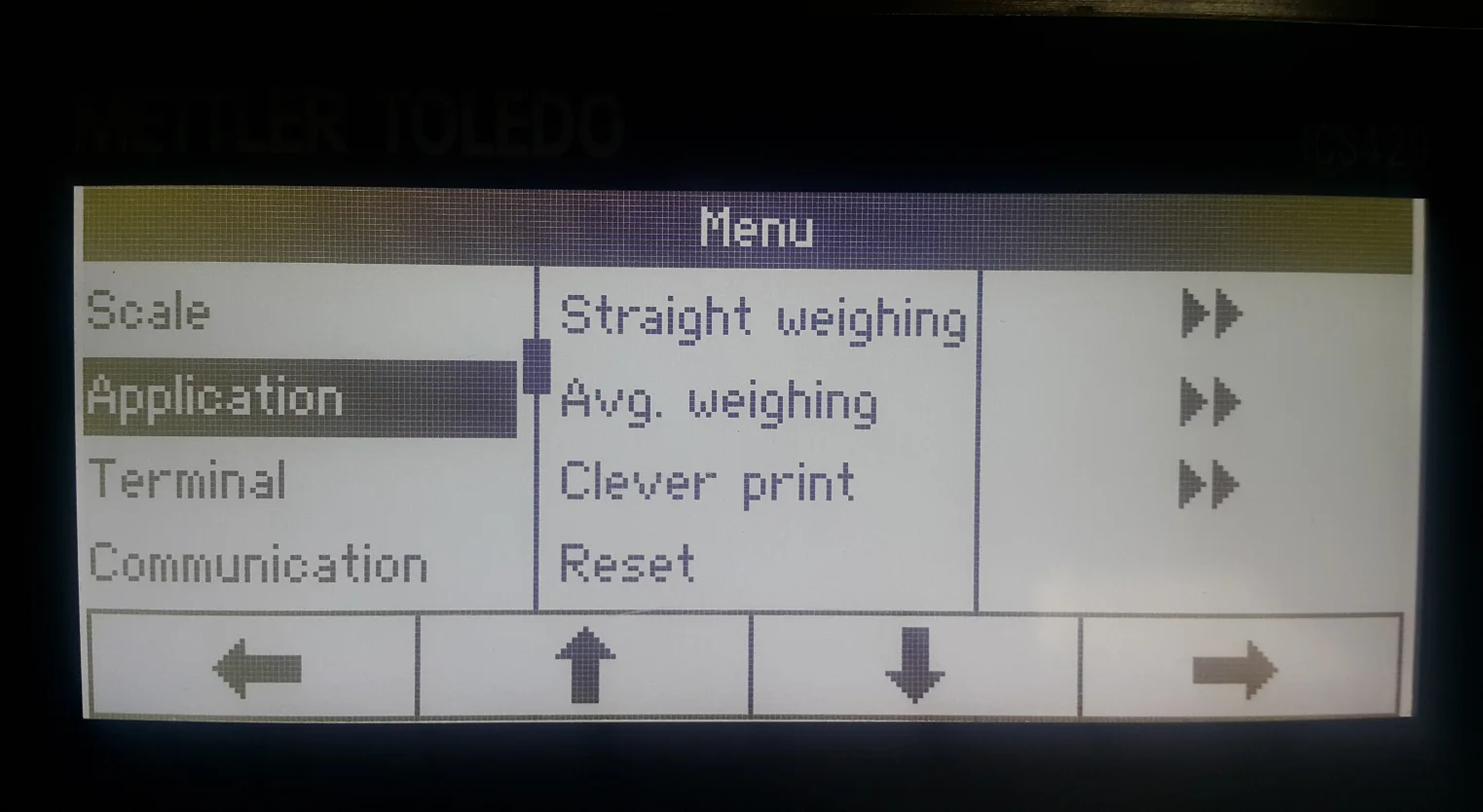
Set Date and Time Format
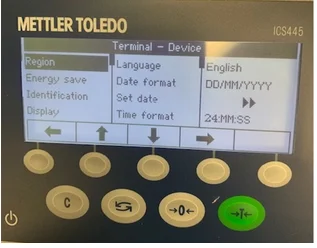
Now, the weight scale is correctly configured and is ready to work with CompuTec Gateway and CompuTec PDC.