Prepare an incoming invoice for processing
After an invoice is retrieved from KSeF, review its processing state and verify the information required to create the corresponding SAP Business One document.
At this stage, you can assign or create the Business Partner, review the detected document type and subtype, and correct the SAP Business One document type when required.
Before you start
Before you start, make sure that:
- The invoice is available in CompuTec KSeF > Input Invoices. Read more
Prepare an incoming invoice for processing
Check the processing state
-
Open Input Invoices.
-
Find the invoice you want to process.
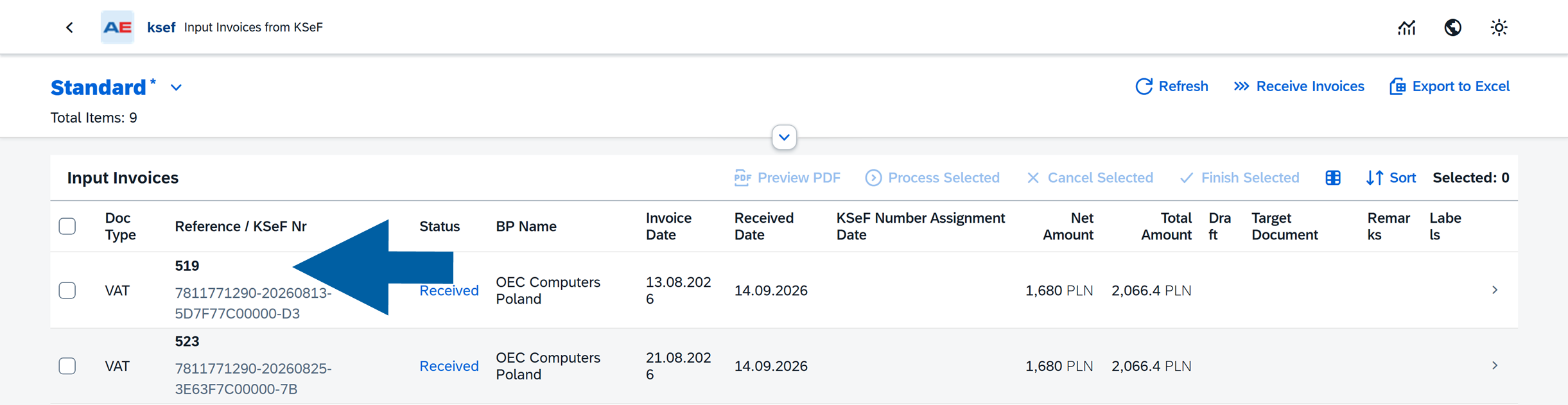
-
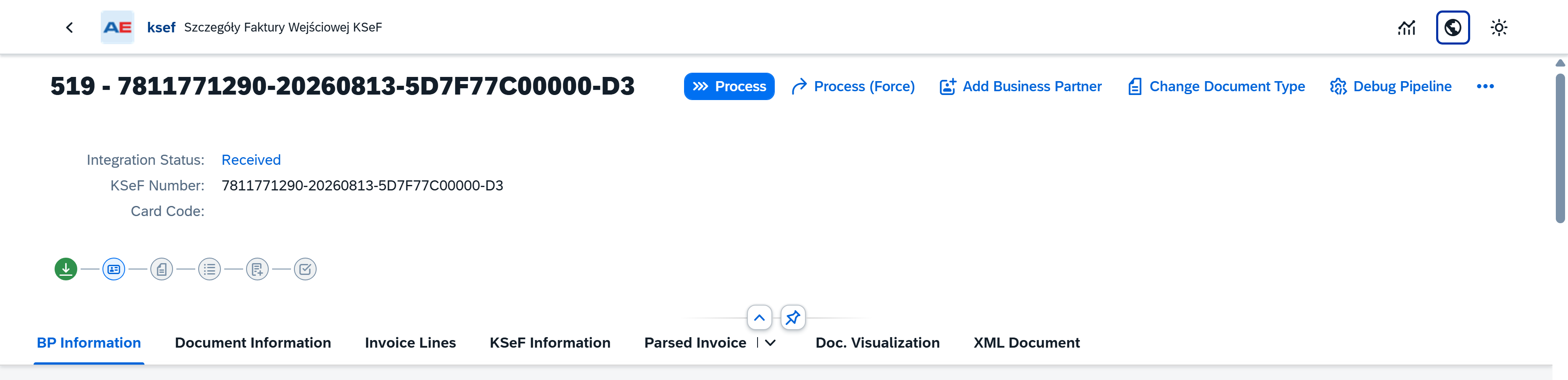
Open the invoice details.
 info
infoThe upper part of the page shows the current Integration Status, KSeF number, assigned Business Partner code, and processing stages.
For a newly retrieved invoice, the Integration Status can be Received. At this stage, information required for further processing may still need to be determined or assigned.
Assign or create the Business Partner
CompuTec KSeF uses the supplier information from the KSeF invoice when determining the corresponding SAP Business One Business Partner.
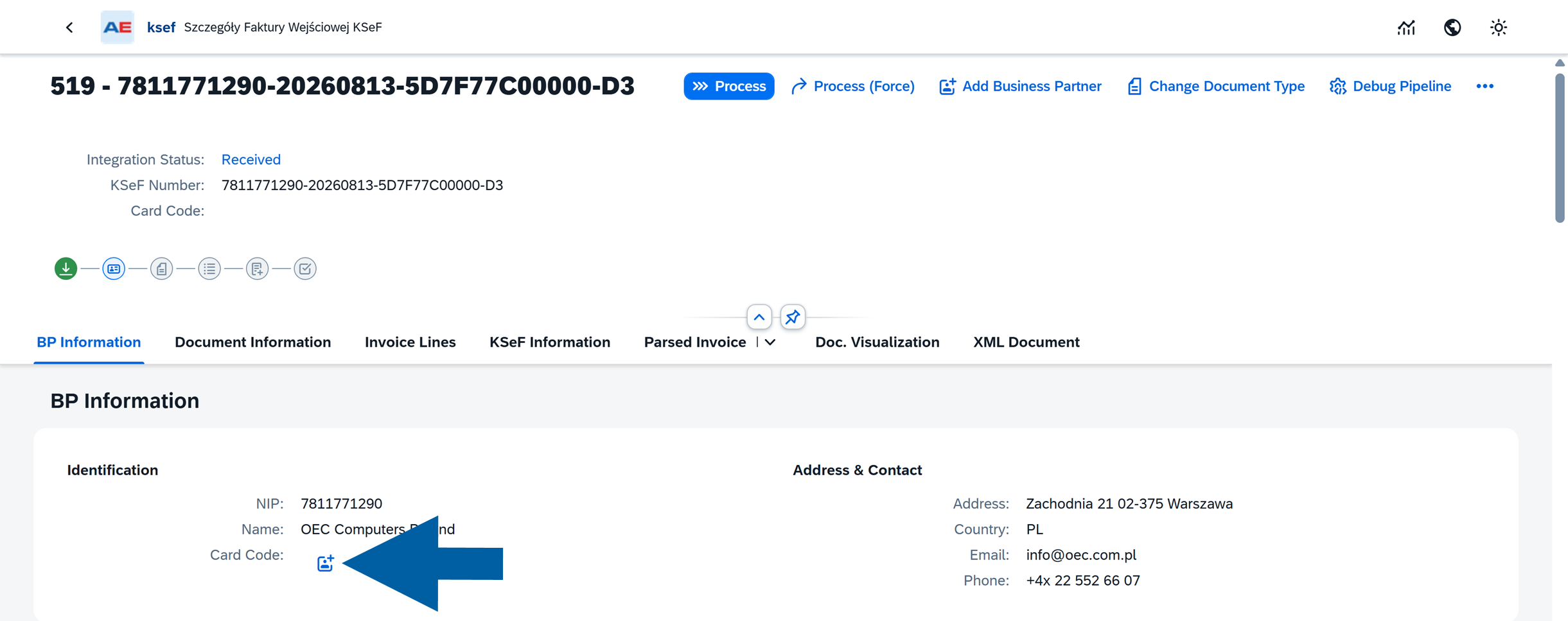
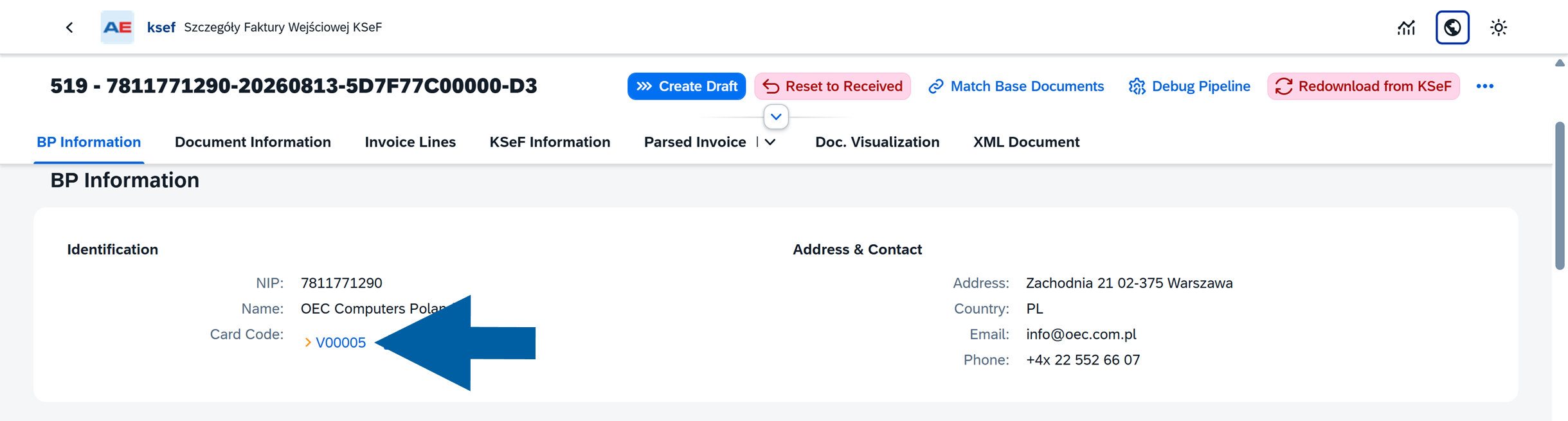
In the BP Information section of your invoice, you can review the supplier information, including NIP, Name, Card Code, Address and Contact.
If the supplier does not yet have an assigned Business Partner code:
-
Click the Business Partner creation icon next to Card Code.
-
Select the required Business Partner Series, and click Create.

-
CompuTec KSeF creates the Business Partner in SAP Business One and assigns its Card Code to the incoming invoice.
-
After the Business Partner is assigned, click its Card Code to open the Business Partner master data when you need to review or maintain additional information.

Review the KSeF document type
In the Document Information section, review how the incoming KSeF document will be processed in SAP Business One:
- Doc. Type (KSeF) – Shows the document type received from KSeF. For example, VAT identifies a VAT invoice, while KOR identifies a correction invoice.
- Document Type (SAP) – Shows the SAP Business One document type determined for the incoming invoice.
- Document Sub Type – Indicates whether the document will be processed as an Item or Service document.
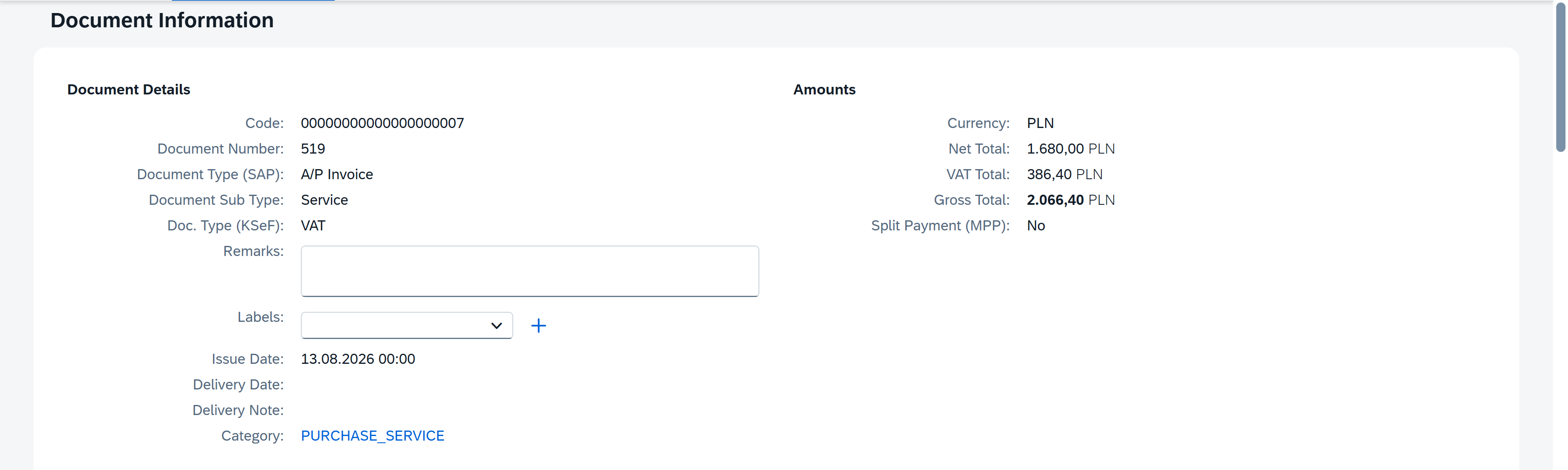
Additional information available on the KSeF invoice can also be displayed in this section. For example, a delivery note number can be available for an item-related document when it was provided on the source invoice.
Change the document type or subtype
If the automatically determined SAP Business One document type or subtype is not appropriate for the invoice:
-
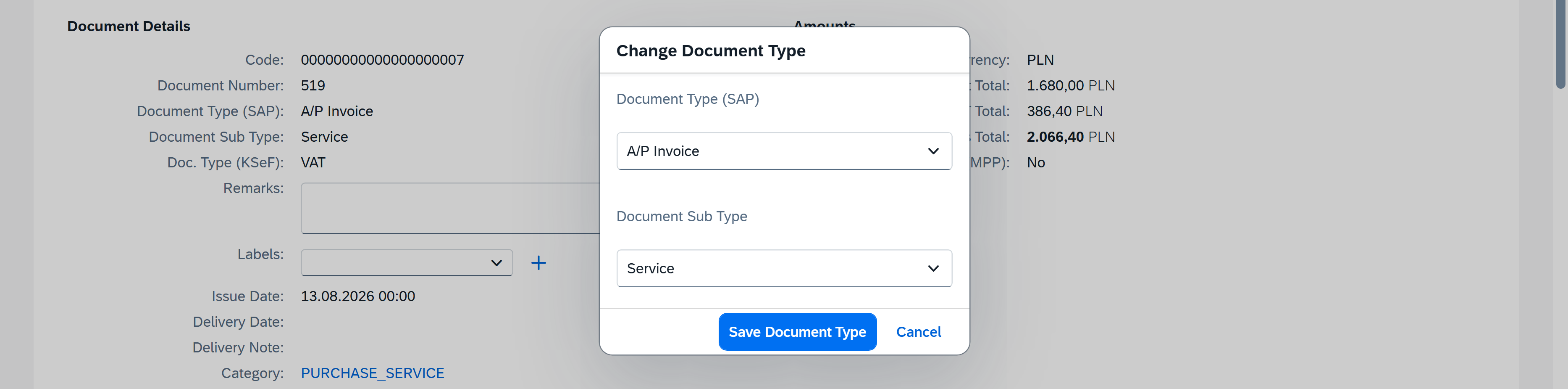
Click Change Document Type.

-
Select the required Document Type (SAP) and Document Sub Type. For example, if an invoice was determined as a service document but represents purchased items, change Document Sub Type from Service to Item.
-
Click Save Document Type.
-
In our example, we changed
ServicetoItem.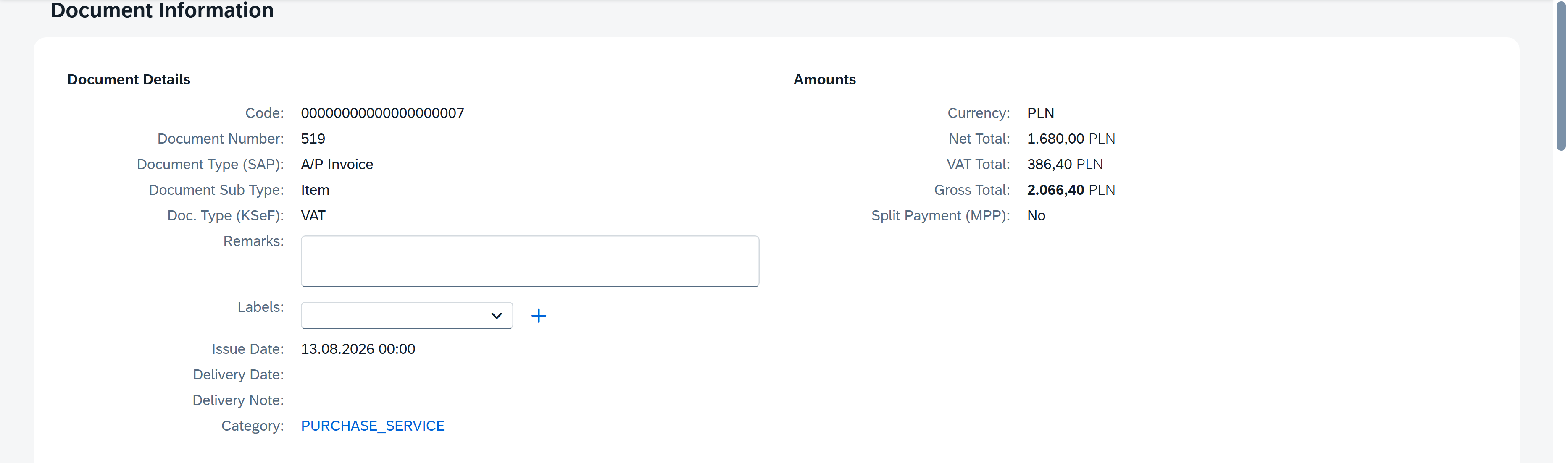 Note
NoteThe document subtype affects subsequent invoice-line processing. Item documents require SAP Business One item matching, while service documents require G/L account assignment.
Review bank account information
In Document Information, you can review the Bank Account section.
When applicable, this section displays bank account information associated with the invoice and Business Partner.

The Account assigned to BP field indicates whether the account is assigned to the Business Partner.
Match incoming invoice lines
CompuTec KSeF processes the lines of an incoming invoice and attempts to assign the SAP Business One data required for each line.
- For
Itemdocuments, invoice lines are matched with SAP Business One item codes. - For
Servicedocuments, the corresponding G/L accounts are determined.
Review the result before continuing with base document matching.
Review invoice lines
-
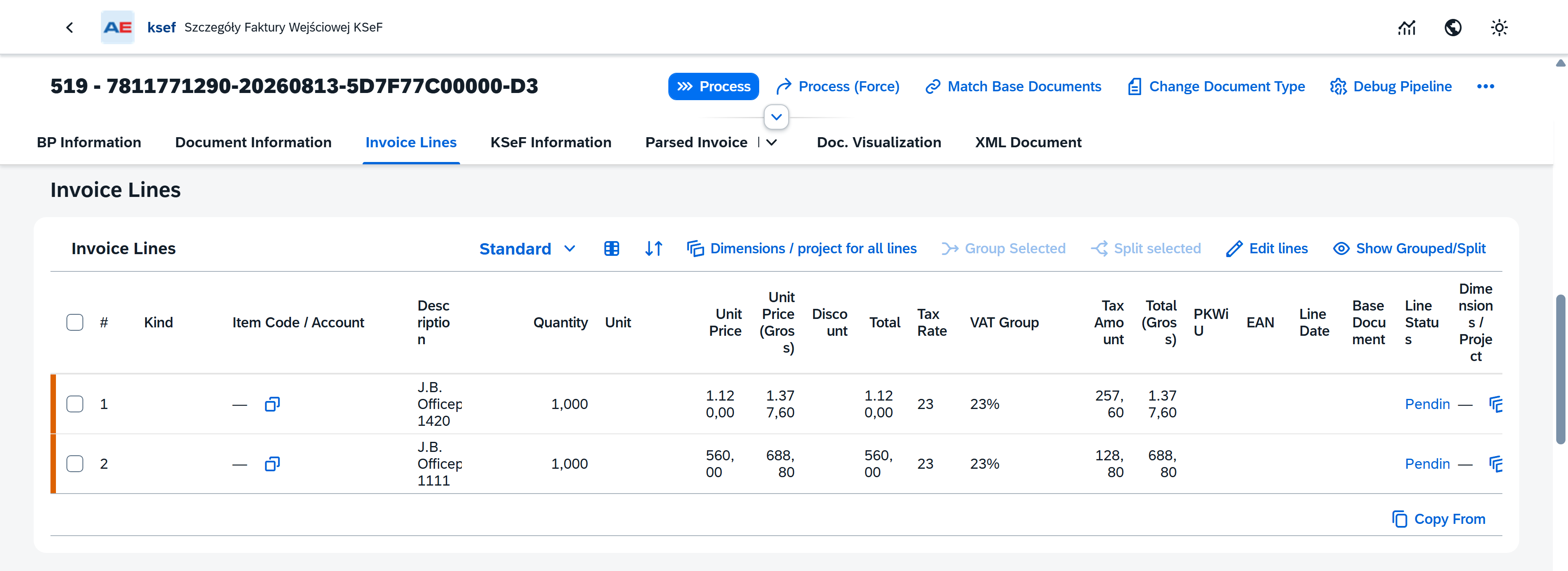
In the Invoice Lines section of the invoice, review the information retrieved for each invoice line, including the description, quantity, prices, tax information, and other available line data.
-
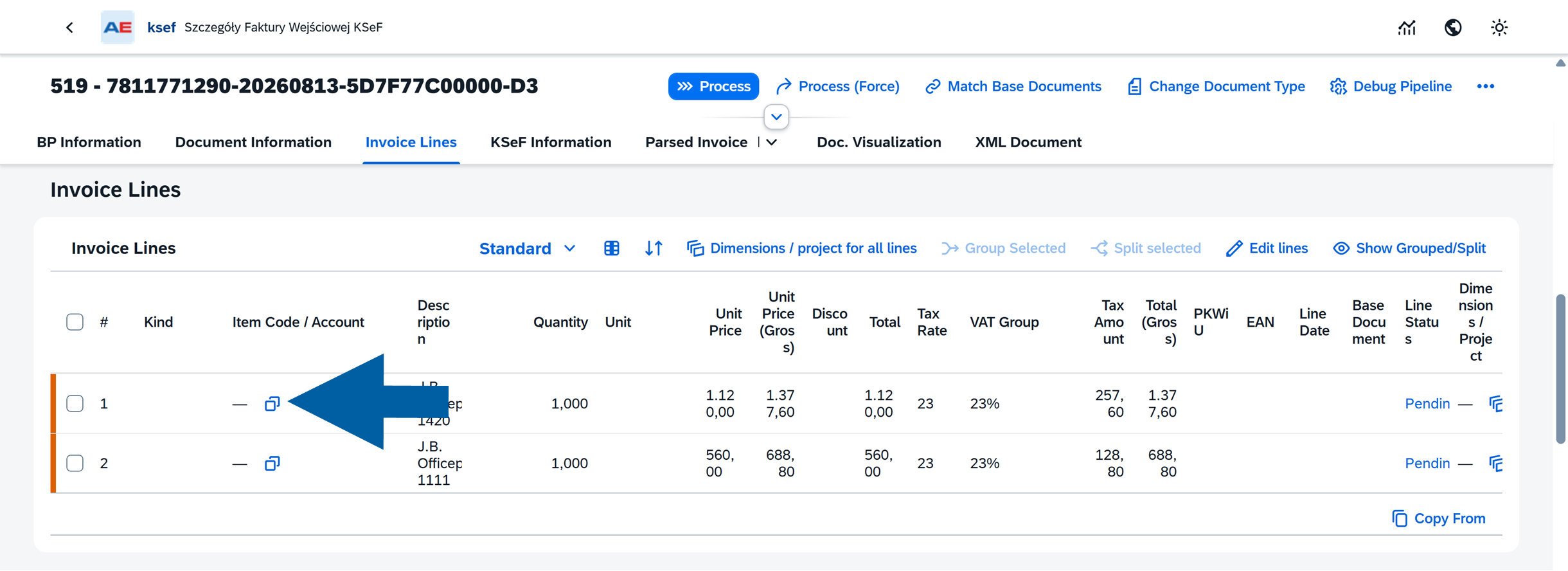
Check Item Code / Account and Line Status.
noteIf no corresponding SAP Business One Item Code or G/L Account has been determined, the line remains pending.
You can assign the required value in one of the following ways:
- Click Process to let CompuTec KSeF determine the value automatically. For
Itemdocuments, CompuTec KSeF attempts to match an Item Code. ForServicedocuments, it attempts to determine a G/L Account. - Assign an Item Code or G/L Account manually in Item Code / Account.
- You can also manually change a value assigned during automatic processing.
- Click Process to let CompuTec KSeF determine the value automatically. For
Process the invoice automatically
To let CompuTec KSeF process the invoice automatically:
-
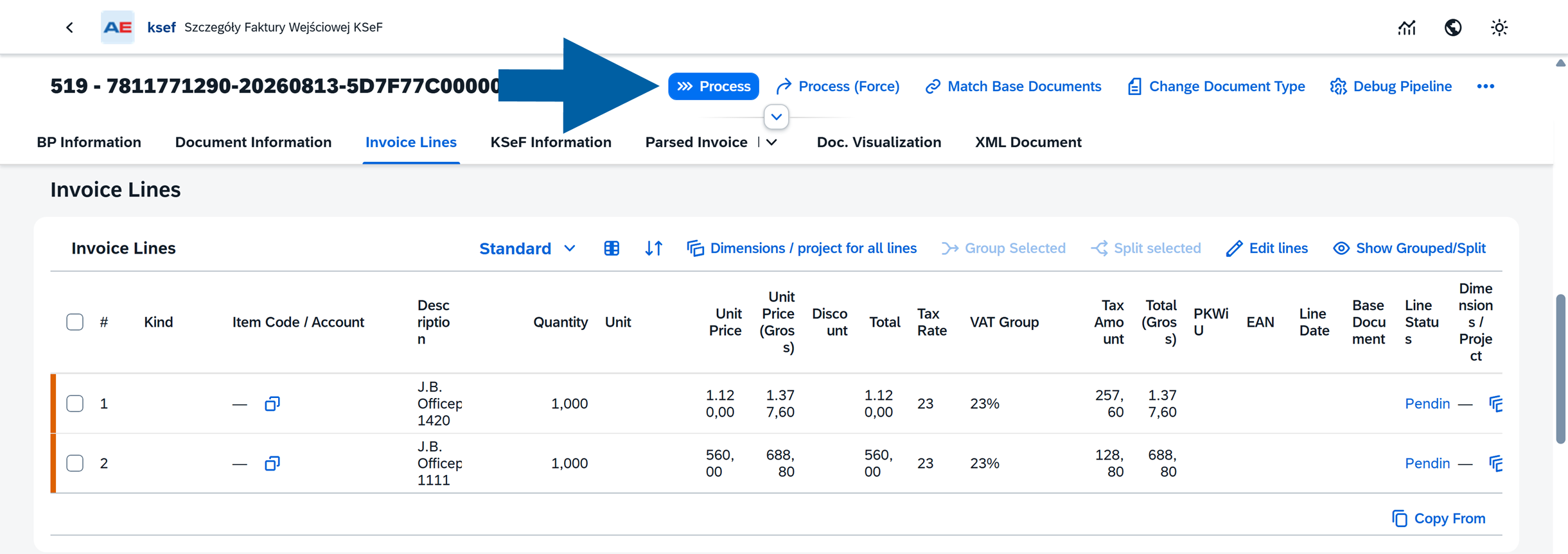
Click Process.
-
Wait for the processing steps to complete.

-
Review the processing result.
-
Click Close.
-
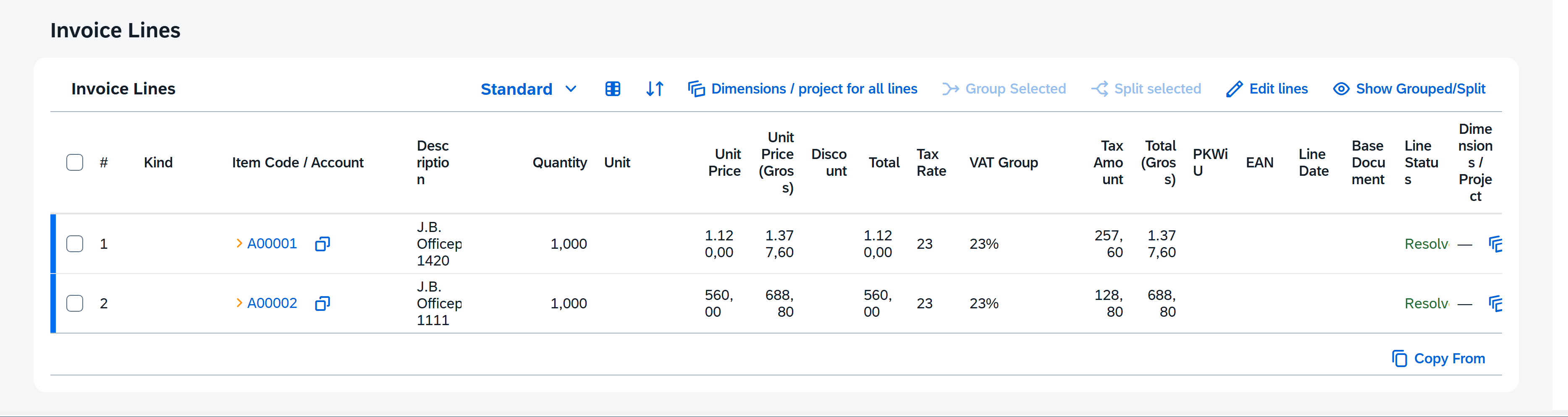
Return to Invoice Lines and check the values assigned to the lines.
Assign an Item Code or G/L Account manually
If a line has not been matched automatically, or you want to change the assigned value:
-
Find the required line.
-
Click the selection icon in Item Code / Account.
-
Select the required SAP Business One item or G/L account.
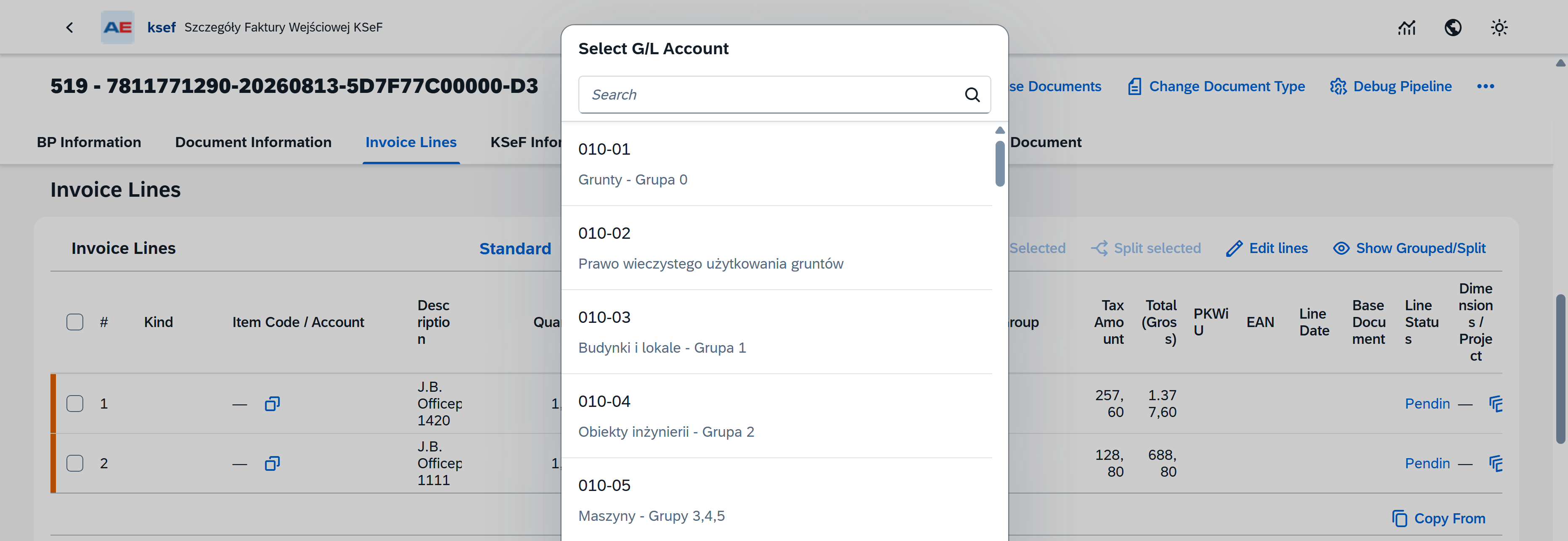
The available selection depends on the document subtype.
Maintain Business Partner catalog numbers
For item documents, Business Partner catalog numbers can be used to associate supplier item information with SAP Business One items.
To review the available mappings:
-
In BP Information section of the invoice, click the Business Partner Card Code.
-
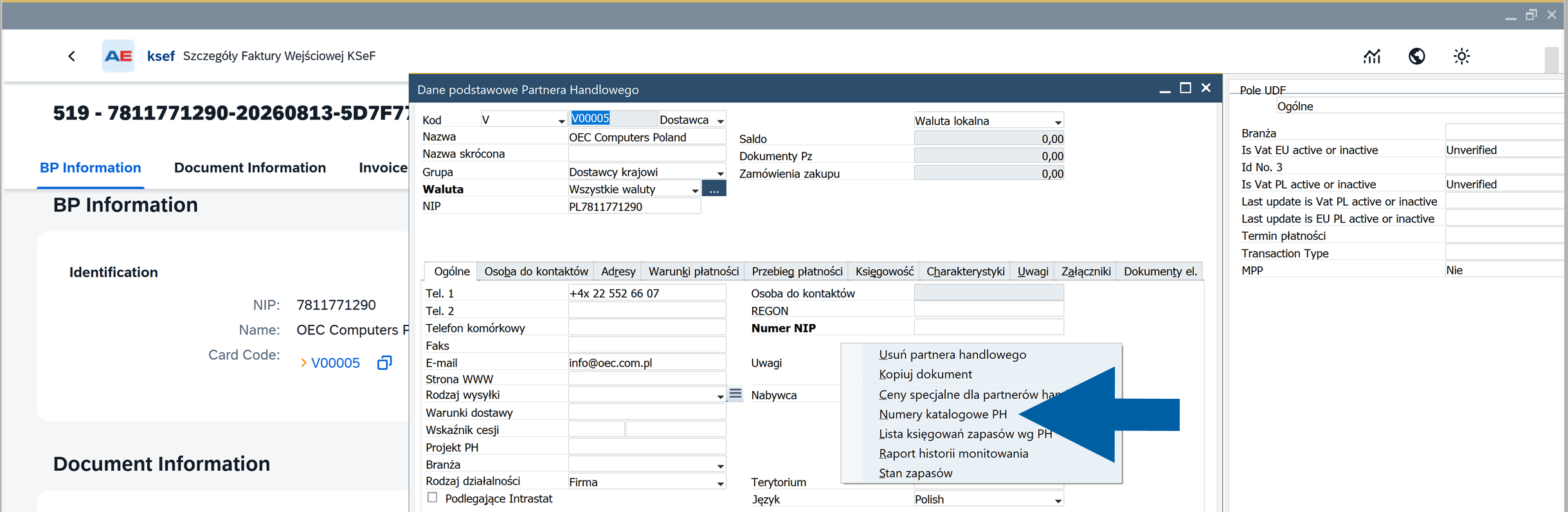
In the SAP Business One Business Partner master data, right-click and select BP Catalog Numbers.
-
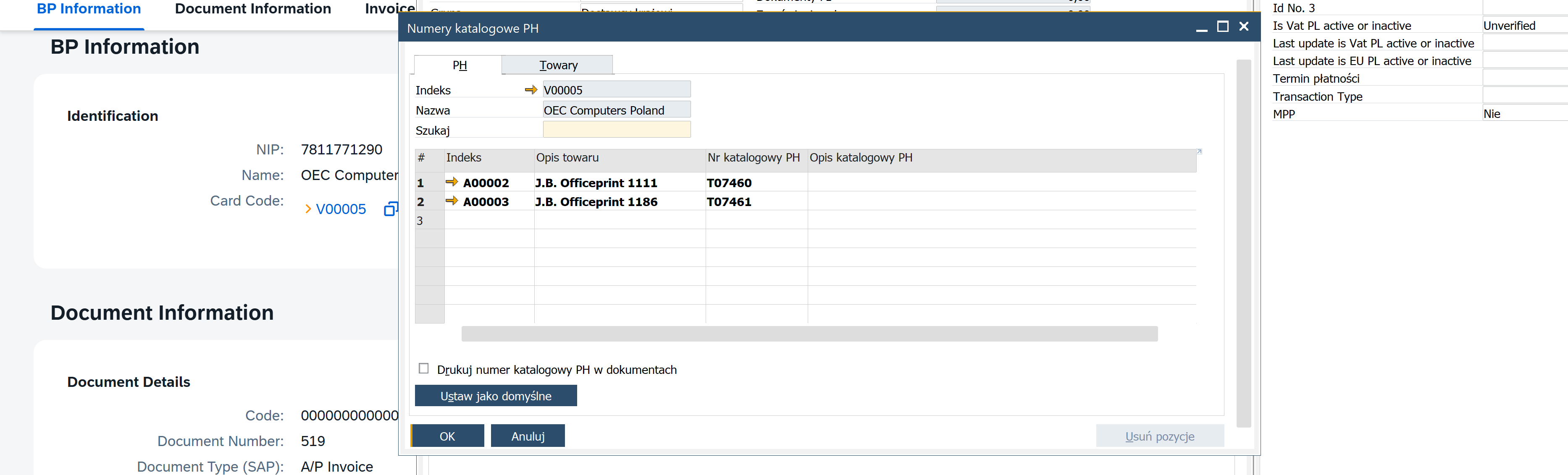
Review the supplier catalog numbers and their corresponding SAP Business One item codes.
-
Add missing mappings when required.
-
Confirm the update and return to CompuTec KSeF plugin screen.
-
Return to the incoming invoice and process or review the invoice lines again.
Review item master data
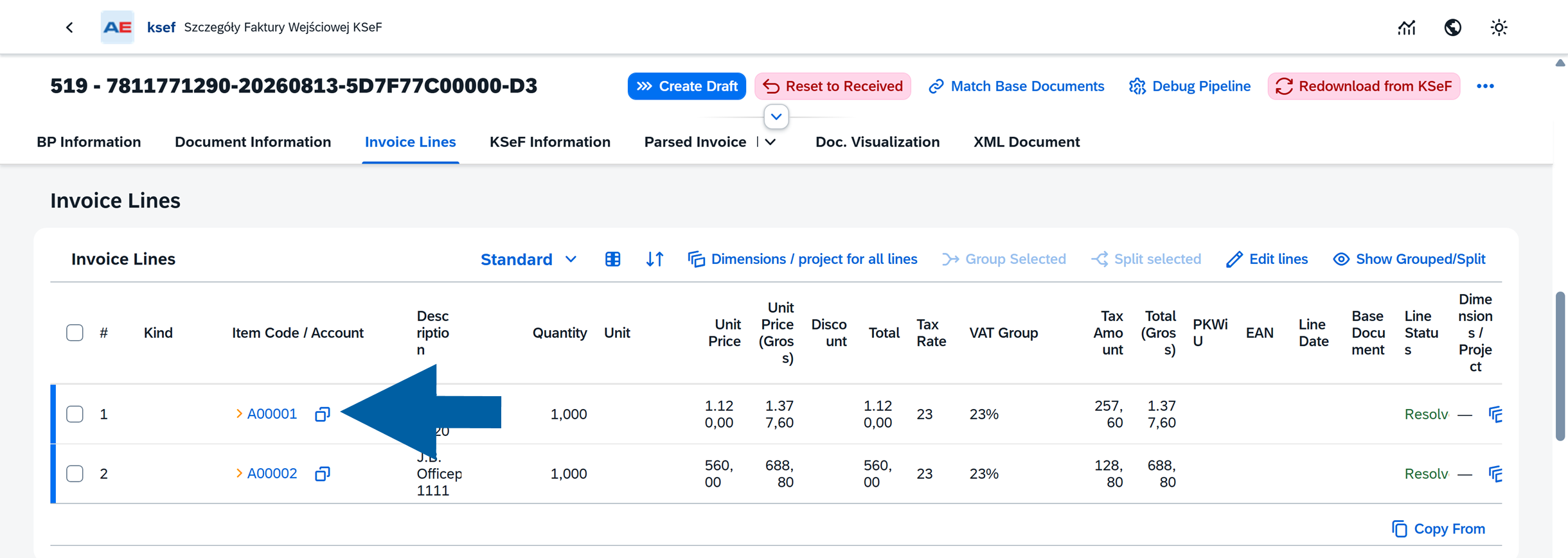
After an item code has been assigned, you can click the code to open the corresponding SAP Business One item master data.
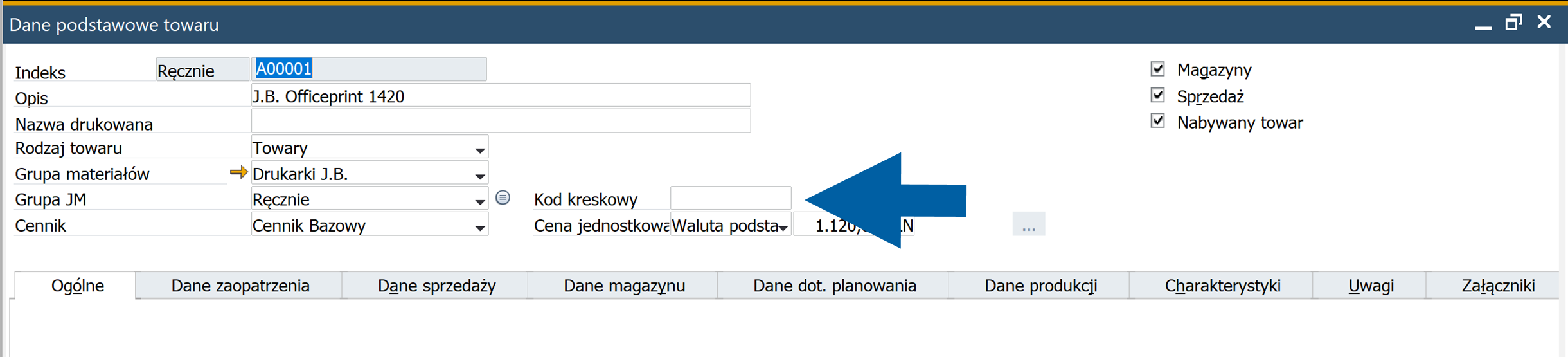
When required, maintain additional identification information used for item matching. For example, you can maintain an EAN in the Bar Code field of the item master data.
Match base documents
CompuTec KSeF can match an incoming invoice with the corresponding base documents in SAP Business One.
The type of base document and the information used for matching depend on the incoming invoice type and subtype.
CompuTec KSeF attempts to find the appropriate base documents automatically. Review the result before continuing. If the proposed match is not appropriate or no base document was found, you can select the base documents and match individual lines manually.
How base document matching works
CompuTec KSeF searches for base documents based on the incoming invoice type:
- Advance invoice – Searches for a corresponding paid down payment request in SAP Business One based on the invoice amount.
- VAT invoice – Item – Searches the supplier's open Goods Receipt POs using available information such as the document reference, item, and quantity.
- VAT invoice – Service – Searches the supplier's open purchase orders using available invoice-line information, such as the description and value.
- Correction invoice – Uses the KSeF number of the original invoice to find and verify the corresponding A/P invoice in SAP Business One.
If CompuTec KSeF does not find the required base document automatically, or the proposed match is not appropriate, you can use Match Base Documents to select the base document and match the invoice lines manually.
Match base documents manually
To review or change the base document matching:
-
Open the incoming invoice.
-
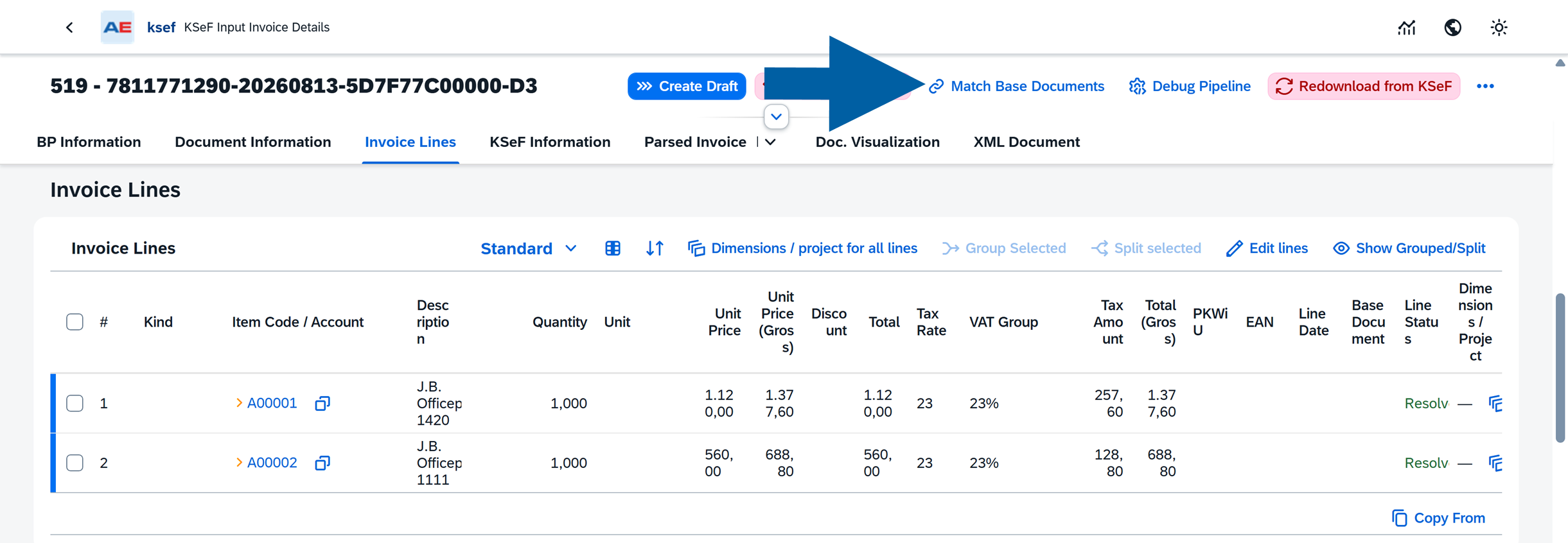
Click Match Base Documents at the top of the page.
-
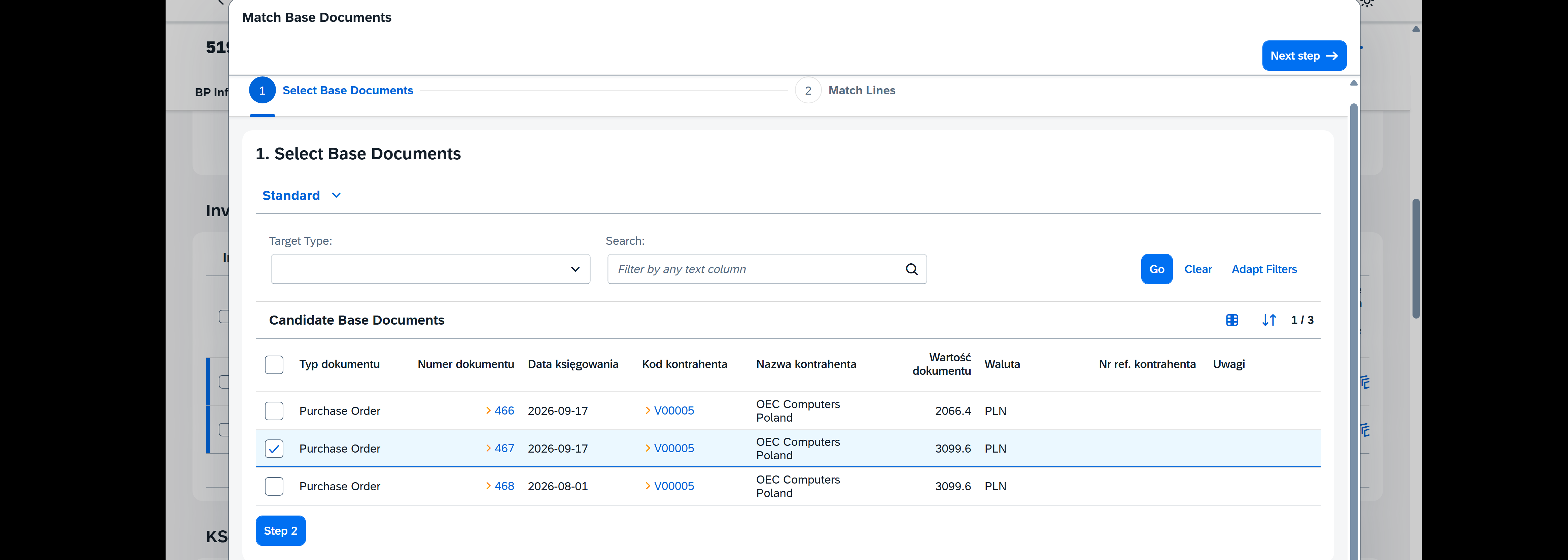
In Select Base Documents, review the documents available under Candidate Base Documents.
noteThe documents displayed here depend on the incoming invoice type and subtype.
-
Select the SAP Business One document that you want to use as the base document.
 info
infoYou can use the available filters and search options to find the required document when necessary.
-
Click Step 2 to continue to line matching.
-
In Match Lines, review the proposed mappings between Base Document Lines and Incoming Invoice Lines.
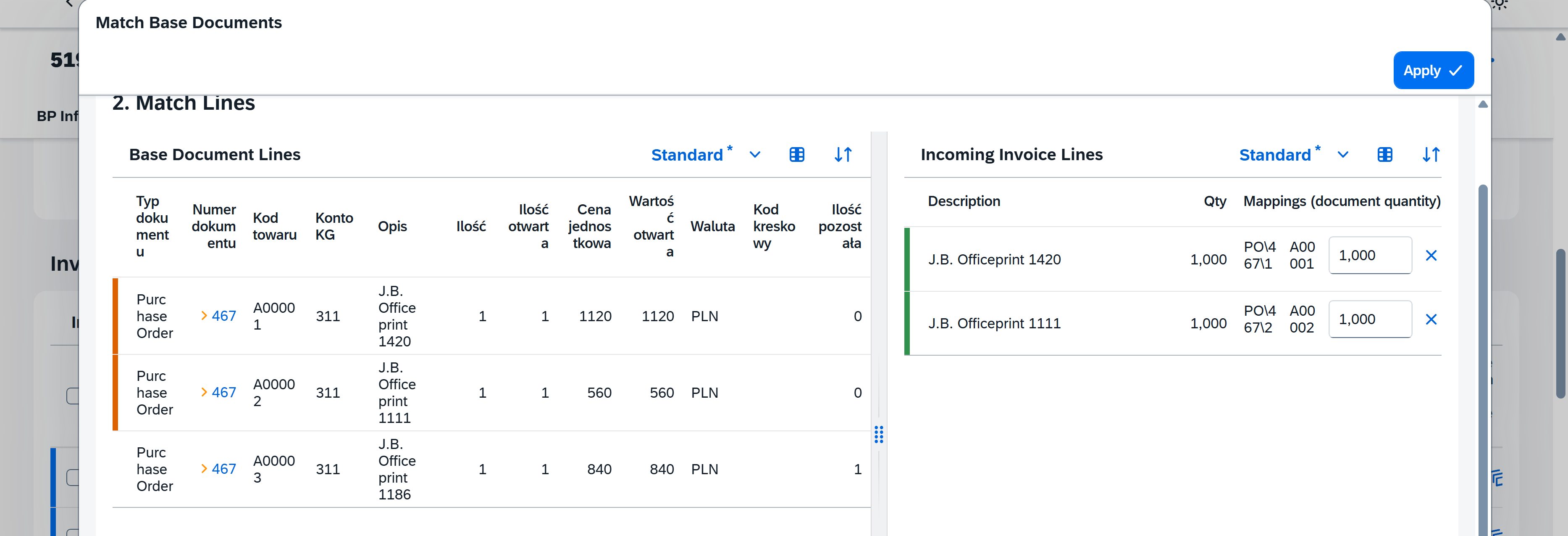
The left side displays the lines from the selected SAP Business One base document. The right side displays the incoming KSeF invoice lines and their current mappings.
-
If the proposed mappings are correct, click Apply.
-
If you want to change a mapping, drag the required line from Base Document Lines on the left and drop it onto the corresponding Incoming Invoice Line on the right.
-
Click Apply.
-
The selected base documents and line mappings are applied to the incoming invoice.
Review the matched base documents
After applying the matching, return to Invoice Lines.
The Base Document column displays the SAP Business One document matched with each invoice line.
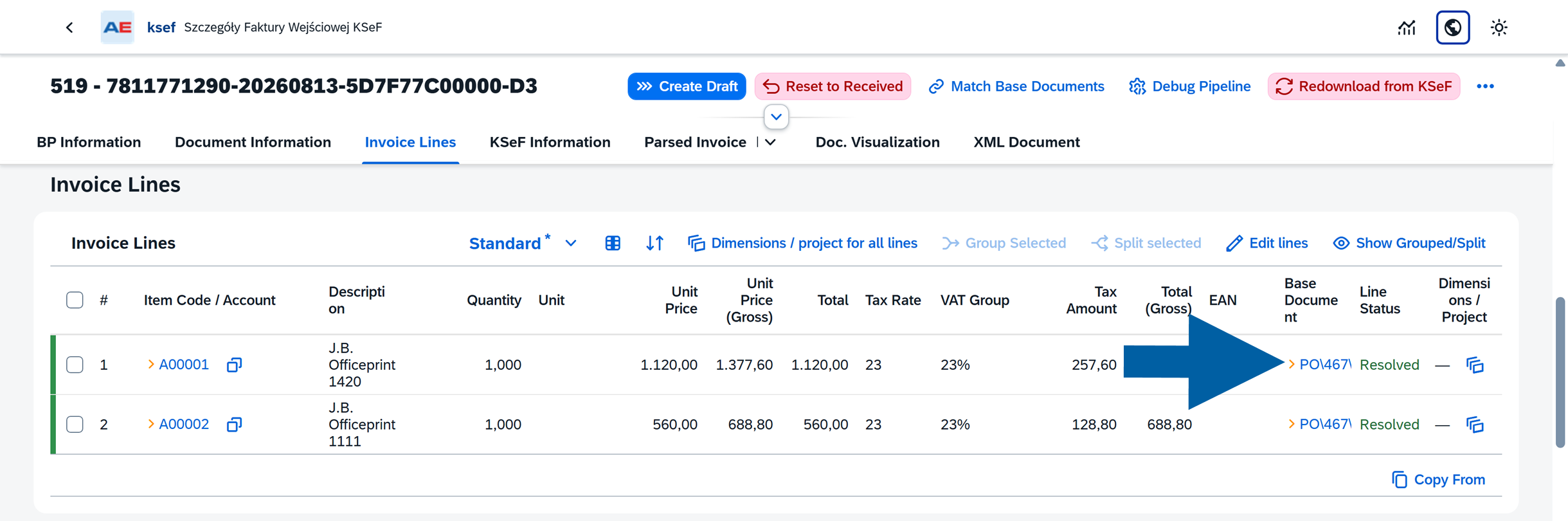
Review the following information:
- Item Code / Account – The SAP Business One item or G/L account assigned to the invoice line.
- Base Document – The SAP Business One base document matched with the line.
- Line Status – Indicates the current processing state of the invoice line.
When a line has been successfully processed and matched, its Line Status is Resolved.
The value in Base Document is a link to the corresponding SAP Business One document. Click the link if you want to review the source document and verify the match.
Review the base document assignments before continuing, especially if you changed the automatically proposed mappings manually.
Result
The required SAP Business One item codes or G/L accounts are assigned to the incoming invoice lines.
The incoming invoice lines are matched with the appropriate SAP Business One base documents.
The matched documents are displayed in the Base Document column in Invoice Lines, and successfully processed lines have the Resolved status.
When the invoice information and base document mappings are correct, you can continue with SAP Business One draft creation.
Next step
Click Create Draft to create the corresponding SAP Business One draft.
The next processing steps are described in Create and process an SAP Business One draft.